Help the "Overseas Video Speedup for bilibili" extension find the fastest Bilibili video servers in your country. After the test, the 10 fastest servers are added to the extension's "Custom node list" automatically.
What does this test do for you?
The "Overseas Video Speedup for bilibili" extension makes Bilibili videos load from faster servers (CDN nodes). But which nodes work well depends on your country and your internet provider, so the extension's built-in country list may not suit your connection.
That's why the extension has a custom node list (the "Custom" option) for nodes that suit your own connection. It starts out empty, and the "⚡ Auto-detect & add" button below it brings you to this page. This guide shows you how to fill that list automatically with the official speed test tool.
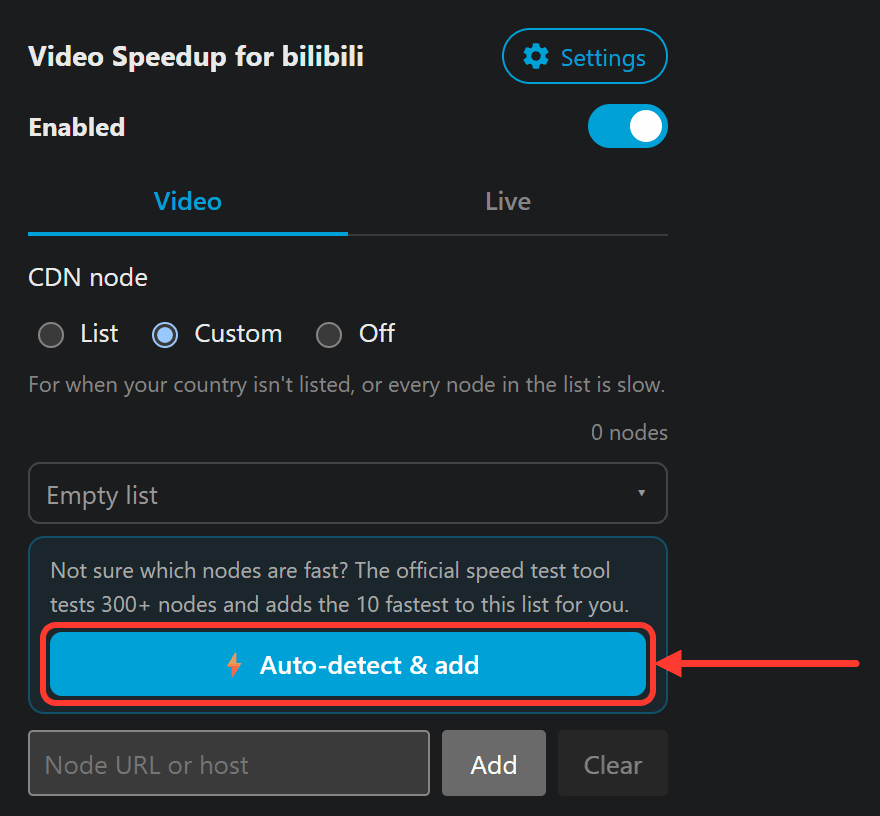
This app tests 300+ nodes on your own connection, using a dozen or so videos of different popularity and quality, and picks the 10 fastest and most stable ones for you. When you send the report, those 10 nodes are added to the custom node list automatically (see step 8 for how it looks).
You only need to run it once. Your results also help the developer improve the node lists for each country.
Before you start
| You need | Why |
|---|---|
| A Windows 10 / 11 PC | Mac is not supported |
| 50 Mbps or faster download (prize draw only) | The app checks this first; slower connections can't join the draw. Just testing has no speed limit |
| VPN / proxy turned off (prize draw only) | A VPN measures the VPN's network, not yours |
| 30–110 minutes (depends on your speed) | You'll see an estimate after the network check; please avoid streaming or large downloads during the test |
| A Bilibili account (required) | Log in by scanning a QR code with the Bilibili app so the test can run at 1080P or higher |
TIP
Test on the connection you normally use (home Wi-Fi or Ethernet). If you're on a laptop, plug it in so it doesn't go to sleep.
1. Download and open the app
After downloading, just double-click it. No installation needed.
NOTE
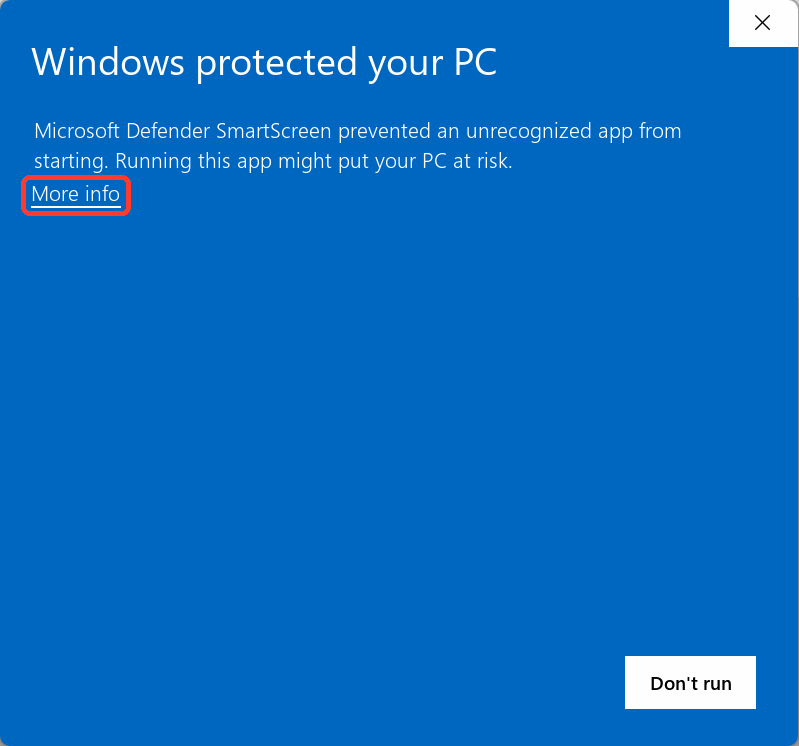
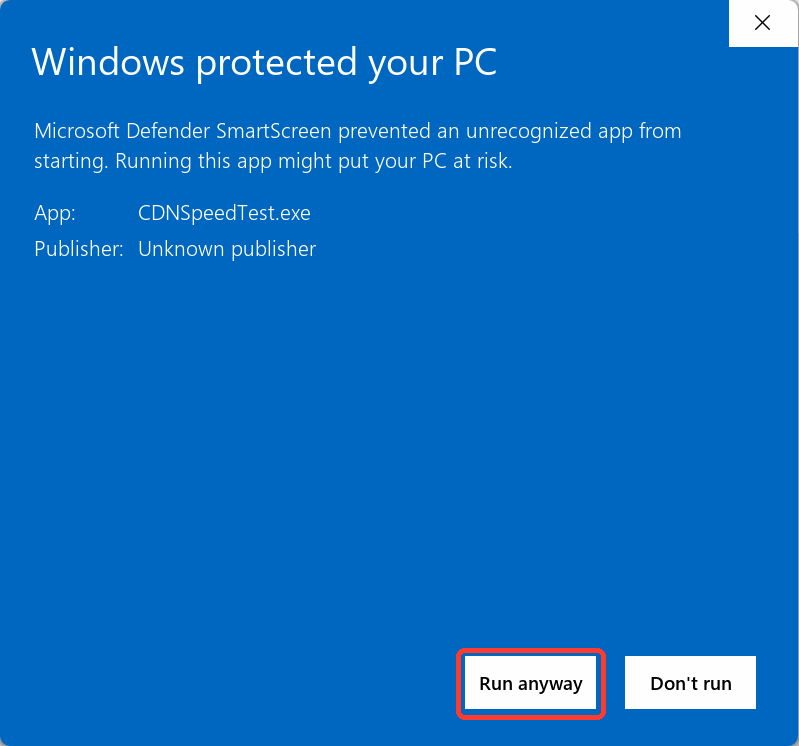
The app isn't code-signed, so Windows will show "Windows protected your PC". This is expected — click ① "More info" → ② "Run anyway".
| ① | ② |
|---|---|
 |  |
2. Choose a language and accept the privacy notice
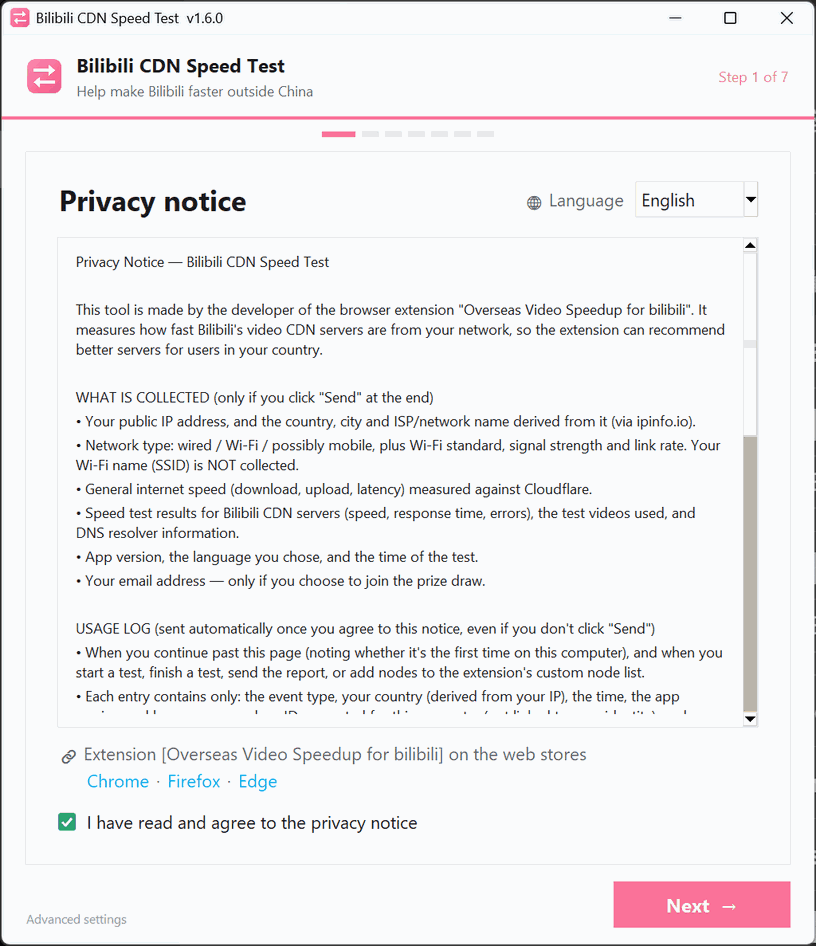
Switch the language at the top right. Read the privacy notice, tick "I have read and agree to the privacy notice", and click "Next".
3. Choose why you're testing
There are two options:
- Just test / build the extension's "Custom node list" (default): after you send the results, the 10 fastest servers are added to the extension's "Custom node list". The network check is for reference only — no minimum speed, and VPNs are allowed.
- Join the prize draw: the email field appears once you pick this. After the author has verified the results, gift card winners are drawn and notified by email. Joining the draw also builds the custom node list.
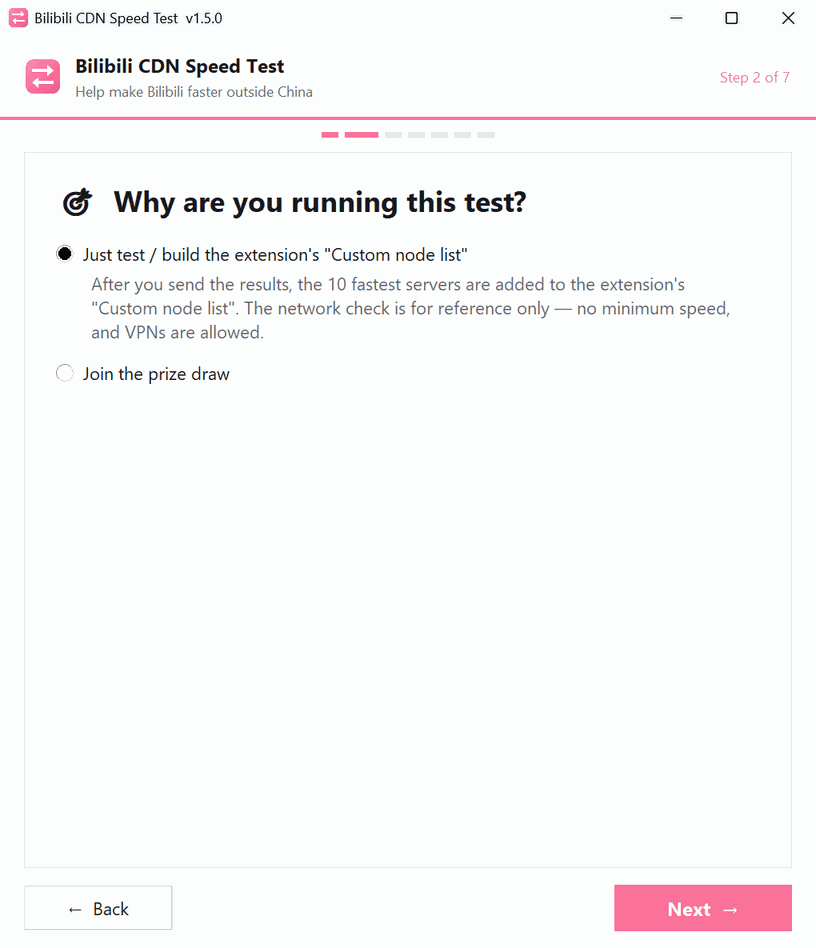
If the author gave you a guaranteed-prize invite code, enter it below your email and click "Verify". When the code matches your email, a green box appears — you'll definitely receive a gift card once your results are verified.
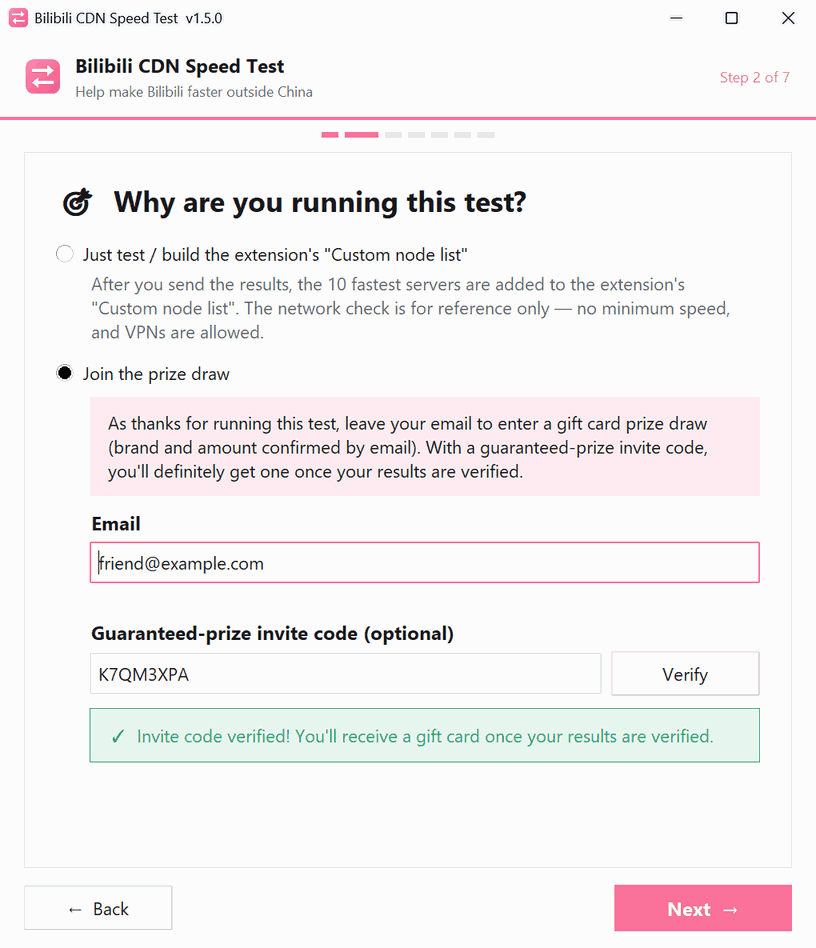
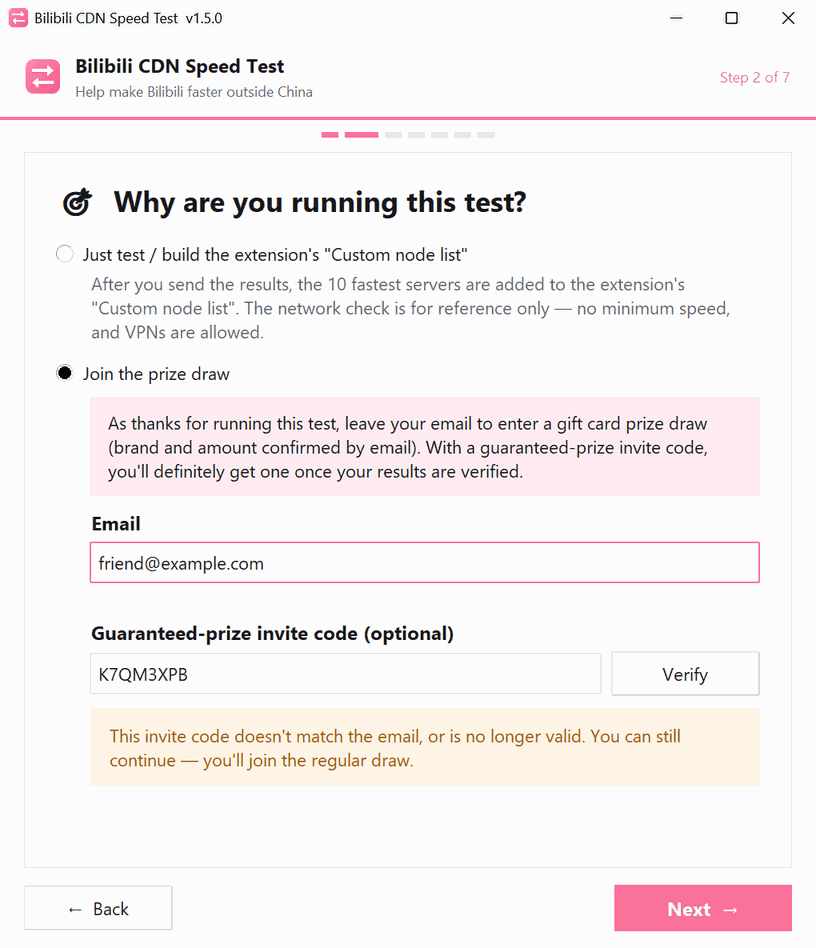
If the code doesn't match or is no longer valid, you can still click "Next" — you'll join the regular draw.
4. Network check
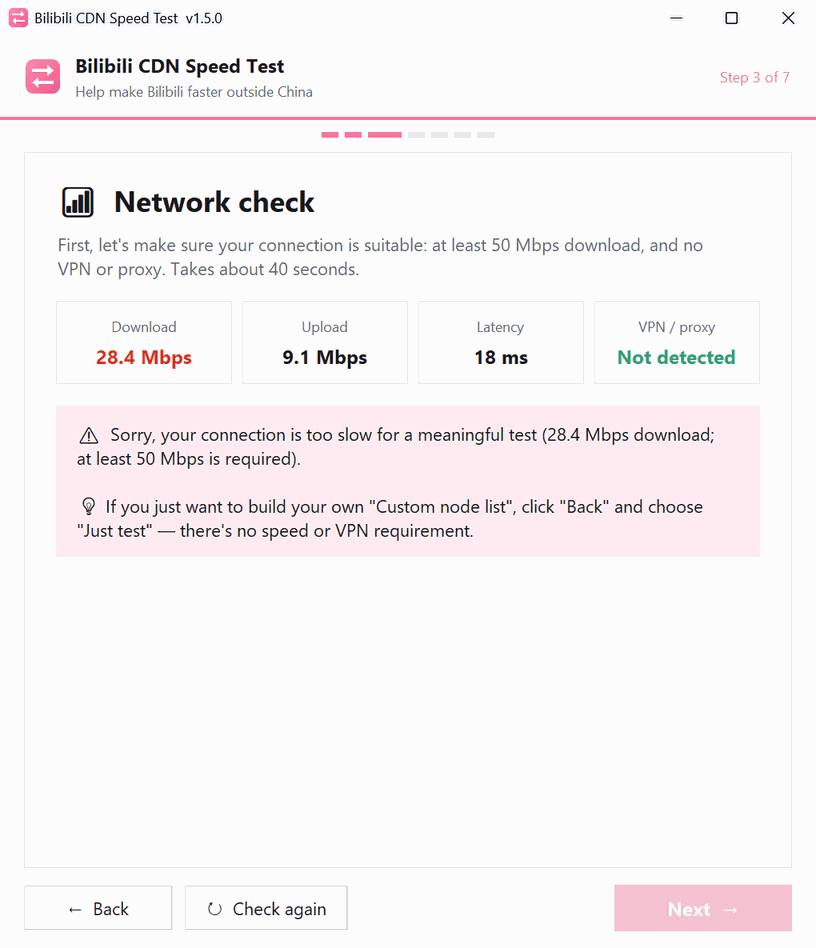
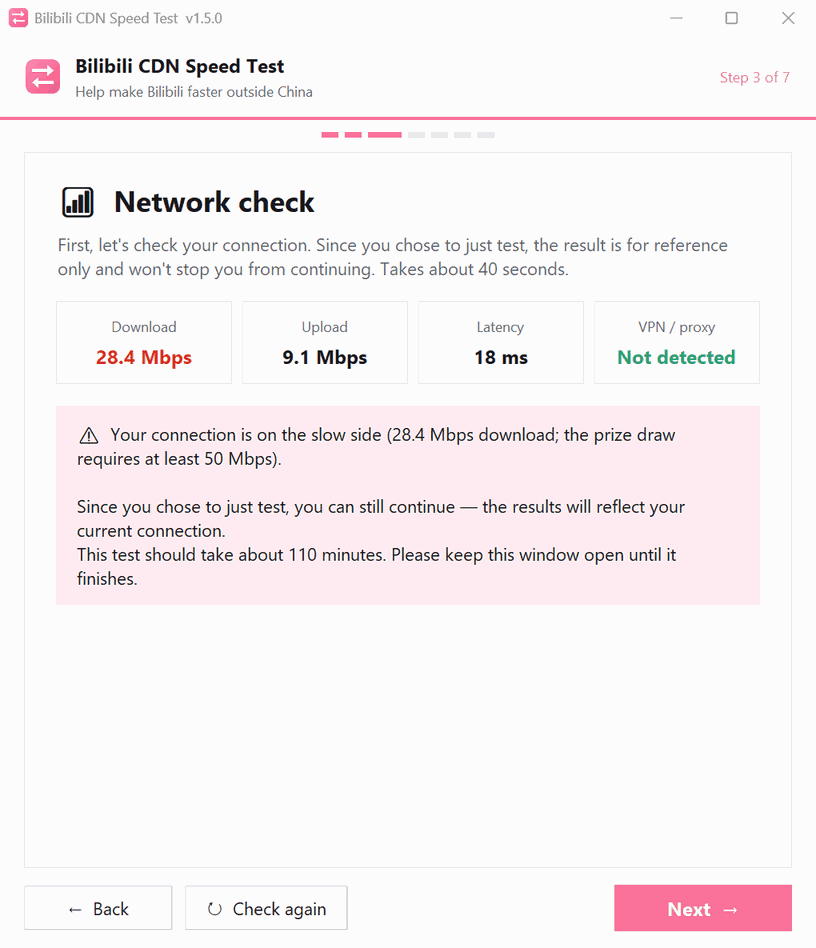
For about 40 seconds the app measures your download, upload and latency, and checks for a VPN. Then it shows how many minutes the test should take — keep the window open until it finishes. Click "Next" to continue.
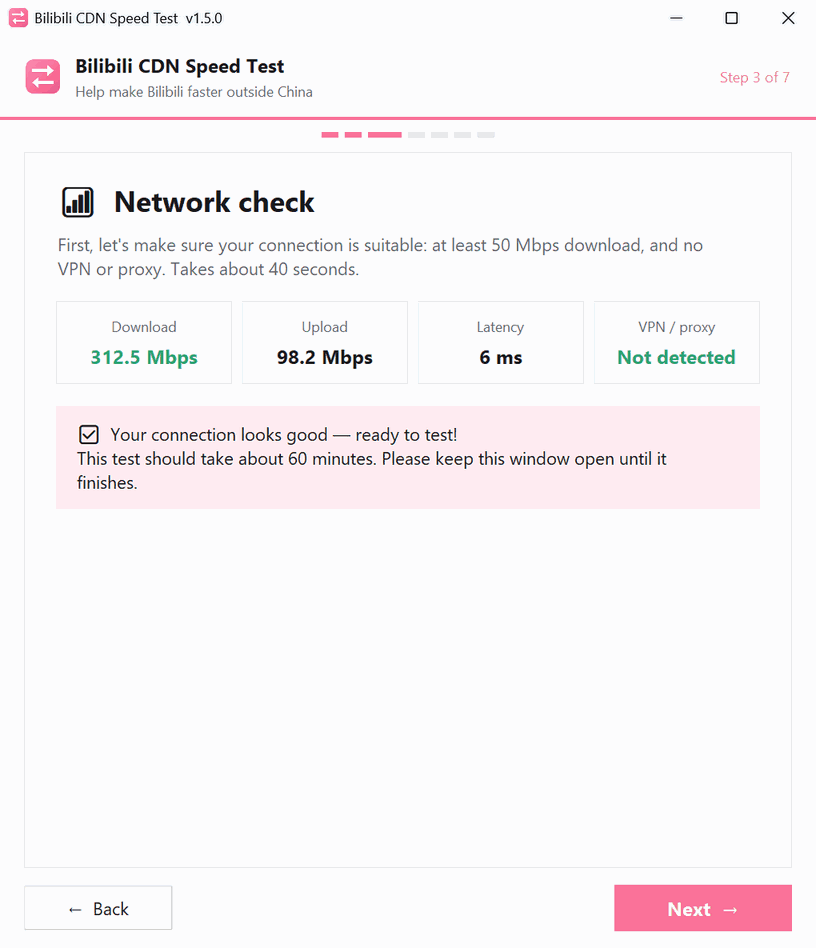
If you're joining the prize draw and your download is below 50 Mbps or a VPN is detected, you can't continue. Turn off the VPN or move to a faster connection, then click "Check again" — or, if you only want your own node list, click "Back" and choose "Just test".
If you chose "Just test", it's only a warning and you can still click "Next".
5. Log in with the Bilibili app
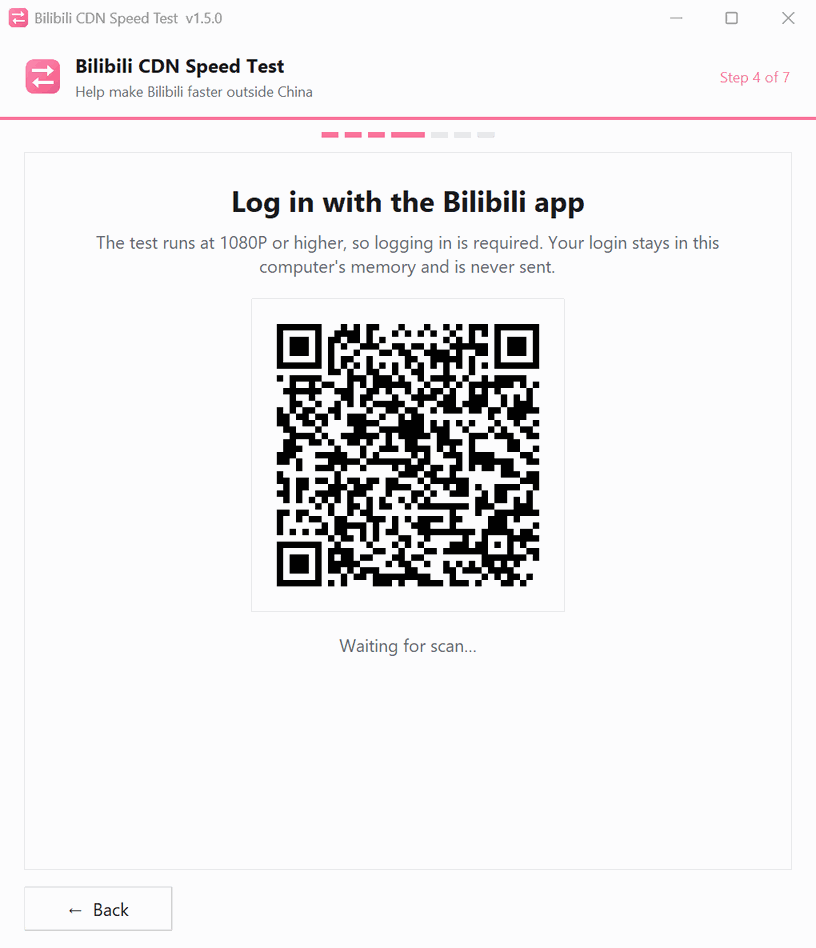
Open the Bilibili app on your phone, tap the scan button at the top right, scan the QR code, and confirm on your phone. The login stays in this PC's memory only, is never sent anywhere, and disappears when the app closes.
6. Wait for the test to finish
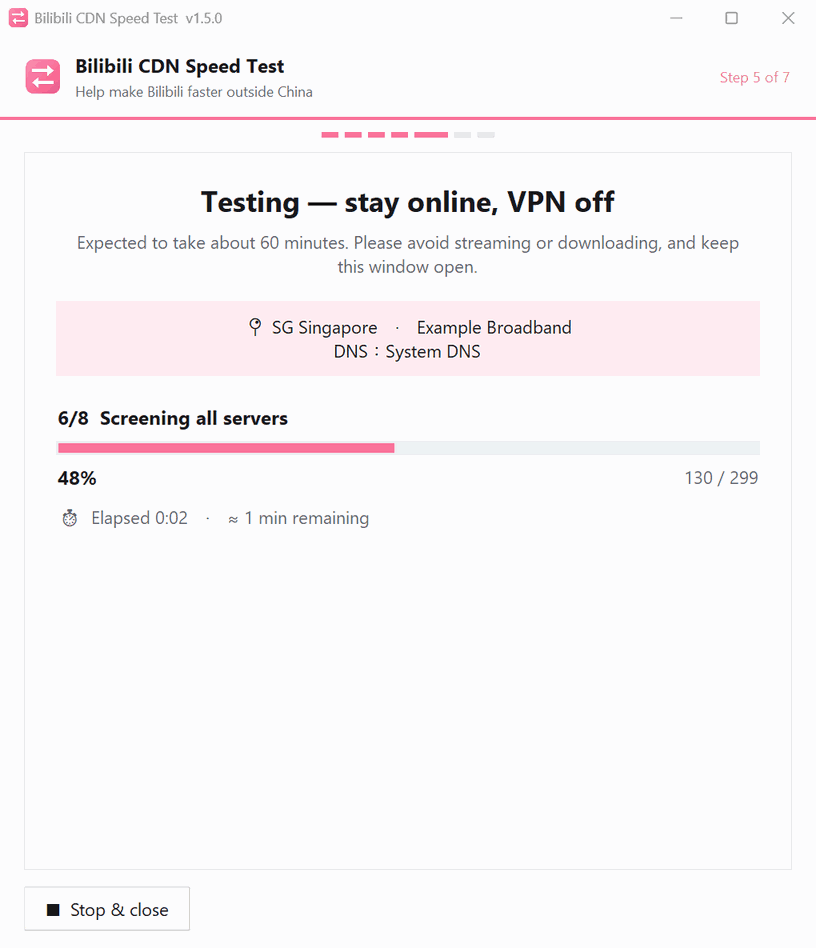
The test runs by itself. It takes about 30–110 minutes, depending on your connection. You'll see the current stage, progress, and time remaining.
To stop early, click "Stop & close". Nothing is sent.
7. Review and send the report
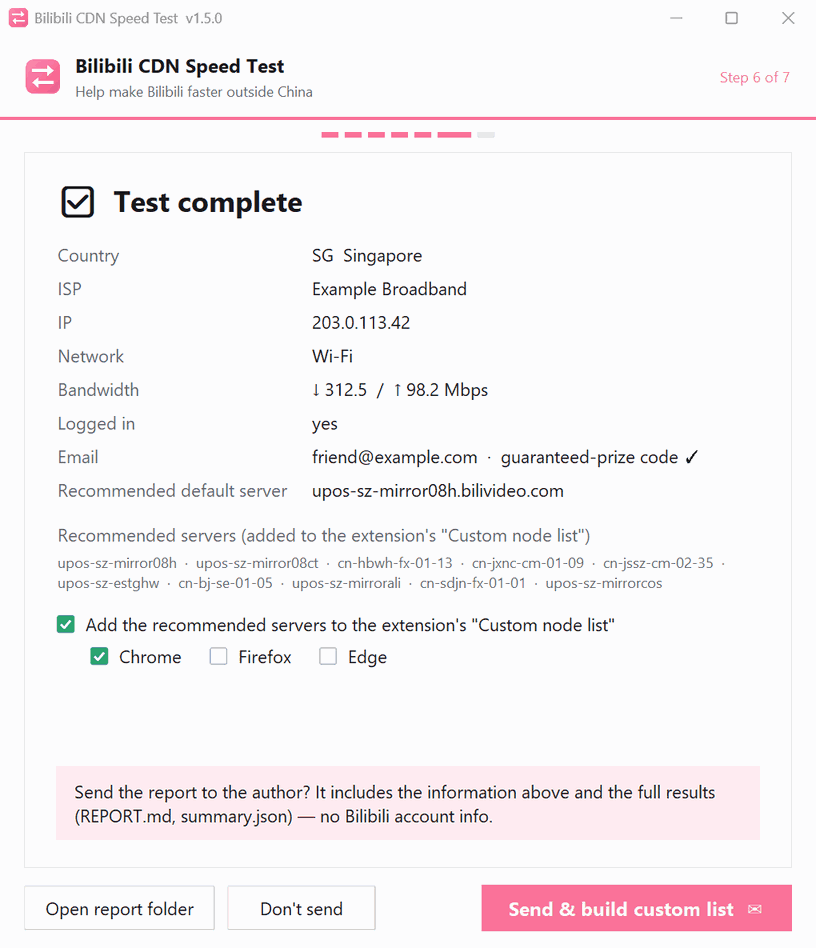
When the test finishes, the app shows exactly what will be sent: country, ISP, IP, network type, bandwidth, and the recommended servers for your "Custom node list". Below that you can choose whether to add them to the extension, and in which browsers (Chrome, Firefox, Edge — Chrome is ticked by default). Click "Send & build custom list".
8. Done
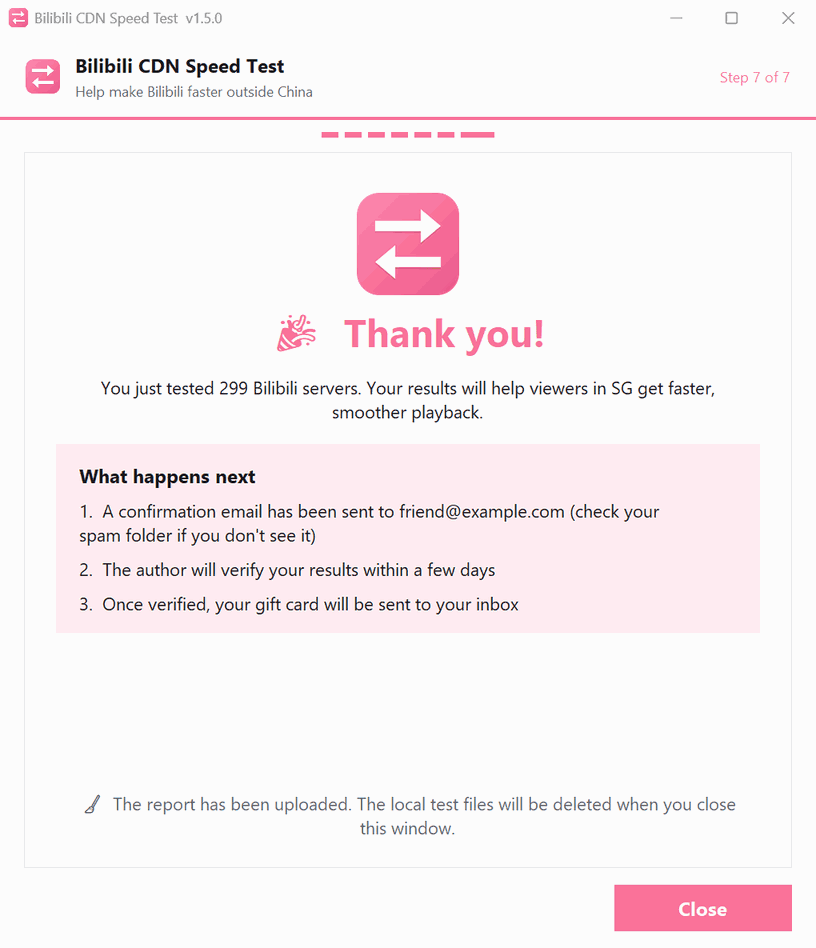
That's it — thank you! If you entered an email, you'll get a confirmation (check your spam folder if you don't see it).
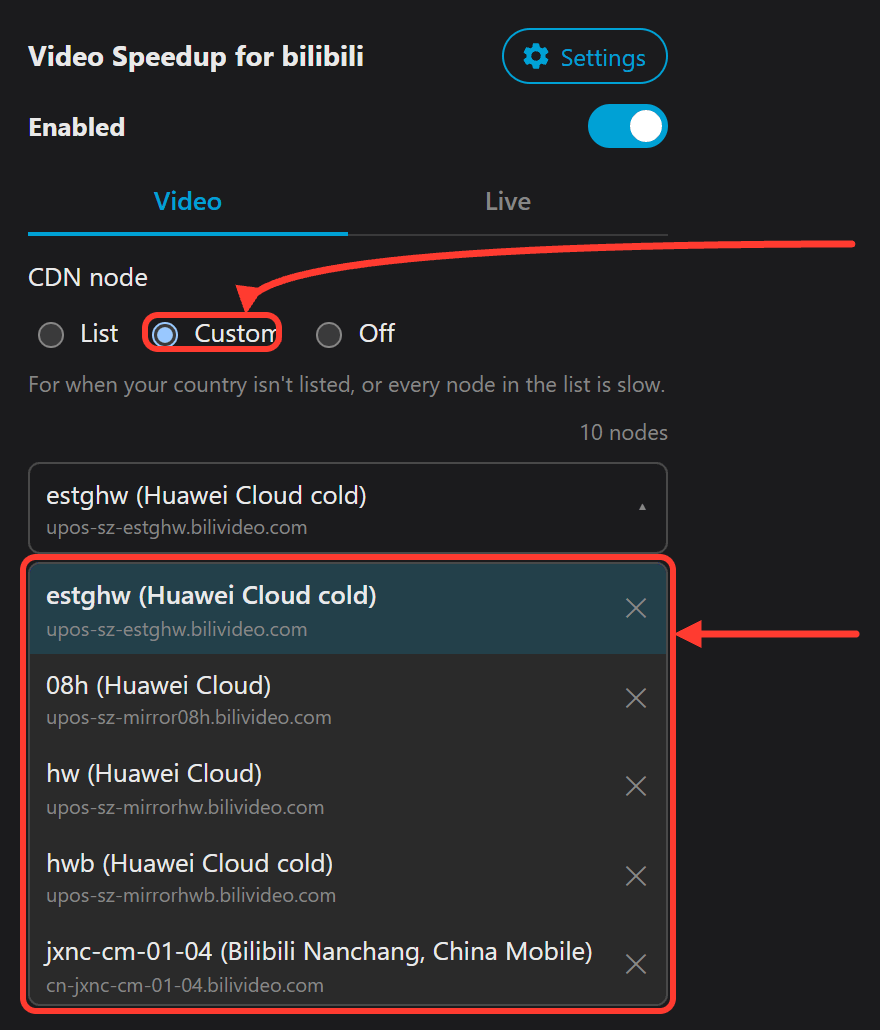
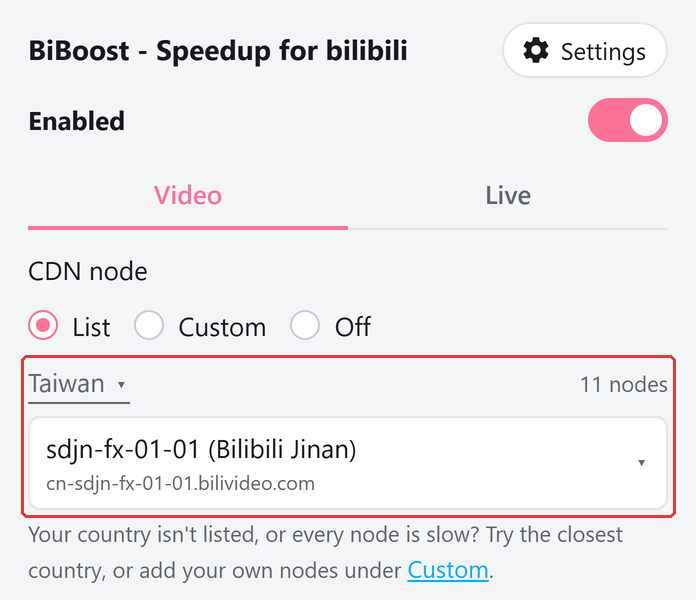
If the extension is already installed in the browsers you ticked, the app opens Bilibili in each of them and hands the nodes to the extension. Then open the extension menu and choose "Custom" — the drop-down lists the 10 nodes from your test. Click one to switch to it.
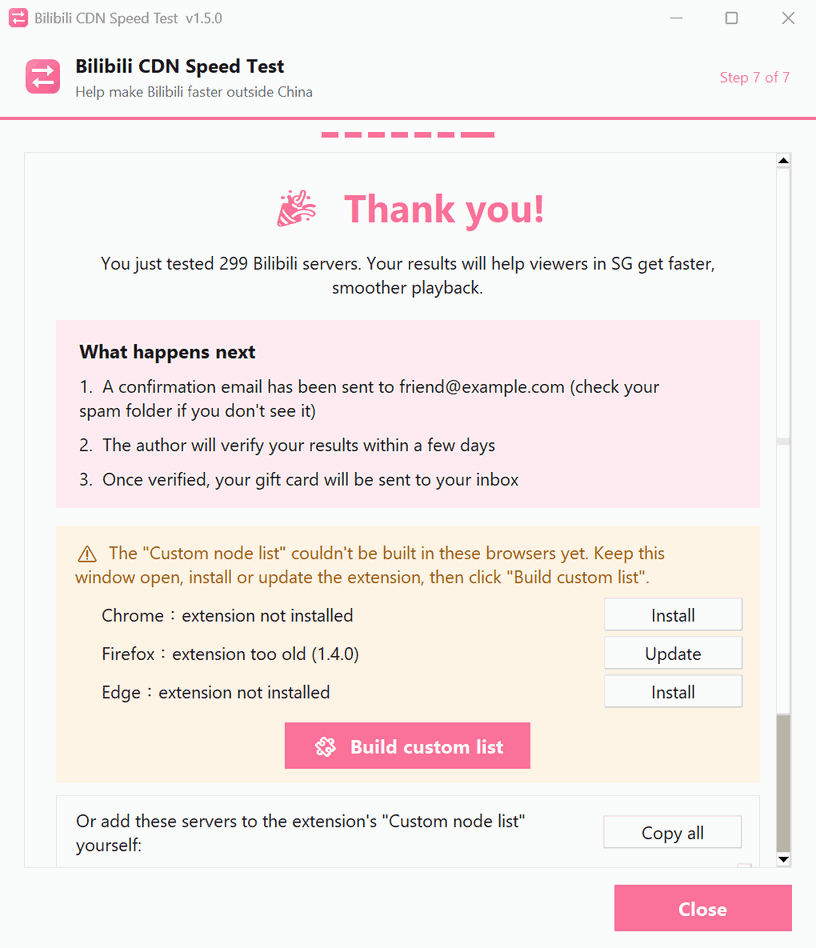
If the extension isn't installed (or is out of date) in a browser you ticked, the thank-you page lists it with an "Install" button for that browser. Keep the window open, install it, then click "Build custom list" in the middle.
When you click "Close", the test files on your PC are deleted automatically.
FAQ
My internet is fast, but it says it's too slow? Another device may be downloading, or the Wi-Fi signal may be weak. Move closer to the router, pause other downloads, and click "Check again".
I'm not using a VPN, but it says one was detected? Make sure no VPN software is running (including a work VPN or Cloudflare WARP), and that your PC's time zone matches where you are.
What data is sent? The test report is sent only when you click "Send": your IP and the country / city / ISP derived from it, network type, bandwidth, the speed results for each server, and your email if you entered one. After you accept the privacy notice, a simple usage log is also sent (for example when a test starts, finishes or is sent, with your country) to count how many people use the app. Your Bilibili account, password, browsing history and files are never sent.
My invite code didn't verify? Make sure you entered the same email the code was issued to (upper/lower case doesn't matter) and that the code is typed correctly. Codes expire once the prize has been sent.
The custom node list wasn't built? Make sure the extension is up to date and not disabled. Keep the thank-you page open and click "Build custom list" in the middle to try again — or open the extension menu and add nodes yourself under "Custom node list".
What happens if I click "Don't send"? The results stay in "Documents\CDN-SpeedTest" on your PC and nothing is uploaded.
Comments(0)
No comments yet. Be the first to share your thoughts!