IMPORTANT
TL;DR: invite code 8EOUWL
Redeem it in Settings within 48 hours of signing up and we both get 1 billion tokens (the unit AI apps use to meter usage; think of them as credits). Only here for the sign-up steps? Skip to "How to sign up".
On October 9 I went to the Singapore Grand Prix. The afternoon before, I was chatting with Muse about something else, and it tacked on a cheat sheet of its own: what time my session was, the weather, what to bring, and which way to walk out after for the fastest train home.
I hadn't said a word to it about F1. It found the event in my calendar by itself.
What is Muse?
Muse is an AI assistant Meta launched in September 2026, built by the team under Meta's Chief AI Officer, Alexandr Wang.
What sets it apart from ChatGPT and friends is that it's proactive. Think of a smarter Siri, except Siri waits for "Hey Siri" and Muse goes looking for things to do.
"Proactive" really comes in two layers:
- Ask once, it keeps going: it turns what you ask for into scheduled jobs and runs them on an always-on cloud computer of its own (Meta calls it the Muse Secure VM: a Linux machine with a full browser), where it can open pages, sign in to sites and install the tools it needs. ChatGPT has scheduled tasks too, and its agent mode opens a browser, but that browser spins up for a task and goes away when it's done. Muse's machine is always there.
- It handles what you didn't ask for: it goes through the calendar and inbox you've connected on its own, and when it finds something that matters to you, it decides whether to tell you. This layer is why I keep using it, and the F1 story below is the example.
I have mine watching flights and scanning job postings (reading my email is part of the job hunt). Each gets its own section below, with one in between for something it did without being asked. Here's my actual log from October 18:
Five hours, three daily jobs (flights, LinkedIn, Indeed) plus an email check every 15 minutes, and my phone buzzed twice:
- 09:09, the flight report, the one I asked it to send daily
- 11:53, two so-so job postings. A bad call this time (more on how it fixed that later)
The 09:52 LinkedIn scan found nothing, so it stayed quiet. Honestly that's just "no results, no message," but at least there's no "just checking in, nothing to report."
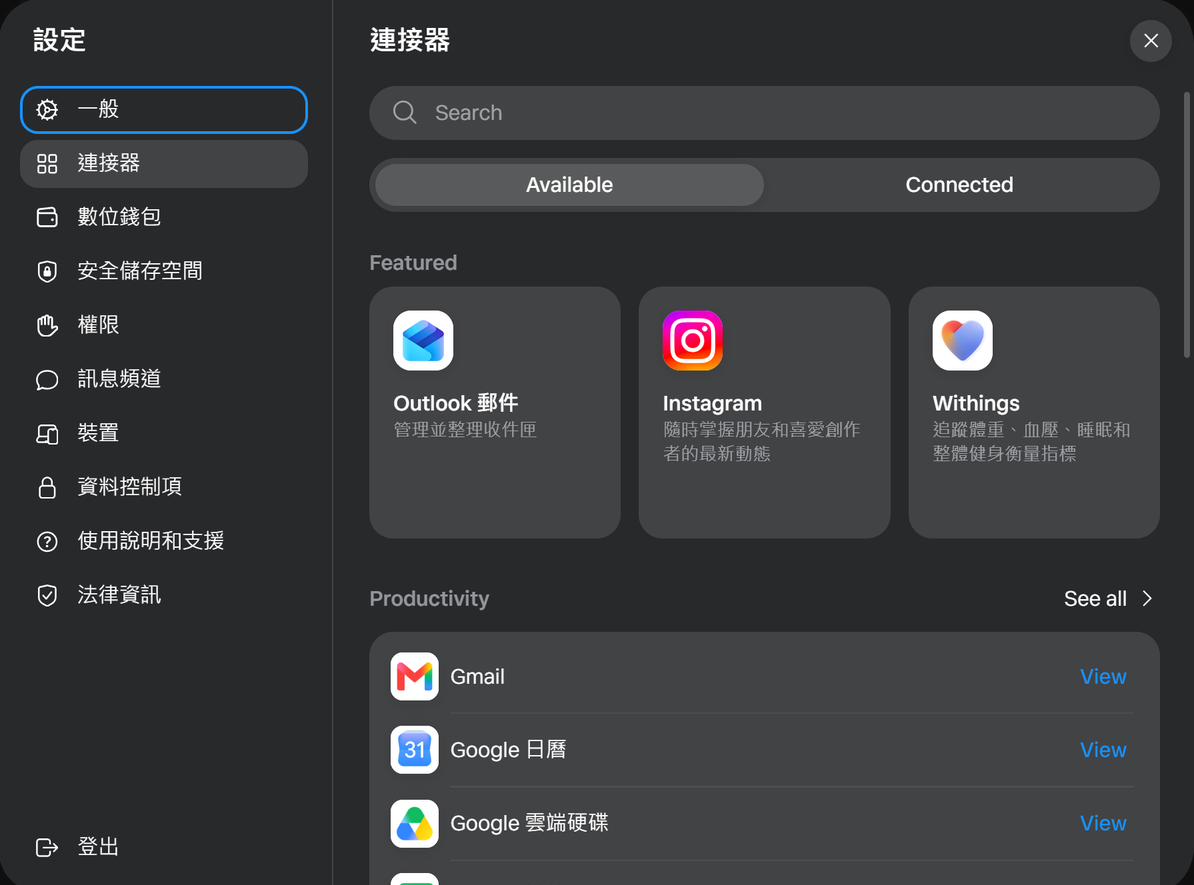
What it can see depends on what you connect. The Connectors page in Settings links services like Gmail, Google Calendar, Outlook and Instagram (scroll down for GitHub, Zoom and more). If it isn't connected and you haven't handed over a password, Muse can't touch it. For things you can't take back, like sending an email or placing an order, Meta's design has it ask for your approval first. (My Muse runs in Traditional Chinese, so the screenshots in this post are in Chinese. I'll explain what each one says.)
Pricing: the free plan comes with a weekly allowance (100 million tokens a week, according to Taiwanese outlet Cnyes). If that's not enough, paid plans are $20 or $100 a month.
What can Muse do? Three things I actually use it for
1. Watching flight prices every day
On October 15 I told it: check the cheapest one-way flight from Singapore to Taipei every day.
I told it to use Google Flights. It came back saying Google Flights has no public API (no way for other programs to query it) and switched to Duffel (a service for live airline fares) on its own. Then it set up a daily job at 08:52 and started tracking the lowest fare since it began watching. I gave it a target of SGD 130, and it sends a special alert only when a fare drops below that.
The Goals page shows the whole story:
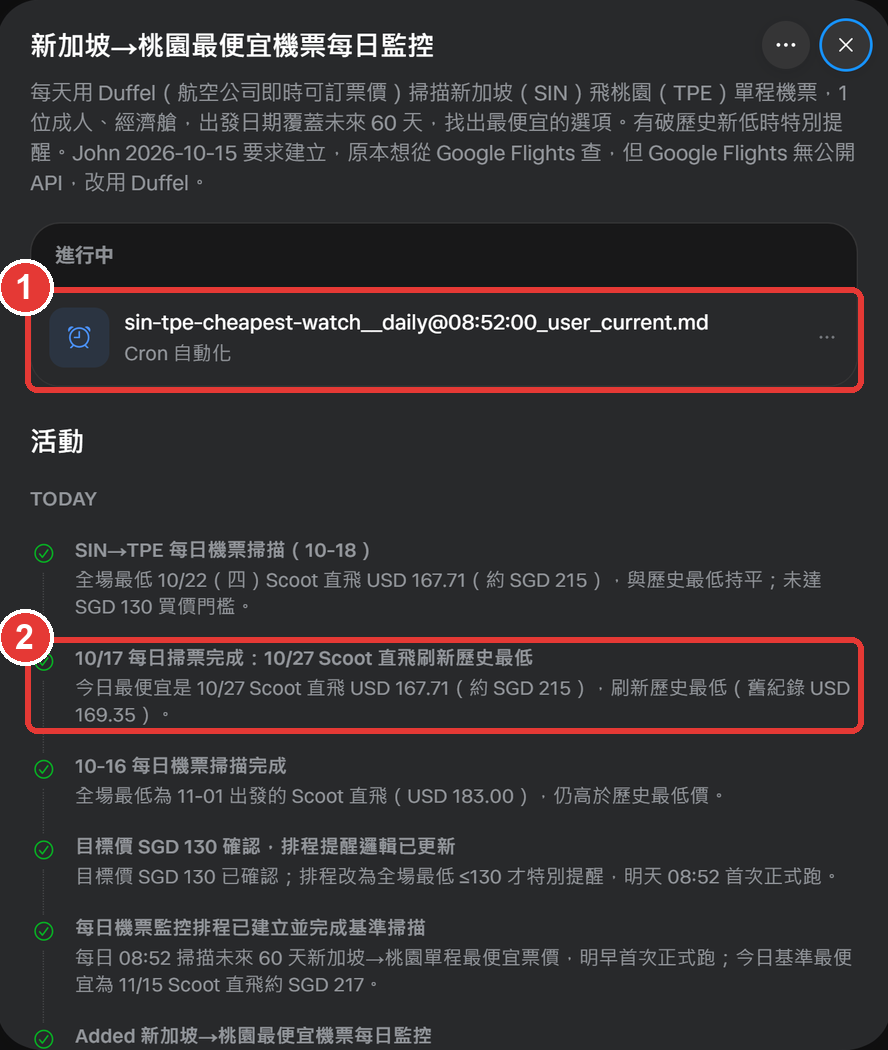
Box 1 is the job it created. Box 2 is October 17, when it spotted a Scoot direct flight at a new low.
The morning message looks like this:
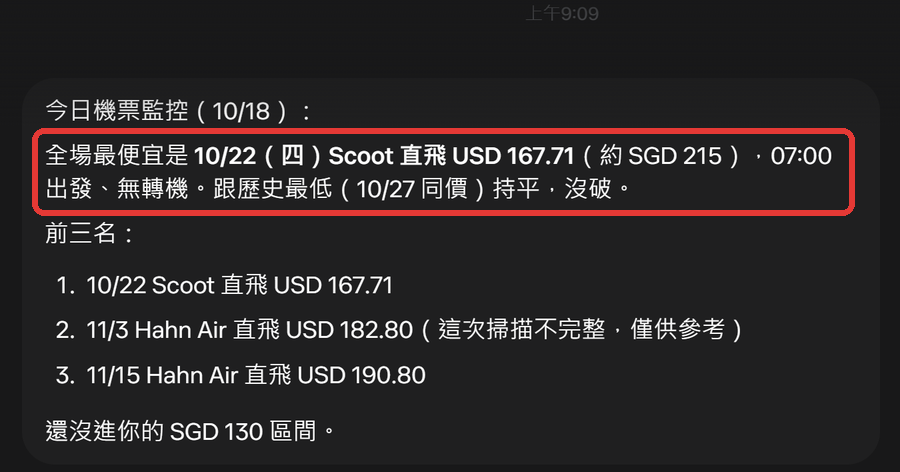
Translation: the cheapest is Oct 22, Scoot direct, USD 167.71, same as the lowest so far. Then the last line: "Still not in your SGD 130 range." It remembers my target better than I do (the lowest is still around SGD 215, nowhere near 130).
Not every line is trustworthy, though. Hahn Air in second and third place is an airline that mostly issues tickets on behalf of other carriers, so "direct" looks fishy. Muse flagged the second-place scan as incomplete but not the third. I still give these a quick sanity check myself.
2. Something I never asked for: an F1 cheat sheet
This is the F1 story from the intro.
My calendar is connected to Muse, and it had one entry for Friday, October 9: F1 Singapore, 14:00 to 22:00.
On the afternoon of October 8, I was in a back-and-forth with it about syncing my bookmarks. After answering that, it added a separate message:
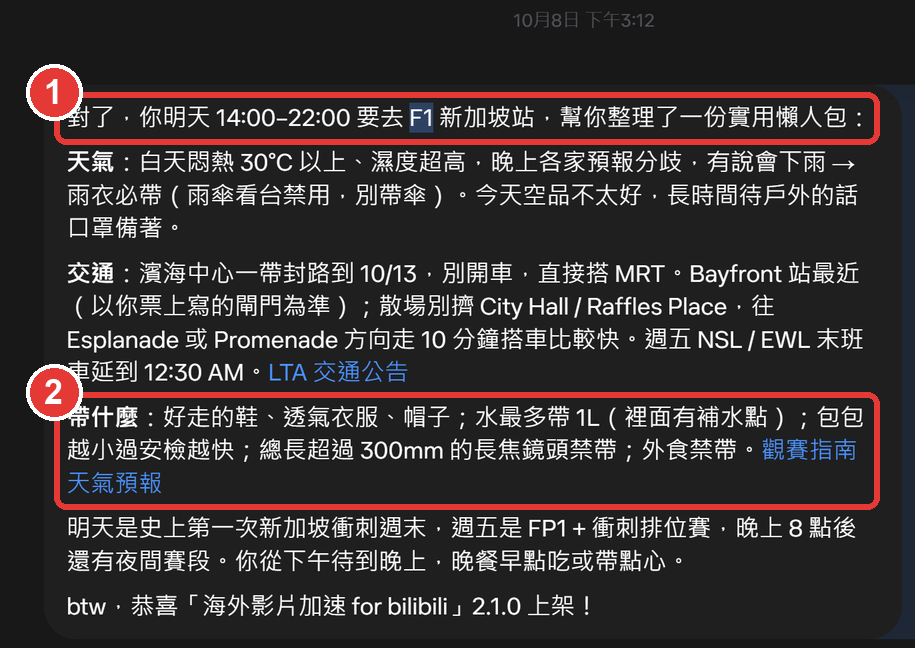
Box 1: "You're going to F1 Singapore tomorrow, 14:00 to 22:00. Here's a practical cheat sheet." Box 2, what to bring: 1L of water max, no lenses longer than 30 cm, no outside food. It also covered weather, transport and which station to walk to after the session, down to details I'd never have looked up myself, like umbrellas being banned in the grandstands so you should bring a raincoat.
It even ended with "congrats on shipping version 2.1.0 of your Bilibili extension." (It knows about that too...)
On Sunday, October 11, I had a hospitality lunch at a Marina Bay restaurant, also in my calendar. At 7:02 PM on October 10, it sent another one, with nobody asking:
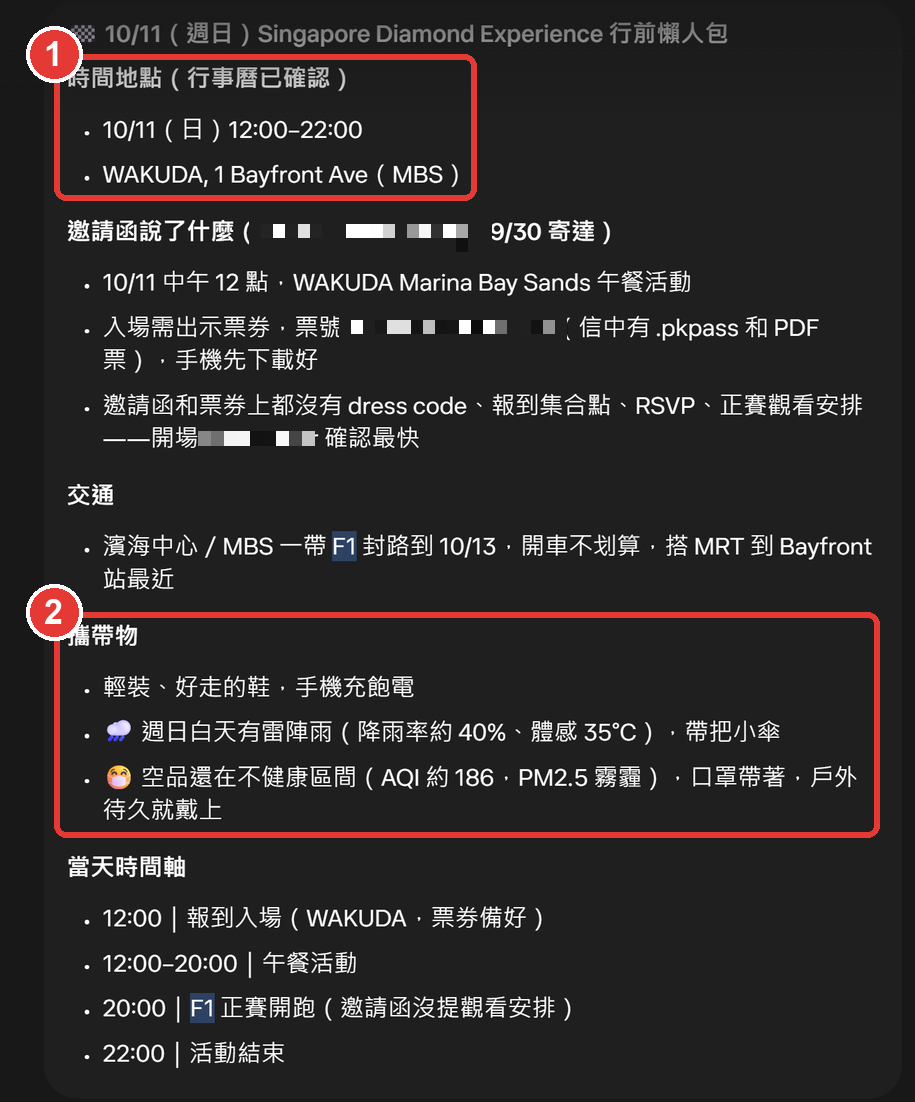
Box 1 is the time and place, "confirmed from your calendar." Box 2 is what to bring, factoring in Sunday's thunderstorms and unhealthy air quality. It also dug the invitation out of my inbox and summarized what it did and didn't say (I blurred the inviter's name and the ticket number).
Later that night I asked it, "What time should I get up, when do I leave, where do I meet?" and it laid out a schedule from a 9 AM wake-up to getting home at 11 PM. That one I asked for. The first two it sent on its own.
3. Job hunting on autopilot
I'm job hunting, so I had it install a LinkedIn tool on its cloud computer, sign in to my account, and set up a few jobs: scan LinkedIn and Indeed for new postings every day, check recruiter DMs every 12 hours, and check my inbox for LinkedIn notifications every 15 minutes. Everything gets scored with the rubric from my lazy-cv project (the site you're reading): 80 and up is green, so-so is yellow.
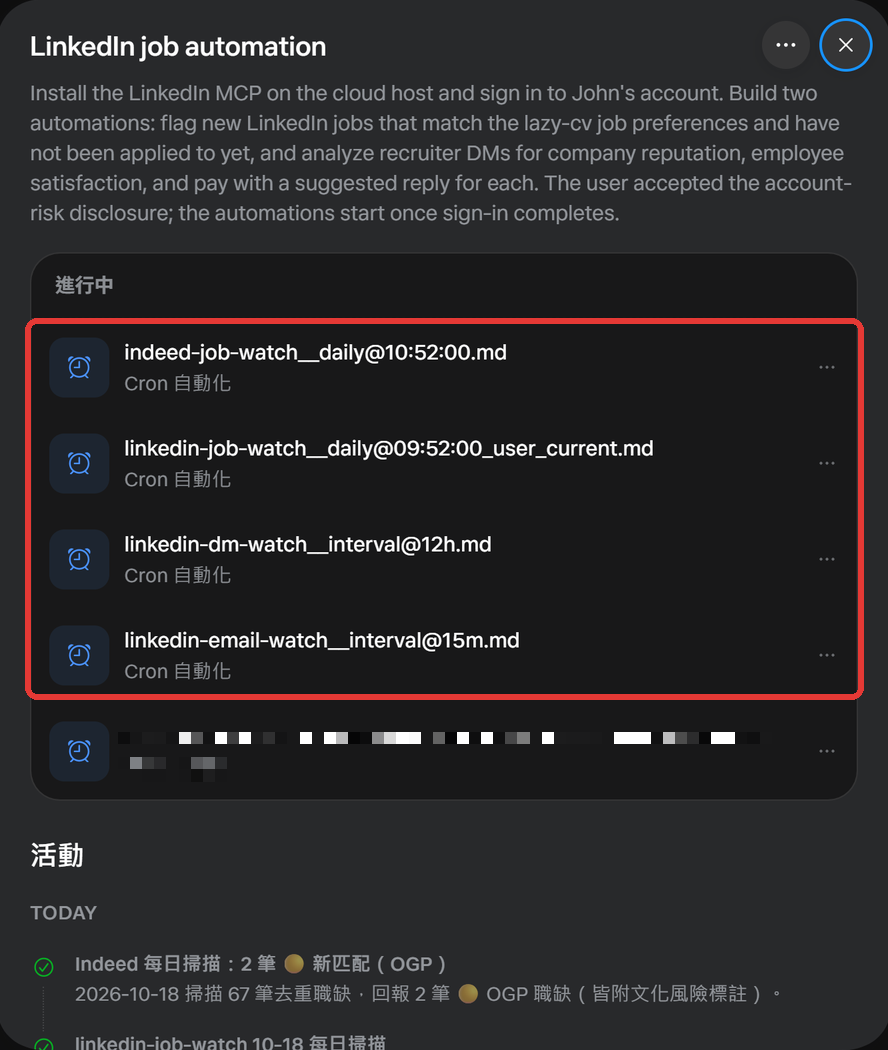
I didn't set these up one by one. I said what I wanted, and it split that into four jobs and named them itself (the fifth is a personal reminder, blurred).
A word of warning: handing it your LinkedIn password bypasses the connectors entirely, and running automation on LinkedIn can get your account banned. Muse showed me an account-risk notice before starting, and I chose to go ahead.
Which brings us to the 11:53 ping from the diagram. It sent me two yellow Indeed jobs, and I replied:
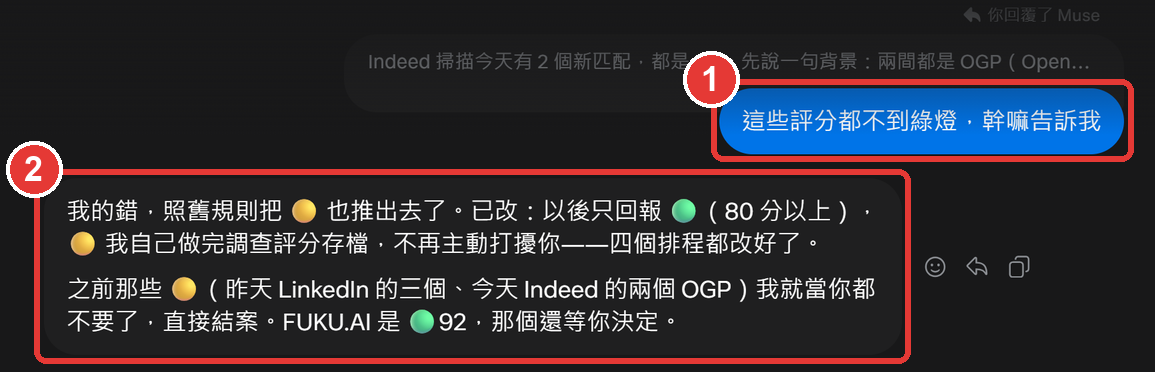
Box 1, me: "None of these are green. Why are you telling me?" Box 2, Muse: "My bad." Then it went and rewrote the rules on all four jobs: only green gets reported from now on, and yellow ones get scored and filed quietly.
Technically it's still editing prompts (each job is a file of instructions under the hood). The difference is I didn't have to. I just complained once.
What you'll need to sign up
- You're 18 or older
- A VPN (a tool that makes websites think you're in another country) that can connect to the US. I use TunnelBear (here's why)
- An email that has never touched Meta: anything you've signed up to Facebook, Instagram or Threads with doesn't count, and neither does one you've put on the Muse waitlist. It was the only difference in my one successful attempt; the next section explains why
- Credit card: I wasn't asked for one. Some people online say they hit a card check, so your luck may vary
Why TunnelBear?

Surfshark, the VPN with ads everywhere, advertises a rock-bottom monthly price that only applies if you commit to two years. Pay month to month and it costs several times more. But signing up for Muse needs a VPN for a few minutes (I haven't turned it on since; I use Muse from Singapore without it), so locking in for years makes no sense.
TunnelBear lets you pay for just one month and cancel after. There's also a free tier with 2GB a month, but the official site lists picking a country as a paid feature, so connecting to the US specifically means paying.
Download: tunnelbear.com/download
Icon: TunnelBear on the App Store
How to sign up
Muse is US-only for now. I'm in Singapore, and it took me three tries:
- Attempt 1: VPN + an email I'd put on the waitlist earlier from Singapore (no VPN back then) → waitlisted again
- Attempt 2: VPN + logging in with my existing Meta account → "Region not supported"
- Attempt 3: VPN + a fresh email that had never touched Meta → it worked
The annoying part: the VPN was on every time (assuming it was working properly), so whatever killed the first two attempts probably wasn't the IP.
What follows is worked backwards from the results, not anything official. Muse runs on Meta accounts, and even signing up with an email quietly creates one (the first item in Settings is "Meta account").
- The IP is gate one: the email from attempt 1 was first entered from Singapore with no VPN, and it landed on the waitlist.
- Attempt 1: queuing up from Singapore stamped that email "not in the US," and switching to a US IP later didn't wash it off.
- Attempt 2: I created that Meta account in Singapore, so Meta's records don't say US, and a VPN can't rewrite the past.
- Attempt 3: a brand-new email, so the account was born on a US IP. Muse has nothing on file saying you're not in the US.
Once you're in, I use Muse from Singapore every day without the VPN. Looks like the region is only checked at sign-up.
Method 1 below is what I did. Method 2 needs ChatGPT Plus, so I couldn't try it. Method 3 I followed from an online guide up to the sign-up page.
Method 1: VPN to the US + a fresh email (what I did)
1. Turn on your VPN (I use TunnelBear), connect to a US server, and open a private/incognito window.
The private window is insurance: if your browser is still signed in to Facebook or Instagram, Meta may pull in that old account, and you're back to attempt 2.
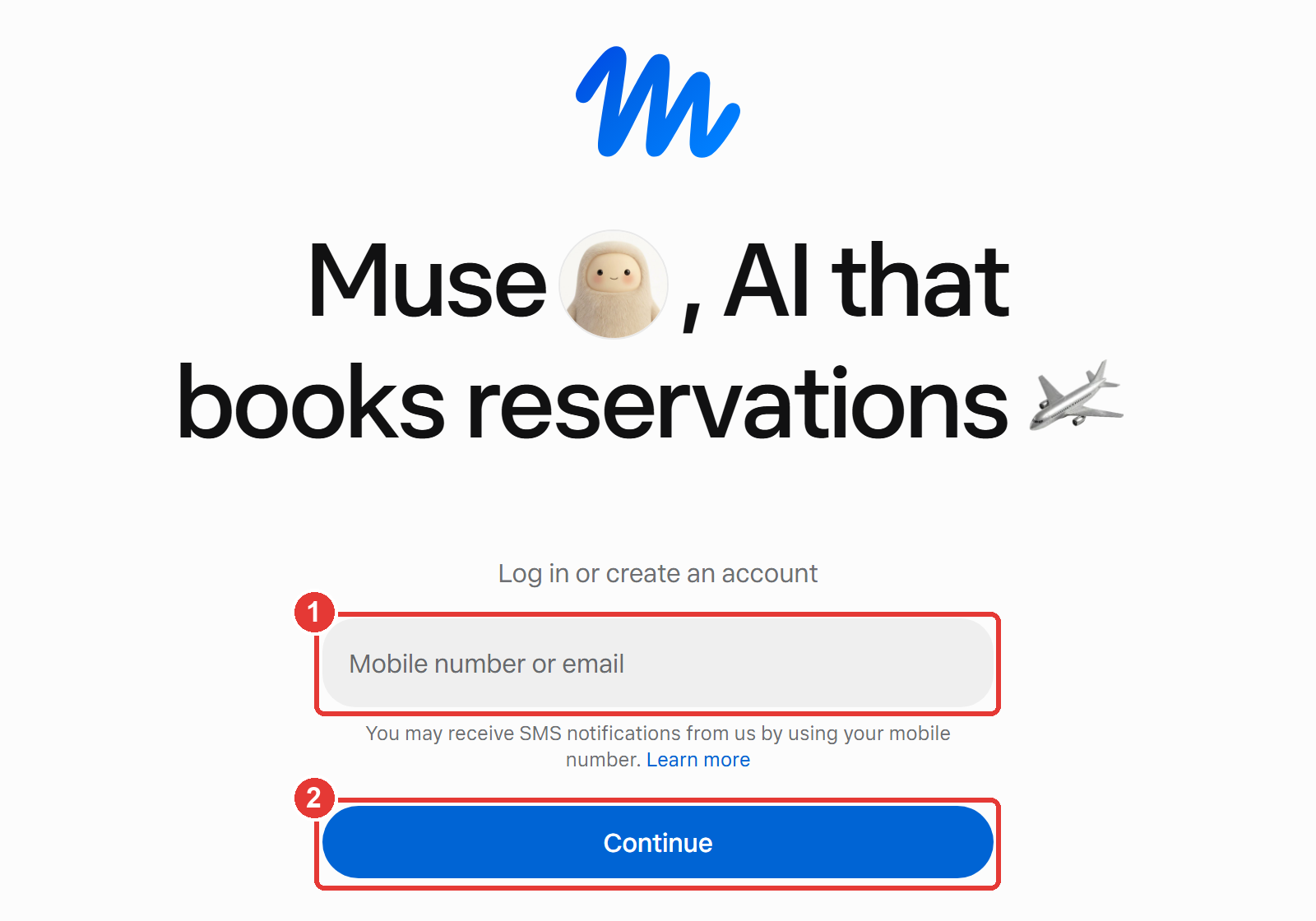
2. Open muse.ai/join, type the fresh email into ①, and hit ② Continue.
WARNING
Don't pick "Log in with Meta / Facebook". That's exactly how my second attempt failed. The field also takes a phone number, but by the guess above, a non-US number is another "not in the US" record. Stick with email to be safe.
3. Follow the prompts: enter the verification code and fill in your basic details.
4. Within 48 hours of signing up, redeem an invite code in Settings.
The 48 hours start the moment you sign up, and after that you can't redeem anything, so do it right away. Here's the rule as shown in Muse's invite window (it says friends who redeem your code in Settings within 48 hours of joining both get 1 billion Muse tokens):
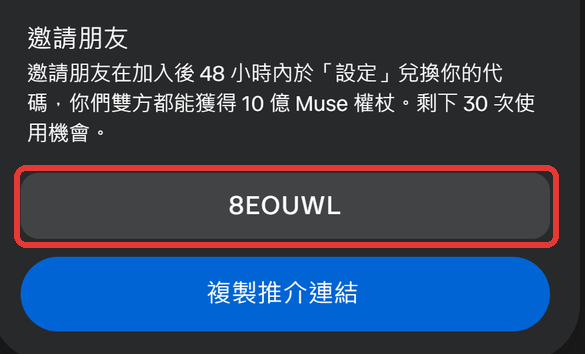
(My own account is way past 48 hours, so the redeem field is gone from my Settings and I can't screenshot it for you.... have a look around Settings; a new account should have it.)
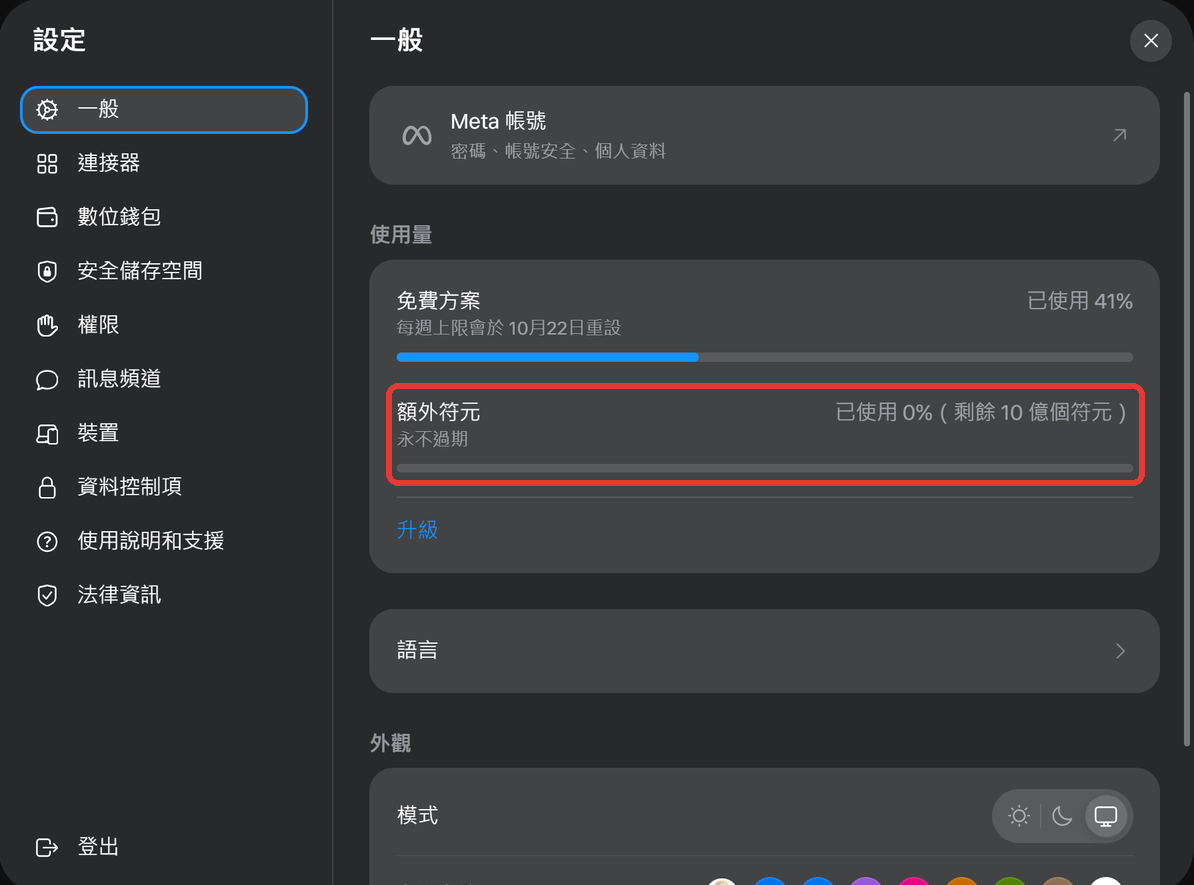
Once it's redeemed, Settings › General › Usage gets a new "Extra tokens" bar: 1 billion, never expires, counted separately from your weekly free allowance (this is my own account):
NOTE
The Chinese UI translates "tokens" two ways: 權杖 (literally "scepter") in the invite window and 符元 on the usage page. You're not being crowned. Both just mean tokens.
Method 2: Let ChatGPT's cloud browser sign up for you
ChatGPT now has a "cloud browser" that runs in OpenAI's data centers, where ChatGPT opens pages, clicks buttons and fills in forms for you. The trick people share online is to ask it to open muse.ai/join and sign up with your fresh email, then paste the verification code to it yourself.
The catch: the cloud browser belongs to ChatGPT Work (which replaced the old agent mode), and OpenAI's help center says it isn't available on the Free or Go plans. I'm on Go, and tapping ① "Work" at the top just pops up ② "Unlock with Plus":
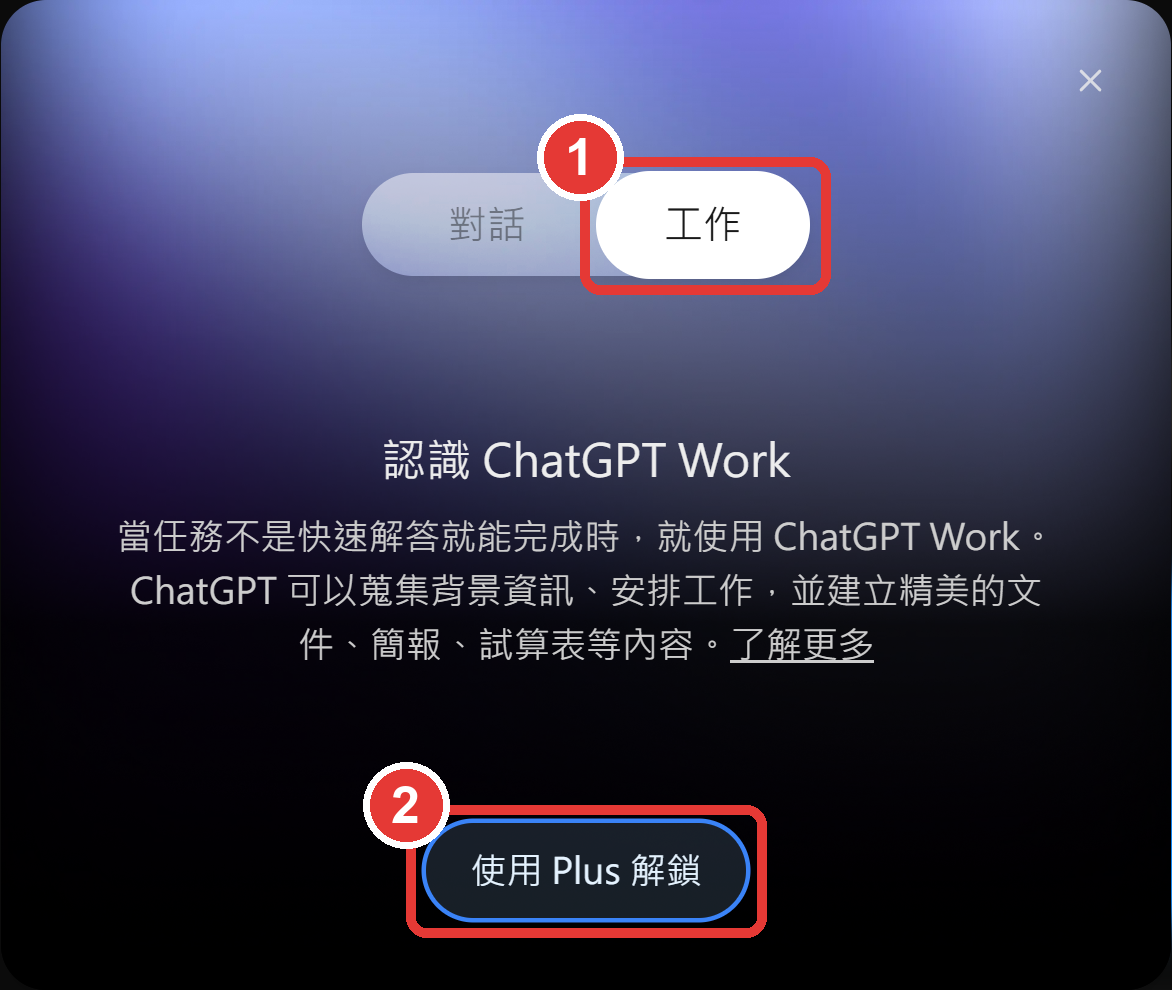
So I couldn't try this one myself. Also, AI data-center IPs are easy to spot, so a site that wants to block them can. Worth a shot if you're on Plus, no guarantees.
Method 3: Use the Lexmount cloud browser
This one has been making the rounds online. Lexmount is a cloud browser service built for AI agents. A free account gets you a Chrome running in the cloud, and its dashboard happens to ship with an "Open Muse.ai" example.
I walked through it and stopped at the Muse sign-up page (I already have an account, so I didn't actually register with it).
1. Go to browser.lexmount.com and click "Start for free".
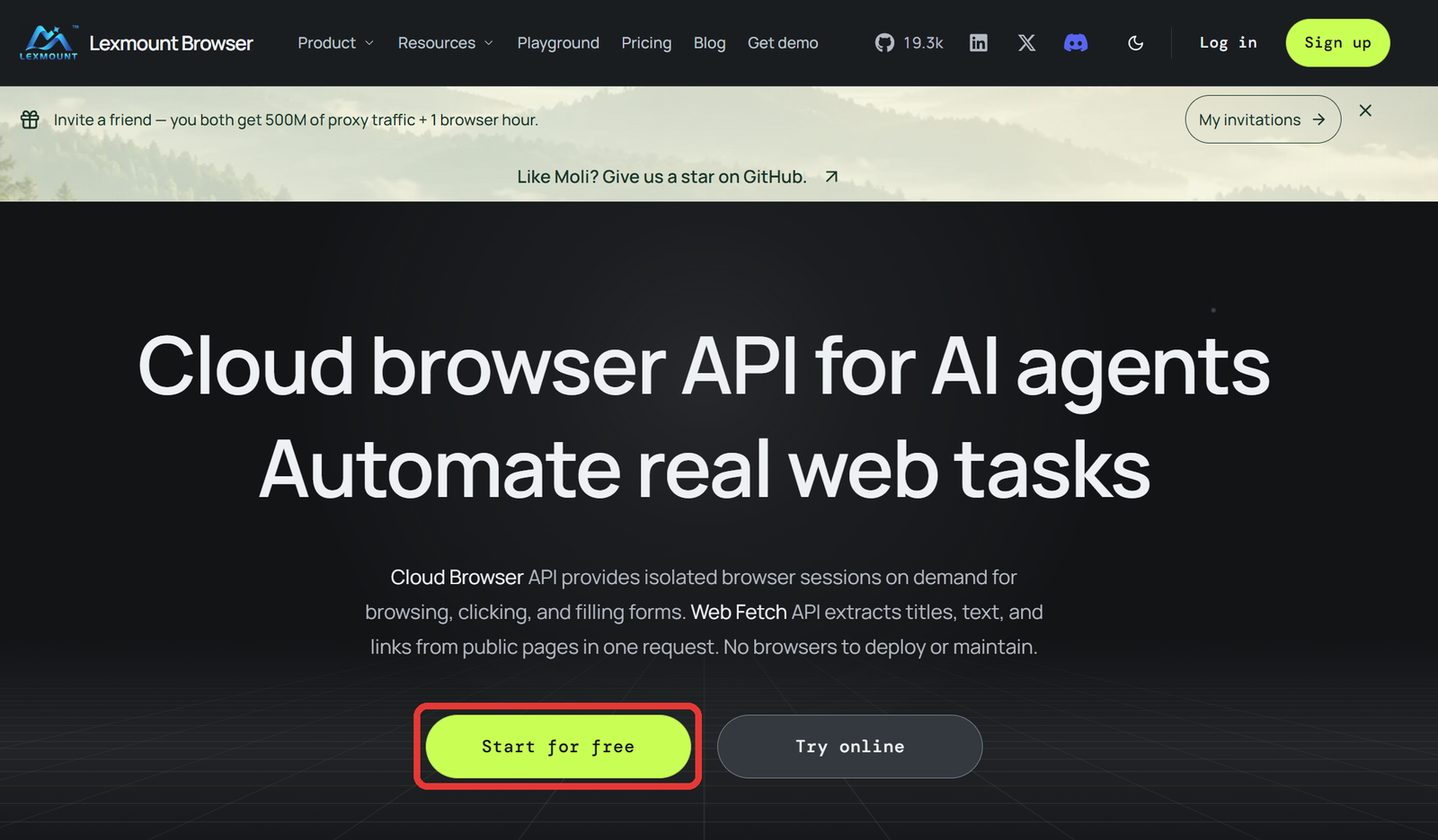
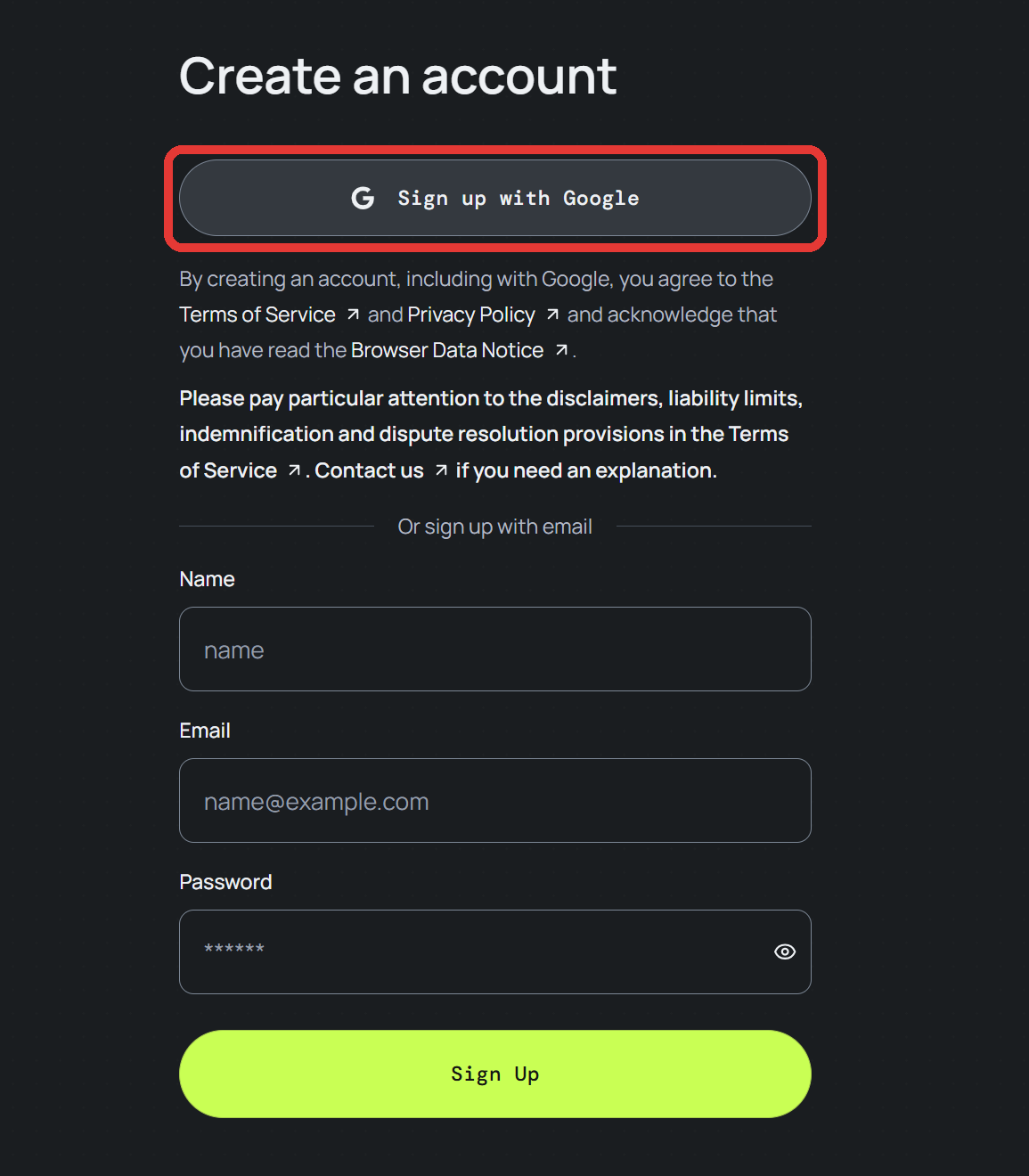
2. Click "Sign up with Google".
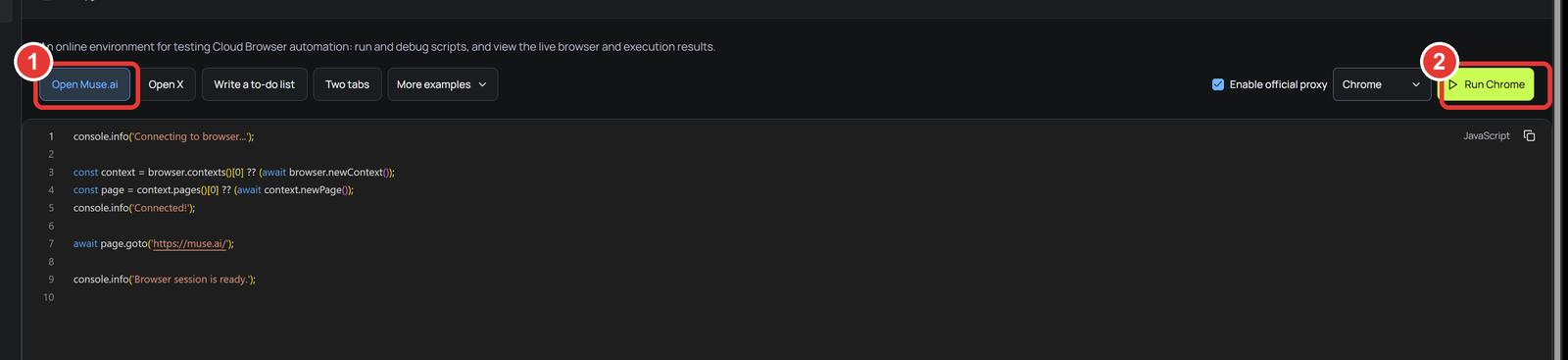
3. You land in the Playground. Make sure ① "Open Muse.ai" is selected, then click ② "Run Chrome" in the top right.
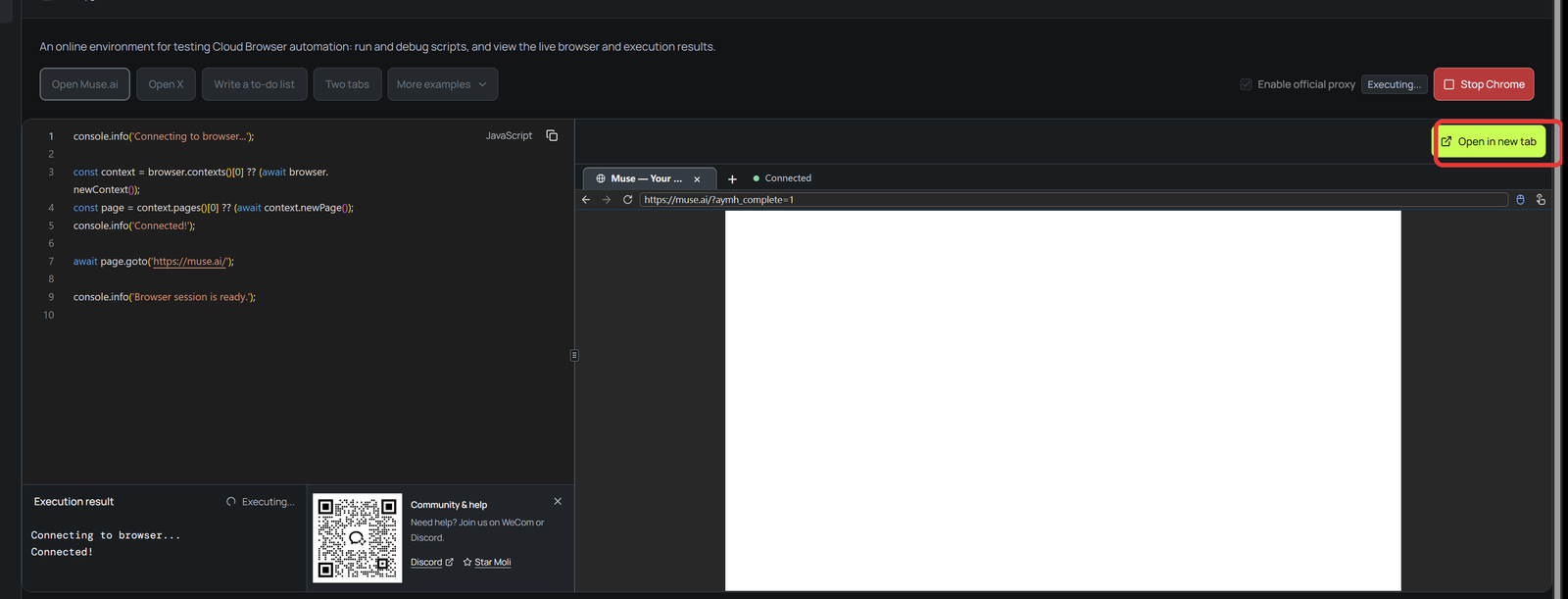
4. A small cloud Chrome window appears on the right, already on muse.ai. Click "Open in new tab" to get it full screen.
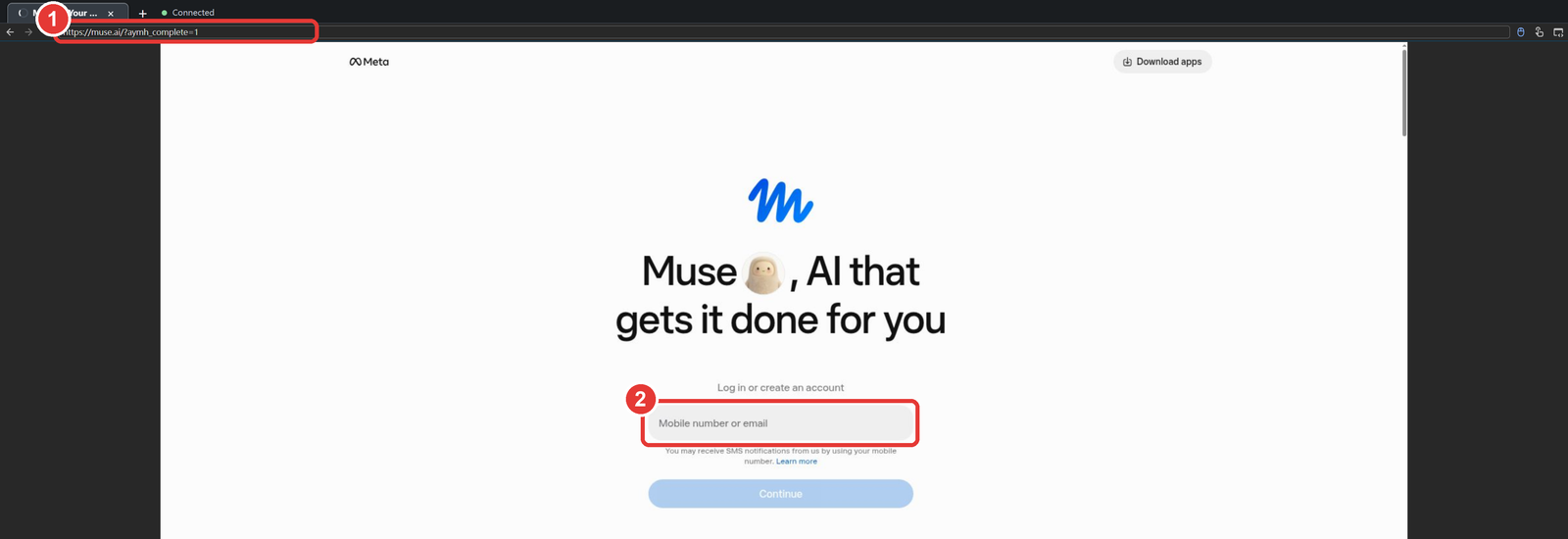
5. The new tab is a Chrome running in the cloud. ① The address is muse.ai; type your fresh email into ②. From here it's the same as method 1.
Guides online say next come the verification code and your birthday, and finally a credit card for age verification (people report Taiwanese cards going through).
Two things to keep in mind:
- You're typing a card number into someone else's cloud browser. If that bothers you, stick with method 1.
- Meta could block this any time, and other guides say data-center IPs tend to land on the waitlist. If it fails, fall back to method 1.
WARNING
Getting around the region lock isn't something Meta allows. Don't be shocked if an account gets suspended one day, and don't keep anything important only in Muse.
My invite code
8EOUWL
Redeem it in Settings within 48 hours of signing up and we each get 1 billion tokens. Each code can only be used a limited number of times; mine showed 30 left on October 18.
Once you're in, hand it something you've been waiting on: a flight, concert tickets, a price drop on that thing in your cart.
コメント(0)
まだコメントはありません。最初のコメントを書いてみませんか?