agent360 lets Claude Code drive the Chrome you use every day, logins and cookies included. I've tried four of these. This is the one I kept.
TIP
Download: Chrome extension (Chrome Web Store) · GitHub · Website: browsermcp.dev
Free and MIT licensed. You need both the extension and the MCP server; steps are under Install.
I asked Claude to search Shopee (Taiwan's biggest online marketplace) for a used MacBook Air M4 through Playwright. Shopee answered with "Page unavailable. Please log in and try again."
Playwright runs a clean browser of its own. No cookies, so Shopee has no idea who you are, and it's pretty easy to tell it's a script.
Over the past few months I've gone through pretty much every way to let Claude control Chrome: Anthropic's own Claude in Chrome, Microsoft's Playwright MCP, Browser MCP (browsermcp.io, not the same project as agent360). I ended up on agent360.
Watch it run once
I asked Claude to use agent360 to find the cheapest used MacBook Air M4 on Shopee. Claude on the left, my Chrome on the right:
Searching, setting filters, scrolling, opening listings one by one to check the specs, and handing back a price comparison at the end: all of that is it, working in my Chrome. I didn't touch that window the whole time (couldn't, actually; more on that later).
Why it should be your own Chrome
agent360 comes in two halves: a Chrome extension, and an MCP server that runs on your machine (MCP is the standard Claude and similar AIs use to call outside tools). Claude Code sends a command to the MCP server, the server passes it to the extension, and the extension clicks, scrolls and types inside your Chrome.
So the AI is using the browser you already use, cookies and logins included.
Sites that block bots mostly check two things: who you are (cookies, login, whether it's a real browser) and whether you act like a person (the pace of clicks and scrolls). Playwright's default mode has neither. agent360 takes care of the first. The second is still on you: tell it to slow down.
Using your own Chrome isn't enough on its own, though. You still have to be logged in. On my first recording I wasn't logged into Shopee yet. Same Chrome, my own, and a few filter clicks later it hit "please log in". I logged in, recorded again, and it never got blocked.
How it reads a page
When agent360 looks for a button or an input, it reads the page's accessibility info first (the button text, roles and aria-labels that are there for screen readers) and finds the element by name.
For pages drawn on a canvas, or so messy there's no element to find, there's a way out: look at a screenshot and click by coordinates.
The first is fast and precise, the second is the safety net, so even weird pages have a path.
When it hits an SMS code
For things only you can do, like an SMS code or a CAPTCHA, there's a tool called browser_ask_user. It pops a box right on the page, you fill it in, and Claude carries on:
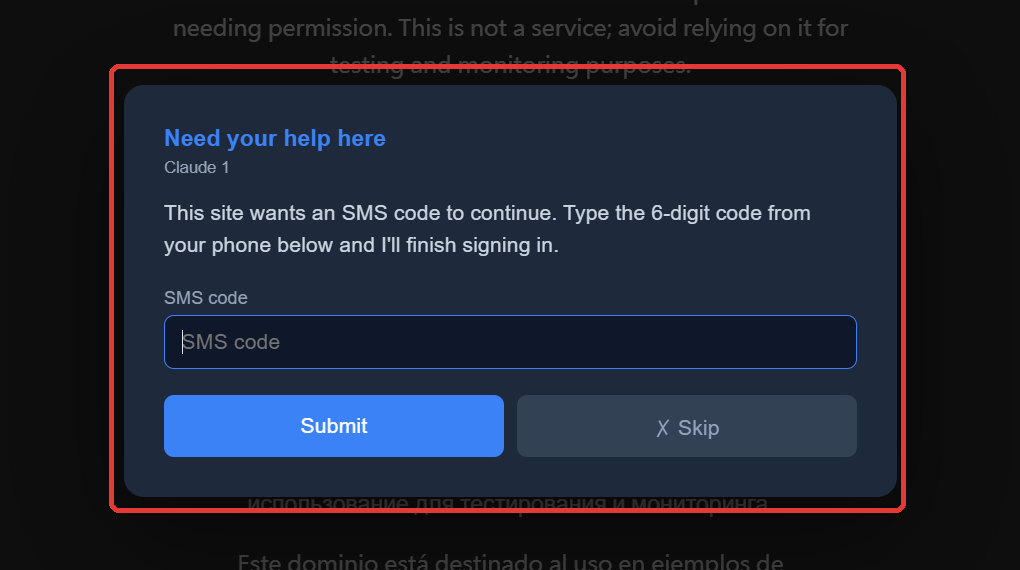
To be fair, you can do this without it: type the code into the page yourself, then tell Claude to continue in the terminal. The box just saves you switching windows. And whatever you type into it goes back to Claude, so for passwords I'd rather type on the page myself.
Install
This part assumes you already use Claude Code. If not, install it first with the official guide. The commands below go in a terminal (PowerShell on Windows, Terminal on a Mac).
NOTE
The names are confusing: agent360's site is browsermcp.dev, the npm package is @agent360/browser-mcp, and the store listing says Agent360 Browser MCP. It is not the Browser MCP (browsermcp.io) from the comparison below.
TIP
Don't feel like doing it by hand? Paste this into Claude Code. It follows the official install guide on its own. You just click "Add to Chrome" and restart Claude Code when it tells you to:
Set up Agent360 Browser MCP for me. Read https://browsermcp.dev/llms-install.md and follow it for whichever AI client you are running in. Tell me which steps only I can do, and wait for me. If I need to restart you, say so.
1. Install the Chrome extension
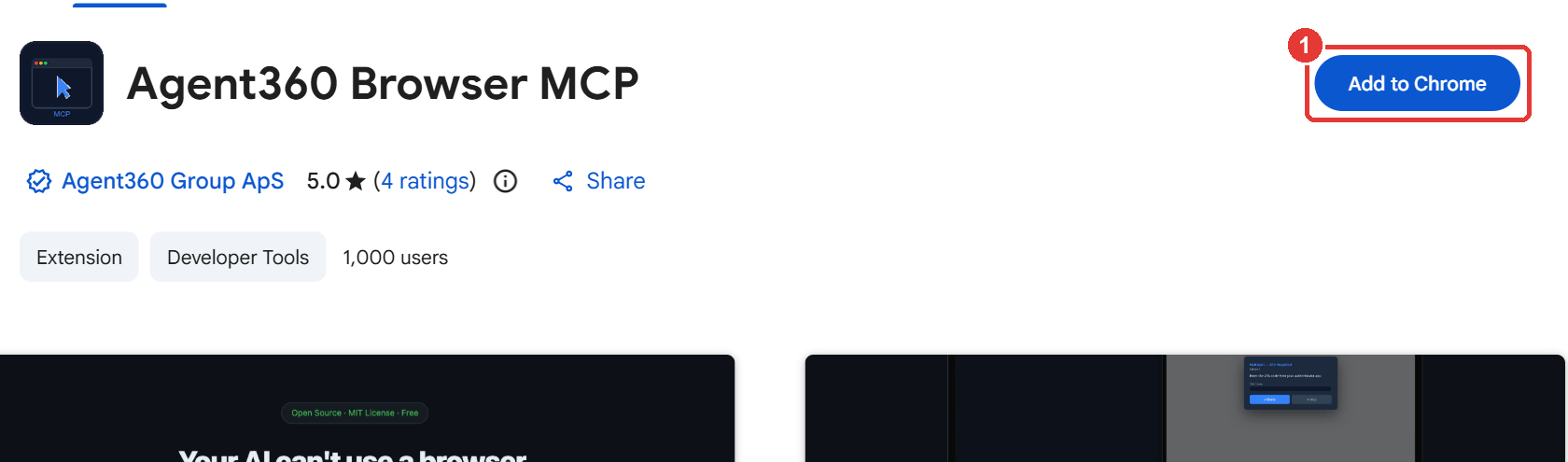
Go to Agent360 Browser MCP on the Chrome Web Store and click ① Add to Chrome.
2. Add the MCP server to Claude Code
Open a terminal and paste:
claude mcp add --scope user agent360 -- npx @agent360/browser-mcp@latest
--scope user makes it available in every project, and agent360 is just the name you give it (call it whatever you like). When you see Added stdio MCP server agent360 ..., you're good:

3. Restart Claude Code and ask for a screenshot
Claude Code only loads MCP servers at startup, so restart it. Then say:
Open example.com and take a screenshot.
If it actually opens the page and hands you a screenshot, you're done:
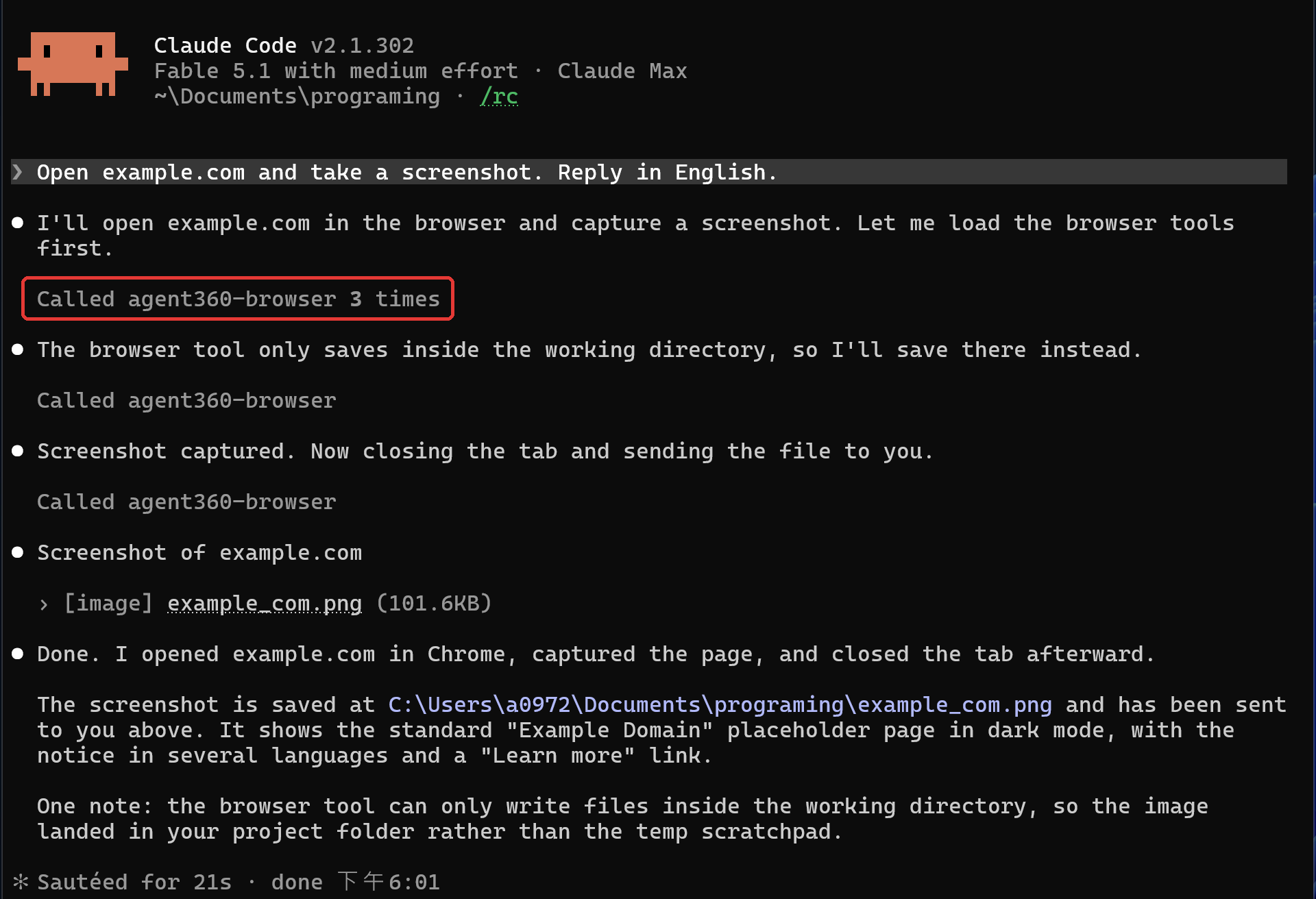
If it says it has no browser access, or the extension icon says "Not connected" when you click it, the extension isn't broken. The server wasn't added or Claude Code wasn't restarted. Go back to steps 2 and 3.
4. Check the extension icon
After the first browser call, the extension icon gets a green number: how many Claude sessions are connected right now. No number before that first call is normal.

On Cursor, VS Code or Codex it's the same server with a different config. See the official docs.
How it compares
The short version (Claude in Chrome is from my use in August, the rest is as of October 2026):
| agent360 | Claude in Chrome | Playwright MCP | Browser MCP | |
|---|---|---|---|---|
| Biggest problem | See "Before you start" at the end | Disconnects all the time | Sandboxed browser means logging in again, and sites block it | Claudes fight over it, misses fail silently, unmaintained |
| Which browser | Your Chrome | Your Chrome | Its own sandboxed profile by default (there's also an extension mode for your Chrome) | Your Chrome |
| Several Claudes at once | Yes, up to 20 by default (coordinate clicks take turns, see below) | Not documented | Default mode fights over one profile (--isolated avoids it), extension mode works | The newest one kicks the others off |
| Stuck on an SMS code | Pops a box on the page | Pauses so you handle it on the page yourself | No box on the page, asks in the terminal | Same |
| Cost and license | Free, extension and server both MIT | Needs a Pro, Max, Team or Enterprise plan | Free, open source | Free, extension not open source |
| Recent activity | 1.30.3 shipped Oct 15 | Maintained by Anthropic | Maintained by Microsoft, regular updates | Last commit April 2025 |
Claude in Chrome: disconnects all the time
Anthropic's own. Install the extension, sign in with the same claude.ai account, start with claude --chrome. It pauses at login pages and CAPTCHAs and lets you take over, which is the cautious way to do it.
The problem: it disconnects all the time. Leave it idle for a bit and it drops, and you reconnect by hand with /chrome. Losing it halfway through a task was routine, so in August I turned it off. It also needs a paid plan, so API key and Bedrock users can't use it.
Playwright MCP: logging in again inside a sandbox, and sites block it
Maintained by Microsoft, 72 tools. The catch is that by default it runs in its own sandboxed browser profile. None of your everyday Chrome logins are there, so every site you need means logging in again inside it. Annoying as hell.
And a clean browser is easy for sites to spot, which is the diagram above: Shopee just tells you to log in. There's an extension mode that connects to your Chrome, it just has no way to ask you something on the page.
Browser MCP: fights, silent misses, nobody home
Browser MCP (browsermcp.io) is what I used before agent360. It also drives your Chrome. Three problems:
One: Claudes fight over it. The server and the extension talk over one fixed port (a number your computer uses for connections), and everyone grabs the same one:
Run several Claudes on different things and every new one knocks the old one off the browser.
Two: errors are silent. If the page zoom isn't 100%, for example, its clicks land in the wrong place, but the tool still reports "click succeeded". The AI has no idea it missed, keeps going off the wrong result, and drifts further off. You only find out afterwards that it's been clicking the wrong things the whole way.
Three: it's not updated anymore. The last commit in its repo is from April 2025, and on October 15 someone opened an issue titled "Is the project abandoned?". In early October I wrote all of this up as an issue and sent a PR for the server side (the extension isn't open source, so for that part I could only patch the packaged code for my own use). No reply so far. Bugs just stay bugs.
What agent360 gets right
Pretty much the opposite of the list above:
- No fighting. Each Claude gets its own port and its own tab group, up to 20 at once by default (right half of the diagram above).
- It tells you when something fails. A click that can't land in a background tab, an element with zero size: it reports the failure instead of pretending. The AI can only try something else if it knows what went wrong.
- Accessibility info first, screenshots as the fallback. Covered above: most of the time it finds elements by name, which is fast and precise.
- Someone fixes things. I hit a few bugs too (for example, screenshots and clicks used different coordinate units, so clicking where the screenshot showed something would miss) and sent PRs. The maintainers got back on October 12. They reproduced and measured every one in a real Chrome before taking it, and on one they pointed out that my description was wrong. All 6 PRs landed on main, still with me as the commit author.
Every tool breaks. What I care about is whether someone fixes it.
Before you start
- It can do anything you can. It's your logged-in Chrome, so you're handing your accounts to an AI. Before paying, deleting or submitting a form, have it stop and ask you. I ran the recording with
--dangerously-skip-permissionsso it wouldn't stop halfway. I wouldn't run it that way day to day. A saner setup: put the read-only tools (screenshot, read page, scroll, list tabs) on your allow list and keep clicks, form fills and navigation behind a confirmation. - In a background tab, coordinate clicks and key presses fail. That's a Chrome limitation. Clicking elements by name, filling forms and running scripts all work in a background tab, but coordinate clicks, key presses and hover need the tab in front. My first recording hit exactly this: it opened its tab in the background and kept reading and scrolling there, but Chrome kept showing Shopee's homepage, so the recording showed nothing. One line in the prompt ("bring the tab to the front") fixed it.
- So "20 Claudes at once" comes with a catch. Each window has only one tab in front. The Claude doing coordinate clicks owns it, and you can't touch that window either. The others are limited to work that doesn't need the front tab.
- Chrome keeps a "started debugging this browser" banner up. That's how it works, through Chrome's debugging interface, so the banner is normal. Don't hit Cancel. If you do, it disconnects and you have to ask Claude to reattach.
- Windows: the official README says their automated tests don't pass on Windows yet. I use it on Windows every day, and every video and screenshot in this post was made on Windows.
- It won't get you past bot checks. Cloudflare-style checks are explicitly out of scope. If you can get in, it usually can too. That's all.
TL;DR: if you want an AI to work on sites that need your login, install agent360 (Chrome extension, GitHub). Once it's installed, tell Claude "Open example.com and take a screenshot."
Comments(0)
No comments yet. Be the first to share your thoughts!