One Windows laptop, one Apple developer account, two days to get the Safari version of my extension submitted to the Mac App Store. Building, uploading, signing and notarizing ran on GitHub Actions; for the hands-on parts I rented an AWS Mac for 24 hours. What held me up longest was getting to that Mac's desktop, and then getting the AI to click things on it.
My bilibili extension (BiBoost) has a Safari version, and it needs to ship on the Mac App Store.
I don't own a Mac.
In an earlier post I covered how the Safari build already gets packaged and uploaded by a GitHub Actions macOS runner (a cloud Mac GitHub lends you to run scripts, with no live interaction). That only solved "get the app into App Store Connect". This time the list was:
- Push Mac version 2.7.0 to TestFlight (Apple's beta channel) and regression-test it myself
- Test the iOS version on iPhone and iPad simulators while I'm at it
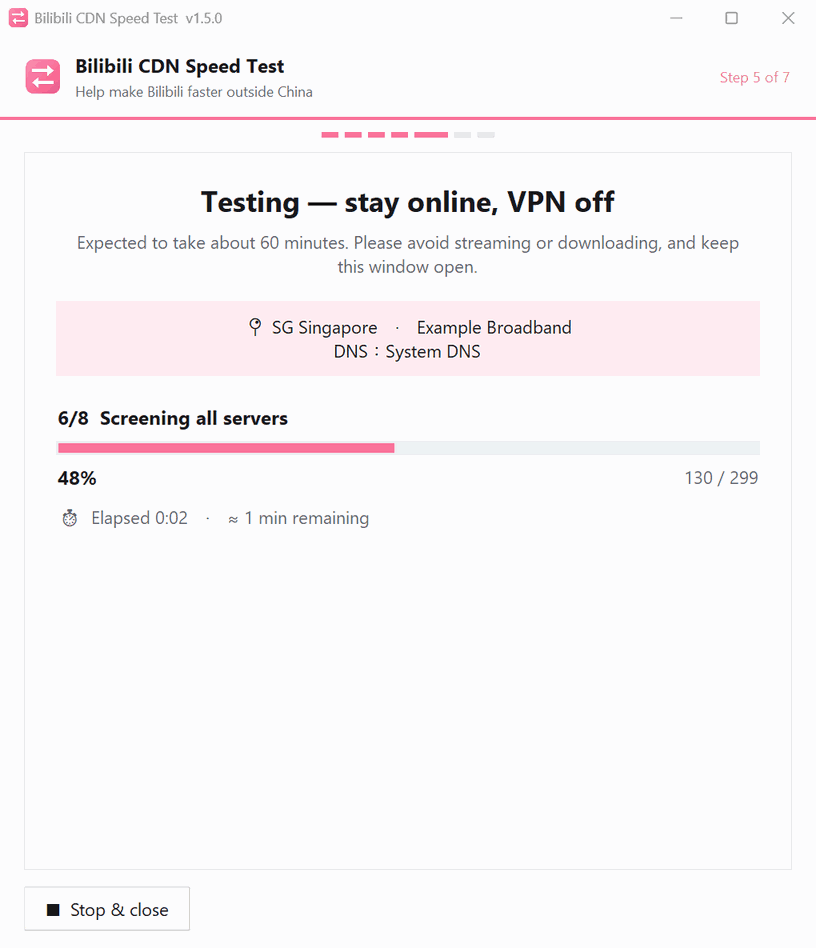
- The extension comes with a speed test tool users run to report their connection (a Python
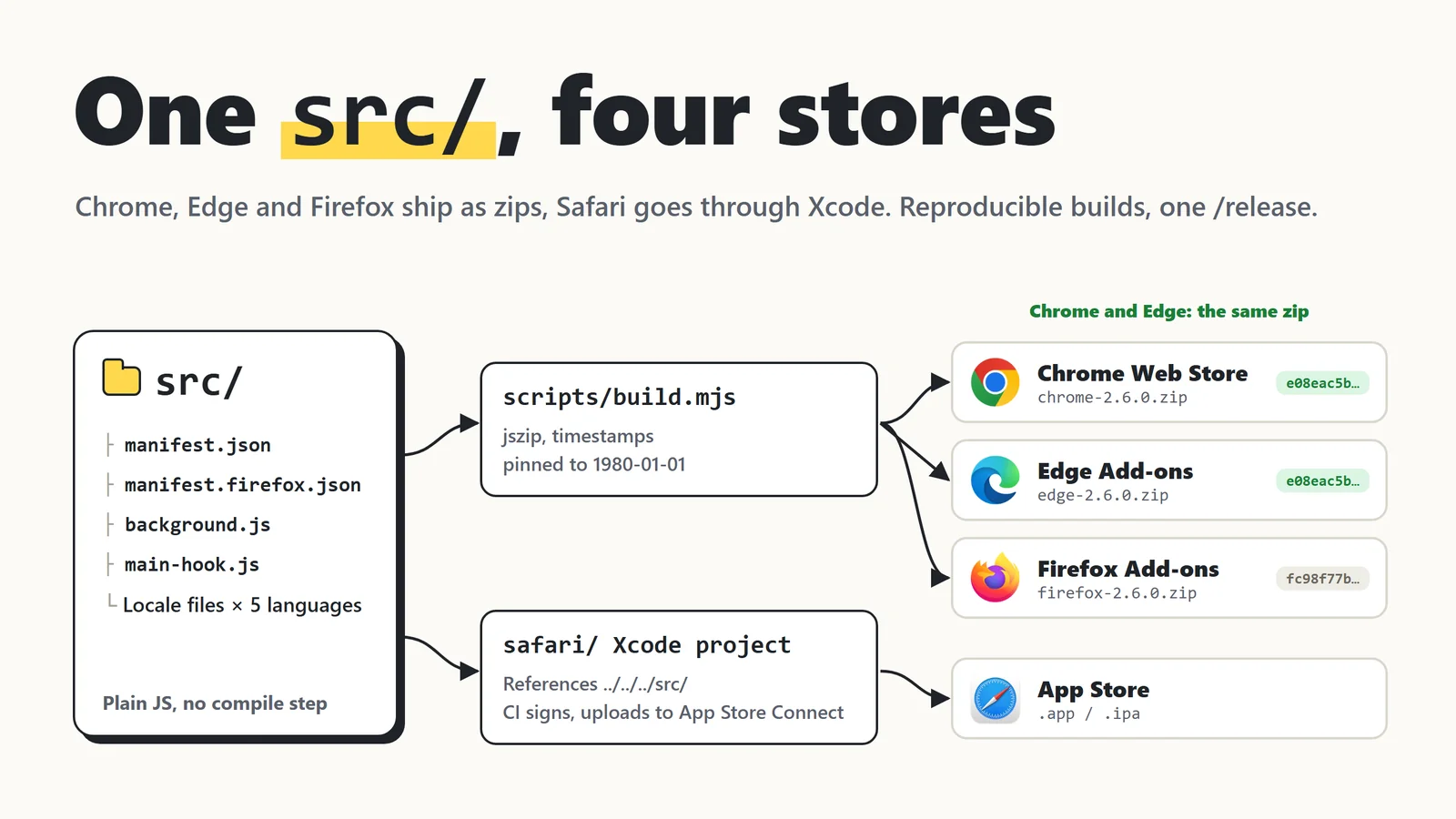
.exefor Windows). It needed a Mac version, signed and notarized (scanned and stamped by Apple), or macOS blocks it the moment users open it - Ship it all: Chrome, Edge, Firefox, Mac App Store and a GitHub Release
All I had was a Windows laptop. Most of the hands-on work was done by Claude Code (Anthropic's AI coding tool); I made the calls, typed passwords and clicked buttons.
What actually needs a Mac?
Short answer: you don't have to buy one.
| Task | Needs a Mac? | How I did it |
|---|---|---|
| Build, sign, upload to App Store Connect | Yes, but not your own | GitHub Actions macOS runner |
| App Store Connect copy, screenshots, version settings | No | Browser (it's a website) |
| Get a Developer ID certificate (for signing the speed test tool) | No | Browser, plus any machine with openssl for the CSR |
| Apple notarization for the speed test tool | Yes, but not your own | notarytool on GitHub Actions |
| Install the TestFlight build and click through Safari | Yes, with a screen | Rented cloud Mac |
| iPhone / iPad simulators | Yes, with a screen | Xcode on the same cloud Mac |
| Developing the Mac speed test tool (edit, run, repeat) | Yes, with a screen | Same cloud Mac |
The Mac work splits in two. Anything that doesn't need a screen (building, uploading, notarizing) runs on GitHub's cloud Macs. Anything that does (testing, edit-run-repeat) needs a Mac you can remote into. This time that was only a day or two, so I rented.
How do you pick a cloud Mac?
Requirements first
There are lots of cloud Mac offers and the prices vary several-fold, but most fail the first check. My requirements:
- Admin rights. This is the big one: installing Xcode and changing system settings need admin, and if you later want an AI to take screenshots and click directly on the Mac, you have to grant Screen Recording and Accessibility yourself.
- A recent macOS. The project is built with Xcode 26, which needs macOS 15.6 or later.
- Short rentals. I needed a day or two, so hourly or daily billing.
- Remote desktop (VNC). SSH-only means no screen, which means no Safari testing.
- Available right now.
First pick: Scaleway, cheapest but sold out
On those criteria, Scaleway came out on top (a French cloud renting Mac minis by the hour):
- An M4 Mac mini at €0.22/hour, 24-hour minimum, so about US$6 for one test run. Cheaper than everything else below.
- Full admin rights and a choice of recent macOS versions
- Sign up, add a card, and you can launch. No quota request.
Account created, card added, hit launch: everything out of stock.
Claude checked Scaleway's API directly. Every macOS-capable model in both Paris data centers returned no_stock. The one model still in stock, M2-L-ASAHI, runs Linux (Asahi), so no Xcode.
The data centers were simply out of machines. Mac minis are in short supply in 2026. On its April earnings call, Apple said memory and chip constraints would last several months, so cloud providers are stuck waiting too.
I opened a support ticket asking about restocks and had Claude poll the API every 5 minutes, ready to launch the moment something appeared. I waited all night. Nothing (and the ticket still hasn't been answered).
Comparing again, straight from each provider's site
So I compared again. One trap here: a lot of the "cloud Mac comparison" pages out there are affiliate pages for one of the providers. Claude's first table listed RentAMac at "US$2/hour, 4-hour minimum"; the official site has no such plan, only monthly. So I had it re-check every provider on its own site (October 26, 2026):
| Option | One test run (~24 hours) | Admin rights | Location | Catch |
|---|---|---|---|---|
| Scaleway M4 | ≈ US$6 | Yes | Paris | Sold out, no restock date |
| AWS EC2 mac2.metal | ≈ US$18.7 (US$0.779/hour, 24-hour minimum) | Yes (sudo, root) | Singapore | Only mac2 (M1) in Singapore; new accounts start with a Mac quota of 0 and have to request one |
| My Remote Mac | US$14/day | Yes, with SSH and VNC | Nantes, France | Very new small company (registered capital €1,000); no refunds on daily rentals; doesn't say which macOS versions it offers |
| MacRent | US$15/day | Yes | US, France, Netherlands | No company name or address on the site, just an email address; daily plan nearly sold out |
| RunMini | US$19/day | Not stated | Singapore, Hong Kong | The only one with Asian data centers and daily rentals, but no word on admin rights and no company info |
| RentAMac | Monthly only (from US$119) | Yes | US and others | No VNC; fully booked, waitlist only |
| MacinCloud pay-as-you-go | US$4/day | No | Includes Singapore | Explicitly no admin rights; the dedicated plans with admin are sold out |
| MacStadium | Monthly only (US$149) | Yes | US and others | A month's rent for one test is a waste |
| GitHub Actions macOS runner | Free (public repos) | Yes | — | No live interaction: every change means rerunning the whole workflow and reading screenshots. Far too slow for UI testing |
| Used M1 Mac mini | One-off ≈ US$170–200 (Taiwan used market) | Yes | My place | Money up front; not worth it for a single test |
MacinCloud is cheap but has no admin rights; RentAMac has no VNC and is monthly only. Both are out. That leaves three real choices:
- AWS: a bit pricier, but a big provider, a data center right here in Singapore where I live (a few ms of latency), full admin, and you can launch and configure it from the CLI.
- The small daily-rental companies (My Remote Mac, MacRent): US$3–5 cheaper than AWS, but there's very little information about them, and for one of them I couldn't even find a company name. I'd be signing in with my own Apple ID on that machine. Handing that to a company with no address is too much risk.
- RunMini: a Singapore data center, but I'd have to email them just to find out about admin rights.
I went with AWS, about US$13 more than Scaleway. That extra money buys "available now" and "big provider".
There was some luck involved too. New AWS accounts have a Mac quota of 0, and approval can take days. When I checked, my account already had a quota of 5 hosts (I must have requested it at some point), so I could launch immediately. If your account is new, request the quota early. It's free, and you can decide later whether to use it.
How AWS bills Mac hosts
An AWS Mac is a Dedicated Host: you're renting an entire physical Mac mini. The moment it's allocated you pay for 24 hours, even if you stop early, and AWS won't let you release the host before the 24 hours are up. The flip side: it doesn't stop on its own after 24 hours either. Until you release it, it keeps billing by the hour.
So write down everything you want to test before you start, do it in one go, and release the host once the 24 hours are up.
NOTE
A used Mac mini costs about ten AWS rentals. If you test every release, buying one is cheaper in the long run (8 GB of memory is tight for Xcode plus simulators, but it works). I need a Mac a few times a year, so I rent.
Why couldn't I get to the desktop?
It booted fast and SSH worked immediately. I figured installing Xcode would be the hard part. It was actually the desktop.
1. The disk wants a password
On AWS's macOS image, ec2-user has no password. I set one over SSH, turned on Screen Sharing, and connected from Windows with TigerVNC (VNC goes through an SSH tunnel; the firewall only allows SSH, and only from my home IP).
Logging in to the desktop was fine. But anything in System Settings that needs admin approval (such as privacy settings) brought this up:
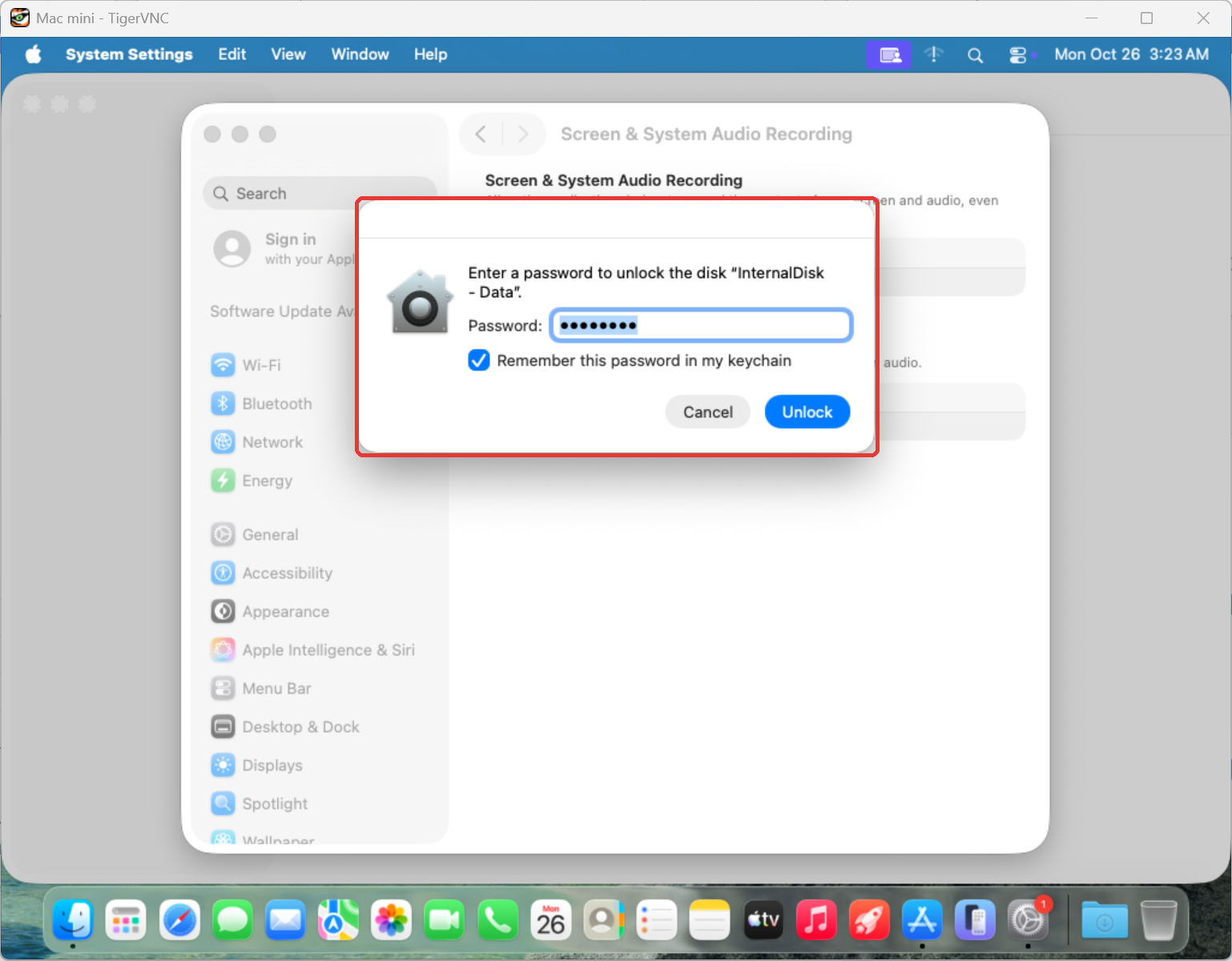
The password was correct (dscl -authonly confirmed the username and password). It still wouldn't unlock.
On Apple silicon, the internal disk has an "owner", and a correct password doesn't make you one. AWS fixes this with CreateDelegateMacVolumeOwnershipTask, which makes ec2-user the owner. While it runs, the machine reboots and is unreachable. The docs say 30 to 90 minutes. Mine took 45.
Thirty to ninety minutes? Seriously? And the 24-hour clock keeps ticking.
So do this right after boot, not when you first need to change a setting.
2. VNC connects, but Claude can't click anything
With the disk sorted, I wanted Claude to drive the desktop itself (take screenshots, click buttons) instead of calling me for every step.
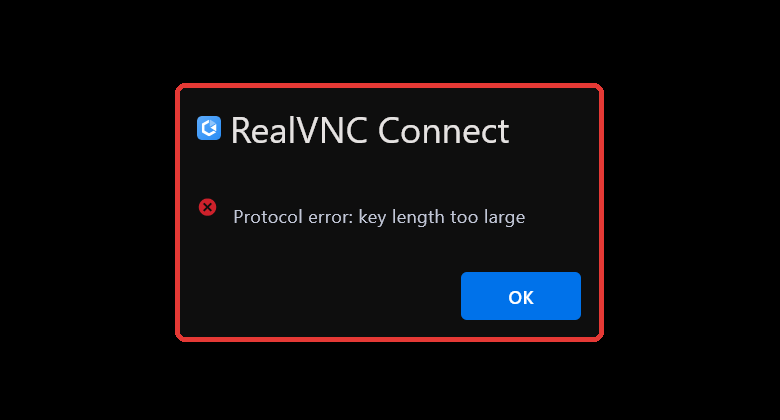
TigerVNC worked for me, but the lag was bad enough that typing a password made me want to throw the laptop (the network is only a few ms; the slow part was the Mac streaming at Retina resolution, and lowering the resolution over SSH helped a bit). RealVNC errored out straight away; it seems incompatible with this macOS version's username/password auth, so I gave up on it:
For Claude I used a VNC MCP server (a plugin that lets an AI see the screen and use the mouse). It could see the screen, but no clicks or keystrokes got through, and what it saw was a login screen, not the desktop I was already logged in to.
The screensharingd log showed its connection flagged as viewer->mode 1, with input dropped.
The odd part: TigerVNC used the same legacy VNC password and could still type. I never pinned down exactly why; all I knew was that the MCP server only supports the legacy password, so there was no other setting to try. I took a different route: Claude wrote a ~100-line VNC client using macOS's own auth instead (Apple Diffie-Hellman, security type 30 in the RFB protocol, which logs in with a macOS username and password). The core is these few lines:
// Apple DH (simplified): DH key exchange, MD5 of the shared secret is the AES-128 key, encrypt "user + password" and send it back
const dh = crypto.createDiffieHellman(prime, generator);
const myPub = dh.generateKeys();
const key = crypto.createHash("md5").update(dh.computeSecret(serverPub)).digest();
const creds = crypto.randomBytes(128);
Buffer.from(user + "\0").copy(creds, 0);
Buffer.from(pass + "\0").copy(creds, 64);
const c = crypto.createCipheriv("aes-128-ecb", key, null);
c.setAutoPadding(false);
conn.write(Buffer.concat([c.update(creds), c.final(), myPub]));
Two smaller gotchas:
- Reply with
RFB 003.008. macOS offers its own003.889; accept that and you're view-only again. - The ⌘ key over VNC is
Super(0xffeb), notMeta. Get it wrong and ⌘R or ⌘L just types letters.
After that, Claude could screenshot, click and type on its own, on the logged-in desktop, and I stopped being the VNC monkey.
The cloud Mac can't reach bilibili
The Mac finally worked. I opened bilibili in Safari: spinner, no content.
curl against bilibili's API returned 412. The same request from my Windows laptop at home worked fine, so bilibili was blocking AWS data-center IPs. I'm testing a bilibili extension, so no bilibili means no testing.
The fix: send only bilibili traffic from the Mac back out through my home connection, and let everything else go out of AWS as usual.
My home network sits behind NAT, so AWS can't connect in. Instead, Windows connects out to the Mac and opens a "reverse" tunnel:
# Run on Windows: 127.0.0.1:1080 on the Mac becomes a SOCKS proxy that exits through my home network
ssh -N -R 1080 cloud-mac
Then a PAC file (a small config file that tells the system which URLs go through a proxy):
// Only bilibili domains use the tunnel, everything else goes direct
// (otherwise Xcode and App Store downloads would detour through my home too, painfully slow)
// akamaized.net is the Akamai CDN bilibili uses overseas; it's broader than needed, which is fine on a test machine
function FindProxyForURL(url, host) {
  var d = ["bilibili.com", "hdslb.com", "bilivideo.com", "biliapi.net", "akamaized.net"];
  for (var i = 0; i < d.length; i++)
    if (host === d[i] || dnsDomainIs(host, "." + d[i])) return "SOCKS5 127.0.0.1:1080";
  return "DIRECT";
}
Hook it up with networksetup -setautoproxyurl and Safari can play bilibili.
WARNING
With this setup, video first downloads to my home, then goes back out over my home upload bandwidth through the SSH tunnel to AWS, so speed is capped by my upload. The extension's built-in node speed test came out low on the cloud Mac. I asked Claude to find out whether it was a bug or the environment, and it went ahead and changed how the speed is calculated.... It was the environment, and the change got reverted. So on a cloud Mac, test features, not numbers. And when you ask an AI to investigate, say whether you want a diagnosis or a fix.
Two computers, two Claudes, talking to each other
Driving a Mac over SSH is miserable: every command needs layers of quote escaping, and every bit of GUI goes through VNC screenshots with seconds of lag per click. Building the Mac speed test tool is edit-one-line, run, look-at-the-screen work, and doing all of that over SSH would take forever.
So I installed Claude Code on the Mac too and split the work between two Claudes.
Wiring them up
At first, the Claude on Windows told me it "can't directly command another session" and suggested I open Terminal over VNC and talk to the Mac one myself. Then what's the AI for....
What I ended up using is Claude Code's Remote Control. A session with Remote Control on shows up in your session list on claude.ai and can be driven from the phone or the web. Other Claude sessions on the same account can also message it with the SendMessage tool, so the two can talk back and forth.
Getting it to run on its own on the Mac had two small gotchas:
# remote-control needs a TTY, so wrap it in `script`; feed stdin from tail -f /dev/null or it exits on EOF
tail -f /dev/null | script -q /dev/null ~/.local/bin/claude remote-control --spawn same-dir
Wrap that in a launchd LaunchAgent and it's online as soon as the Mac boots and auto-logs in. The Windows Claude sent a "reply with your hostname and pwd", the Mac spun up a new session and answered, and the channel was live.
Who does what
- Claude on Windows (the coordinator): extension changes, releases, store dashboards; passes my decisions to the Mac; when the Mac gets stuck on a permission dialog, it goes over with its own VNC client and clicks it; calls me when a password or a QR code scan is needed.
- Claude on the Mac: the Mac speed test tool, step-by-step screenshot checks in the iPhone / iPad simulators, reading macOS logs. It works locally, with no VNC lag.
Assigning work went like this: the Windows Claude first told the Mac to read the code and send back a plan, no edits allowed. When the plan came back, Windows reviewed it, turned the decisions that were mine into multiple-choice questions for me, and sent my answers back. Only then did the Mac start working.
That's how the Mac speed test tool got built. It was Python + tkinter packaged as an .exe; now the whole thing is packaged as a universal2 .app, so one file runs on both Intel and Apple silicon (Python itself comes from python.org's universal2 build; packages like Pillow only ship separate arm64 and x86_64 wheels on PyPI, so it downloads both and merges them with lipo).
What went wrong
-
Conversation history doesn't carry over. The Mac Claude starts from zero and knows nothing about what came before (like bilibili blocking AWS IPs). So I first wrote a handoff doc into the repo and copied over the project memory and language preferences. Config files with tokens went over
scp, not git. -
Messages have no read receipts. If the other side never gets a message, or gets it and refuses, the sender has no idea. The Windows Claude also can't check on the Mac's progress; it only knows what the Mac reports. For live progress, the fastest way is to open that session on claude.ai myself, where I can also jump in.
-
Two working copies of the same repo. The Mac speed test tool was the Mac's own turf, so it committed and pushed after each chunk. The trouble was the extension's
src/: Windows had a pile of uncommitted changes that the Mac also needed to rebuild and test, both sides were editing, so a plaingit pullwas out:- When Windows tars up its uncommitted changes and syncs them over, it can overwrite files the Mac is halfway through. The rule became: tell the other side before syncing
src/. - The Mac doesn't send back whole files. It sends a patch, and Windows applies it with
git apply. Only the lines it changed get touched, so my newer edits on Windows survive. - Once it went the other way: a script of the Windows Claude's own broke and regenerated three onboarding HTML pages with an old generator. The Mac still had the correct copies, so we pulled them back from there. Sometimes a second working copy is also a backup XD
- When Windows tars up its uncommitted changes and syncs them over, it can overwrite files the Mac is halfway through. The rule became: tell the other side before syncing
-
A pile of "Allow" prompts. For the Mac Claude to take screenshots and click locally, macOS asks for privacy permissions (Screen Recording, Accessibility, controlling other apps). You can only approve them on the desktop, not over SSH, so the Windows Claude went over with VNC and clicked them:
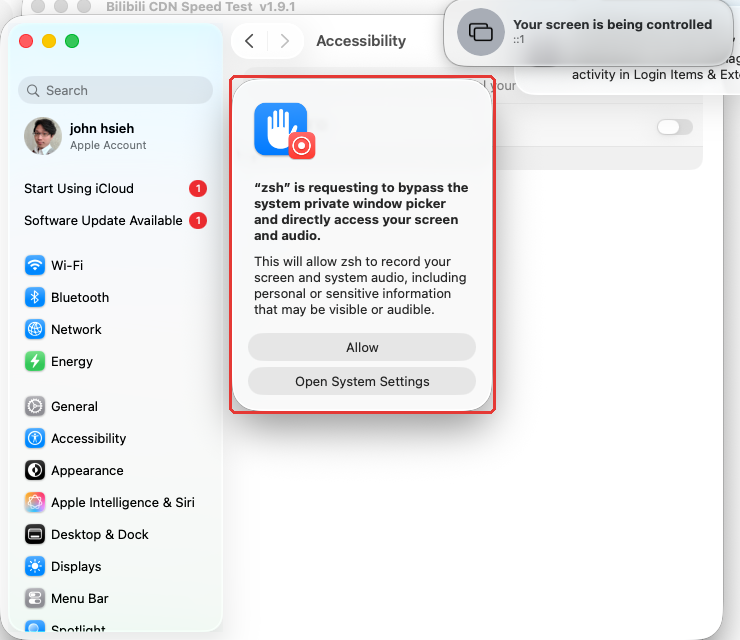
This prompt says
zshbecause the screenshots come from a shell that Claude launches. The Screen Recording and Accessibility lists, though, record Claude Code's executable at~/.local/share/claude/versions/2.1.310. The path includes the version number, so from what I saw, every auto-update meant granting the permissions again. Also, the Accessibility file picker only lets you choose apps, not that executable, so the Mac Claude has to trigger a permission request first; then the entry shows up in the list and you can switch it on. -
The Mac gets deleted. Once testing is done I release the host and the whole machine, disk included, is gone. So nothing should live only there: code gets pushed, and the signing key gets backed up elsewhere.
Put together, there are four channels between the two Claudes, each doing one job:
It ran smoothly. I mostly read progress from both sides, occasionally typed a password or scanned the bilibili login QR code in the speed test tool with my phone, and the rest of the time they messaged each other.
Bugs you only see once it's installed
Installed the TestFlight build (this step needs my Apple ID password, which I type myself rather than hand to an AI):
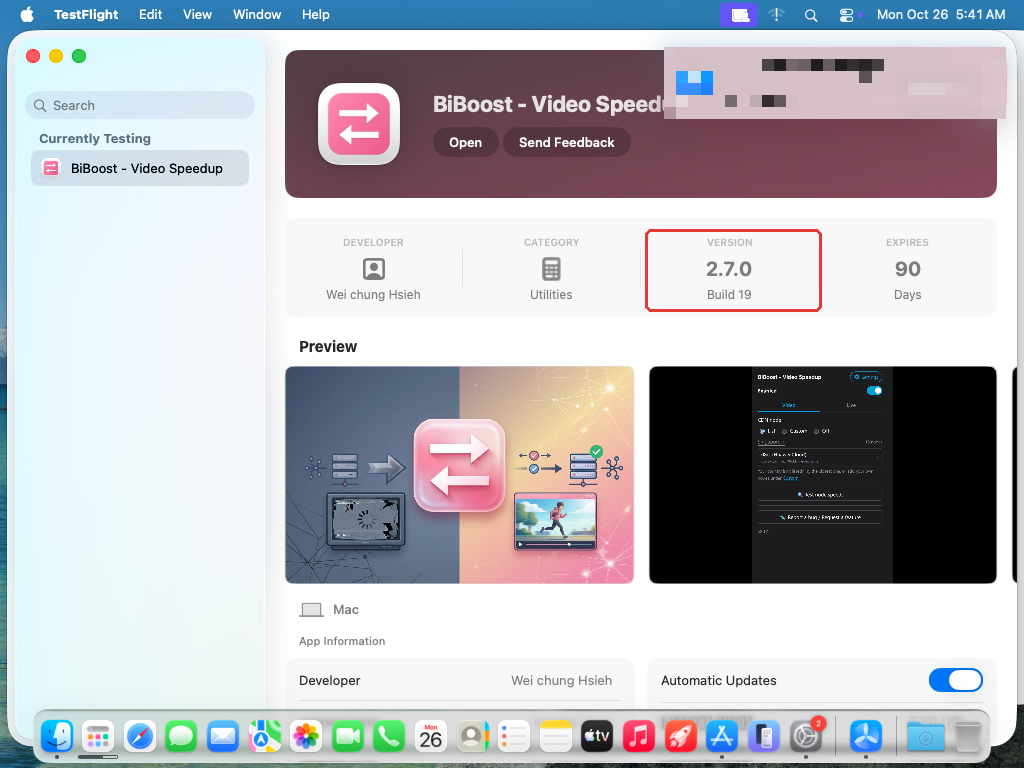
Clicking through it on the Mac and in the simulators turned up problems that never show up in Chrome:
-
The extension popup won't scroll on Mac Safari: when the content is taller than the popup, neither mouse wheel nor trackpad does anything, so the lower settings are unreachable. iPhone and iPad are fine; only Mac does this. Fixed by pinning the html height and letting the body scroll.
-
The popup hugs the left edge on iPhone: on iPhone it's a full-width bottom sheet, but the popup had a hard-coded 320px width.
-
The "Rate 5 stars" button doesn't open a review: the Mac App Store link has to be
macappstore://…?action=write-review; an https link just opens the product page. -
bilibili's site doesn't play videos on iPhone at all:
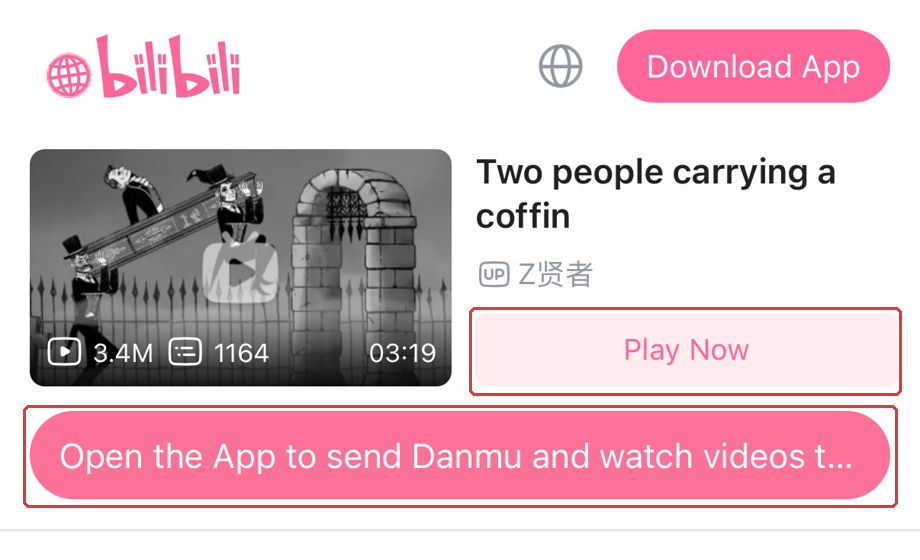
bilibili sends iPhones to its mobile site, which has no player, just "Play Now" and "Open the App", both of which lead to the app download. An iPhone simulator without the extension behaved the same, so it doesn't look like the extension's fault (not yet confirmed on a real device). iPad works fine, and switching the iPhone to "Request Desktop Website" works too.
Also: I added a button using a new iOS 26.2 API that should open the extension's page in Settings. In the simulator it always stopped at the Settings home screen. The logs showed the simulator's Settings app never finished building its search index (indexingIncomplete), so the deep link went nowhere. That one has to wait for a real device.
With those fixed, that became 2.8.0, the version that went to review.
Do signing and notarization need a Mac?
The Mac speed test tool doesn't go through the App Store; it's downloaded from GitHub Releases, so it needs Developer ID signing plus Apple notarization. Without notarization, macOS blocks the app on double-click and users have to dig into Settings to allow it. (The Safari version on the App Store doesn't need notarization; App Review covers that.)
None of this needs your own Mac:
- Create a CSR:
openssl req -newdoes it, on Windows too. I happened to make it on the cloud Mac, so the private key stayed there. - Get the certificate: on developer.apple.com pick Developer ID Application (G2), upload the CSR, download the
.cer. - Bundle a p12: private key + certificate + intermediate certificate into a password-protected p12, stored in GitHub secrets. The key dies with the cloud Mac, so keep a backup somewhere (I used a private repo out of convenience; a password manager would be the tidier choice).
- GitHub Actions: a macOS runner imports the p12 into a temporary keychain → signs → zips →
notarytool submit→stapler staple(attaches the notarization ticket to the app so it verifies offline) → zips again.
Notarization took four submissions:
First: notarytool submit --wait was still waiting after 30 minutes and the workflow timed out. It was this account's first notarization, and the queue was long.
Worse, the app that went to Apple existed only on the runner. When the workflow failed, the runner was recycled and that file was gone. A rebuild produces a different file, which means notarizing all over again.
So the workflow now:
- uploads that not-yet-stapled zip as an artifact right after submitting (even if a later step fails)
- waits with
notarytool wait <id> --timeout 4h - if that still isn't enough, the next run picks up from the previous run ID without rebuilding
Second: killed by one echo. The workflow had this line:
echo "Resume with resume_run_id=$GITHUB_RUN_ID;..." >> "$GITHUB_STEP_SUMMARY"
Under set -u it failed with "unbound variable": bash read the full-width ";" right after the variable as part of its name (at least on the macOS runner). That line ran before the artifact upload, and back then the upload step only ran if everything before it succeeded. So when it failed, the artifact never got uploaded and the second submission was wasted too. Fixed with ${GITHUB_RUN_ID}, plus the upload step now runs unless the job is cancelled (if: !cancelled()). Variables get ${} from now on.
Third: 47 minutes, accepted.
Fourth: the real release that evening, accepted in one minute. So it's the account's first few notarizations that are slow.
What it cost
- AWS mac2.metal: 24 hours ≈ US$18.7
- Apple Developer Program: US$99/year (already had it)
- GitHub Actions: macOS runners are free for public repos
- Time: two days end to end, with a night in the middle spent waiting for a Scaleway restock that never came. About one day of actual work; the rest was waiting on restocks, disk ownership and notarization.
Checklist for the next cloud Mac
- Before launch: write the test list; check the Mac quota; note when the 24 hours end so you can release the host
- Right after boot, run
CreateDelegateMacVolumeOwnershipTaskand wait for it (45 minutes) - Set the
ec2-userpassword, turn on Screen Sharing and auto-login; VNC goes through an SSH tunnel - Connect VNC with Apple's own auth (type 30), not the legacy VNC password
- Reverse SSH tunnel + PAC file, routing only the blocked domains through home
- Install Claude Code, turn on Remote Control, approve Screen Recording and Accessibility (turn off Claude Code auto-updates if you don't want to redo this)
- Push after every chunk of work
Mac App Store 2.8.0 went into review, and the notarized Mac speed test tool is up on GitHub Releases.
I woke up the next morning and 2.8.0 had already been approved. The first Mac version took a month of back-and-forth with review; the update went through almost instantly. Too bad the iOS version is still stuck in its own month-long cooldown.... wasn't 90% of apps supposed to be reviewed within 48 hours?
Comments(0)
No comments yet. Be the first to share your thoughts!