I can only test my own internet connection. So I built a speed test app that people run at home: it picks the 10 most stable nodes for their connection on the spot, and sends the same results back to me to improve everyone's defaults.
When you hit play on Bilibili, the video doesn't come from "Bilibili". Bilibili hands your player a video URL, and the player pulls the video from that URL piece by piece. Bilibili has a few hundred of these video-delivery addresses: some are Bilibili's own data centers, some are outsourced services like Huawei Cloud or Akamai, and each one may have several machines behind it. The industry calls them CDN nodes. I'll just call them nodes from here on.
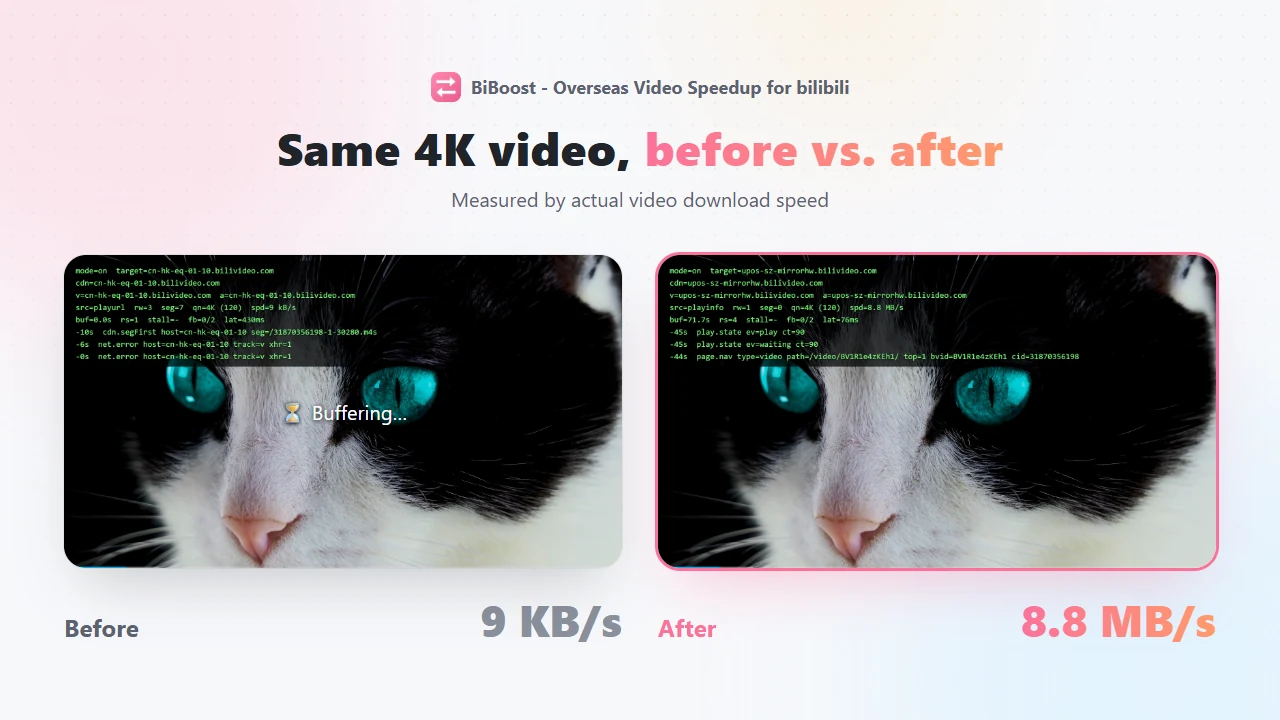
Outside China, the node Bilibili gives you is often slow: popular videos are fine, less popular ones buffer forever (the why is in the previous post).
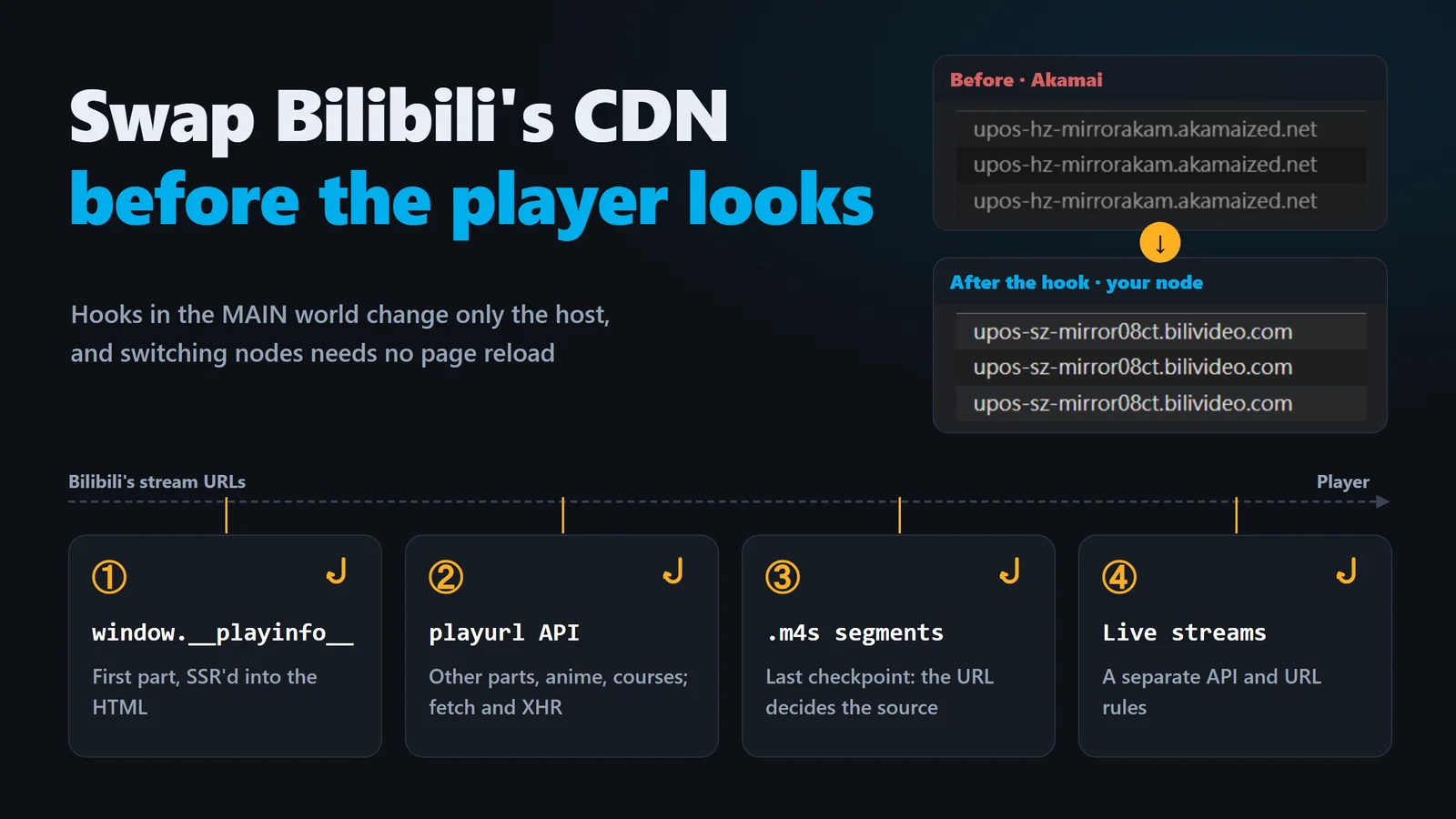
So I built a browser extension, "BiBoost - Overseas Video Speedup for bilibili", that does one simple thing: it moves your video to a faster node. The extension ships with a node list for each country. The first one on the list is the default node, and it kicks in right after install. No setup. Most people never open the settings, so the default decides what most people get.
The hard part is picking. Which node is fastest depends on your ISP. The same node can stream 4K fine for almost every Chunghwa Telecom user in Taiwan and struggle for most kbro users (real numbers later).
The catch: I live in Singapore.
The only connection I can test is my own. Use a VPN to pretend I'm in Taiwan? That tests the VPN provider's data center, not a home line on Chunghwa, kbro or CNS. 299 nodes × every ISP in every country. I'd still be testing next year.
So I need locals to test for me. That's why I built CDNSpeedTest.exe, a Windows speed test app.
NOTE
One test result, two ways back
- The short way, for the tester: right after the test, it picks the 10 most stable nodes for your connection and writes them into your extension's "Custom" node list. Switch the extension to that list and you're using them.
- The long way, for everyone: the same report comes back to me. I combine it with other reports from the same country and ISP, improve the built-in country lists and default nodes, and ship them in the next release.
The "keeps improving" in the title is the long way around: collecting and analyzing reports are scripts, and I only make the final call on whether to change anything. More reports, better defaults. Countries and ISPs with no data get filled in one report at a time.
This post goes in that order:
- What the app does on your computer
- How it picks "the 10 most stable" out of 299 nodes and hands them to your extension
- How the results come back to me and make the default lists more accurate and cover more people
If you want to take part, see the how-to guide. I won't repeat it here.
What the app does on your computer
Most people who help me test don't code. Ask them to install Python, open a terminal and paste a cookie, and they're gone at step one.
So the test engine is written in Python (standard library only, runs from the command line), wrapped in a tkinter GUI and packaged with PyInstaller into a single ~20 MB exe. No install. Double-click, click Next a few times, done. It also updates itself.
One run takes anywhere from 20 minutes to nearly two hours, depending on your connection. Why so long? Because it doesn't just grab one video, time 299 nodes and call the fastest one a winner.
The first two steps keep bad data out. The third avoids results that only look good on popular videos. Every stage after that filters out another kind of "fake fast". Terms you don't know yet (403, tiers, same pool) all get explained below. For now, just get the big picture.
NOTE
All exe screenshots below use fake data. IPs, ISPs, emails and progress numbers are placeholders.
① Network check: make sure the data is usable
Every report later feeds into picking some country's default node and list. One bad report slipping in affects everyone in that country on the same ISP.
So the app spends 20 to 30 seconds checking your connection first. Box 1 shows the three things you can see on screen (VPN, download speed, latency; latency is just for reference), box 2 the estimated test time once you pass. The third check below, DNS, runs in the background and isn't shown. "Step 3 of 7" in the corner is the wizard's page count, unrelated to the diagram's numbers. (The app's English UI calls nodes "servers". Same thing.)
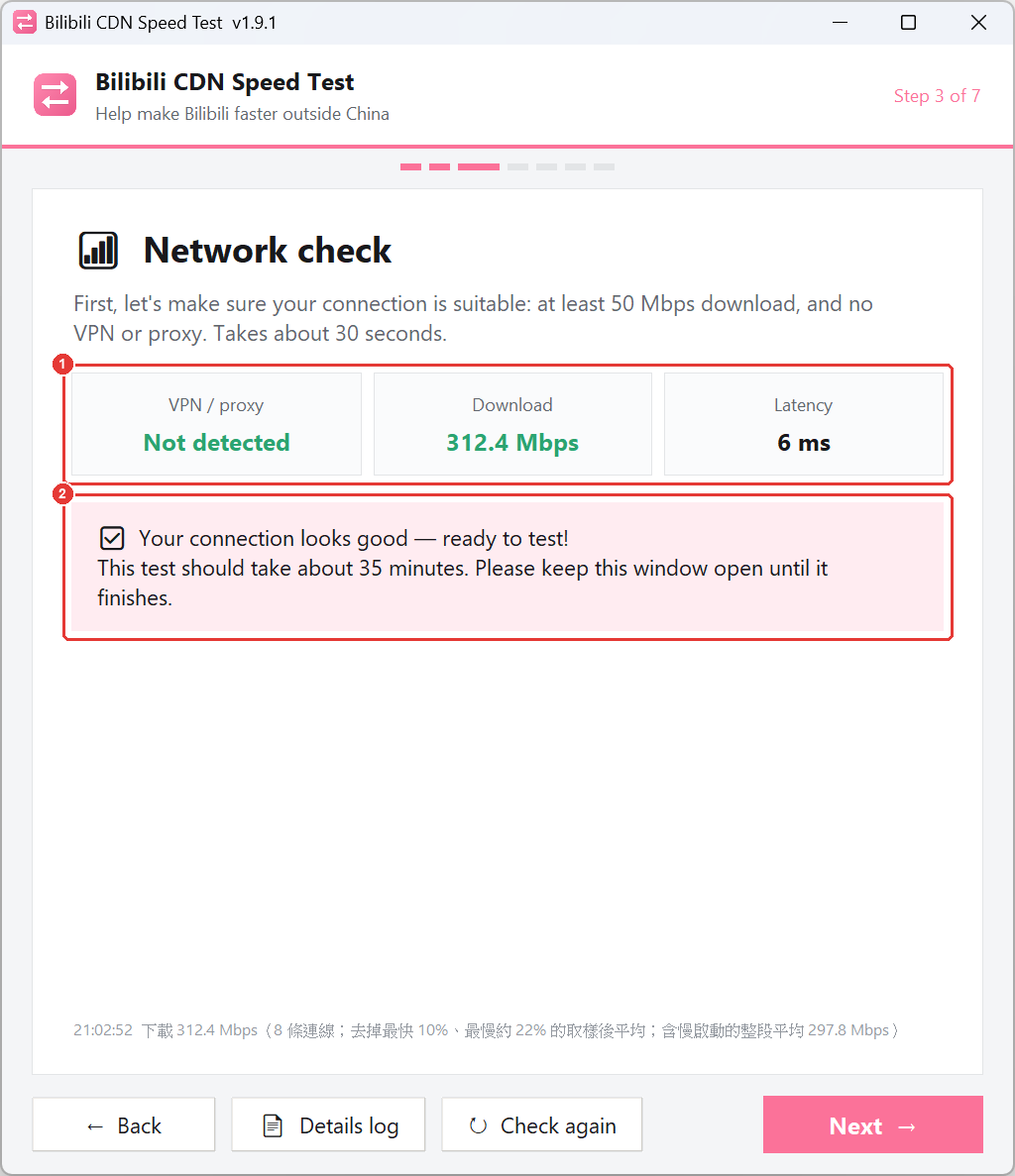
Is a VPN on? With a VPN on, you're not testing your home connection anymore. The app cross-checks several angles, from the IP to your computer's network setup.
Is there enough bandwidth? Measured with speedtest.net: start with 4 parallel downloads, add more while the speed keeps climbing, up to 32. Record the speed every 0.2 seconds, drop the fastest 10% and the slowest ~22%, average the rest. The extra connections exist because of M1's mobile network in Singapore: it caps each connection at about 25 Mbps, so 4 fixed connections only ever showed 100 Mbps (megabits per second, the usual speed unit) while the Speedtest app on my phone showed 361.
Why measure total bandwidth at all? Because later the app tests several nodes at once, and they all share your line. If it's too thin, the fast nodes all get capped by your connection, and nodes at 30, 40 and 50 Mbps (which still differ for 4K and 8K) collapse into one tier. The ranking means nothing. The 50 Mbps bar for the prize draw is there to keep that range intact.
Is your DNS local? DNS turns a web address into an IP. Some Bilibili node addresses answer with different IPs depending on who's asking. With a VPN or a public DNS resolver, the question may look like it's coming from another country, you get that country's servers, and the results don't represent your area.
The app checks which country your DNS resolver is in and whether it passes along your rough location (a field called ECS). If it's not local and doesn't pass your location, the app switches to Google's encrypted DNS and sends your location itself. That makes the report represent "most people using local DNS". If you've switched your own DNS to a public resolver, you may still get different machines when you actually watch.
NOTE
There are two test modes. Just testing (you only want a list for yourself) shows warnings but lets you continue. Prize draw (I run gift card draws to recruit testers) blocks you below 50 Mbps or with a VPN detected. I take both kinds of reports, but anything with a VPN detected is dropped when I collect the emails and never reaches the analysis.
② QR login: why not test at 480P?
Without logging in, Bilibili only serves video files up to 480P.
Speed is bytes downloaded divided by time, so resolution shouldn't matter, right? It does, because each resolution is a separate file, and whether a node has it on hand differs per file. What people actually watch, and what actually buffers, is 1080P and up. Those files are more likely to be missing from a node and fetched from China on the spot. Results from 480P don't tell you what happens when you hit play.
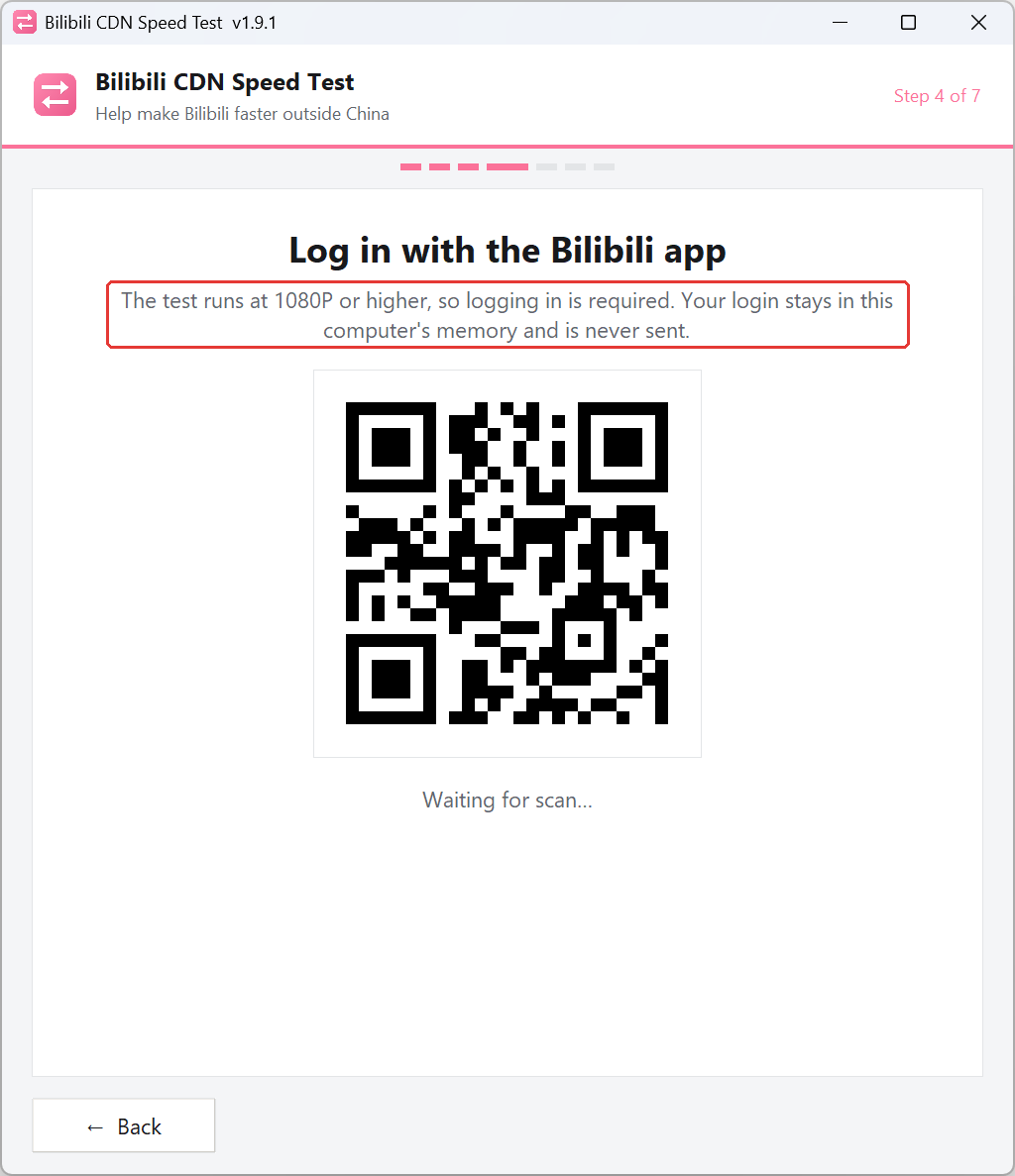
So login is required, and there's no "Skip" button. Scan the QR code with the Bilibili app. The boxed line is the app's own note on screen, not mine:
NOTE
The login cookie lives only in memory and is handed to the test engine. It's never written to disk or uploaded, and it's gone when you close the app. If the login expires mid-test, the test stops. It never quietly drops to 480P and keeps going.
③ Picking videos: popular and obscure
A node can behave completely differently on popular and obscure videos. Popular ones are already sitting on the node. Obscure ones have to be fetched from China on demand. So videos are picked in layers.
The app builds a pool from Bilibili's trending lists, the "must-watch" list, and deep pages of search results (2+ minutes only; shorter files are too small to measure). Then it splits them into a 3 × 3 grid by views × upload date and picks one from each cell:
| Recent (30 days) | Mid (3 years) | Old | |
|---|---|---|---|
| High views (≥ 1M) | 1 | 1 | 1 |
| Mid views (≥ 10K) | 1 | 1 | 1 |
| Low views | 1 | 1 | 1 |
Nine cells plus one extra mid-view video: 10 videos for the detailed test. Separately, 3 of the current top trending videos for the quick screen and 1 low-view video for the obscure-video probe. The three sets never overlap, so the screen doesn't "warm up" the detailed-test videos. Resolution is random at 1080P or above.
④–⑥ A three-stage funnel
Testing 299 nodes one by one is too slow, so several run at the same time (the parallel count). But run too many and the good nodes all hit your bandwidth ceiling together, look equally fast, and the ranking is meaningless again. So the parallel count is calculated:
parallel = total bandwidth × 0.5 ÷ single-connection speed to Bilibili (rounded, clamped to 1–8)
"Single-connection speed" is measured at the start: a few common nodes each download a chunk over one connection, and the app takes the median.
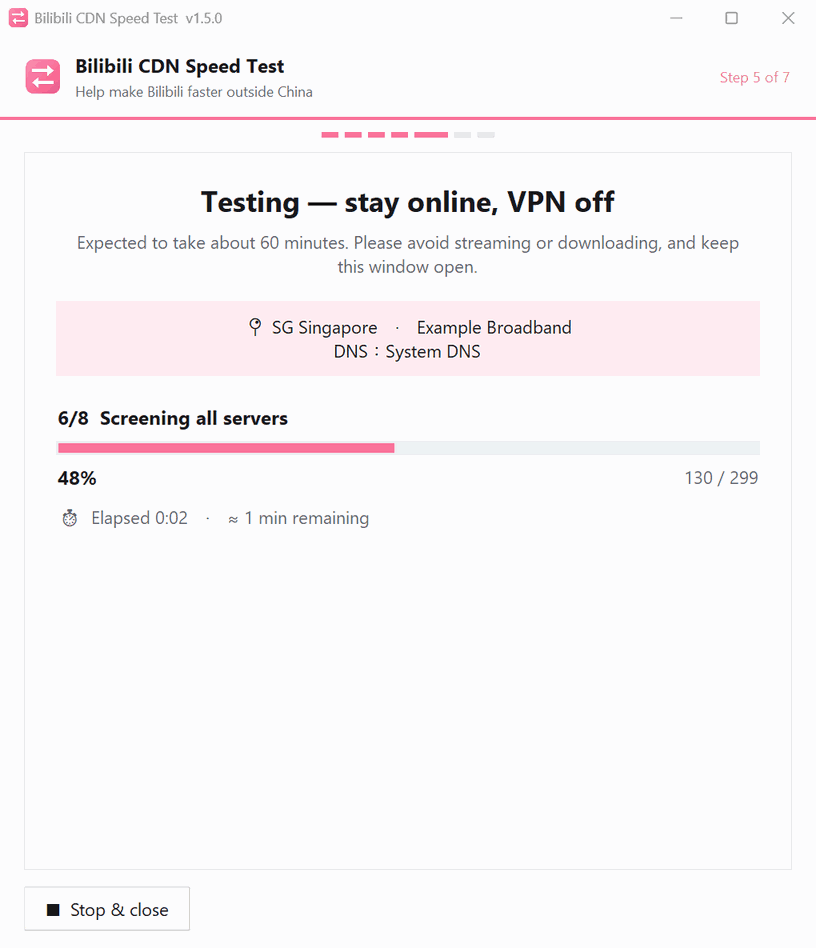
The test page breaks the run into 9 smaller steps (it adds chores like detecting the network, measuring capacity and writing the report), so "6/9 Screening" on screen is step 4 ("Screen") in the diagram above:
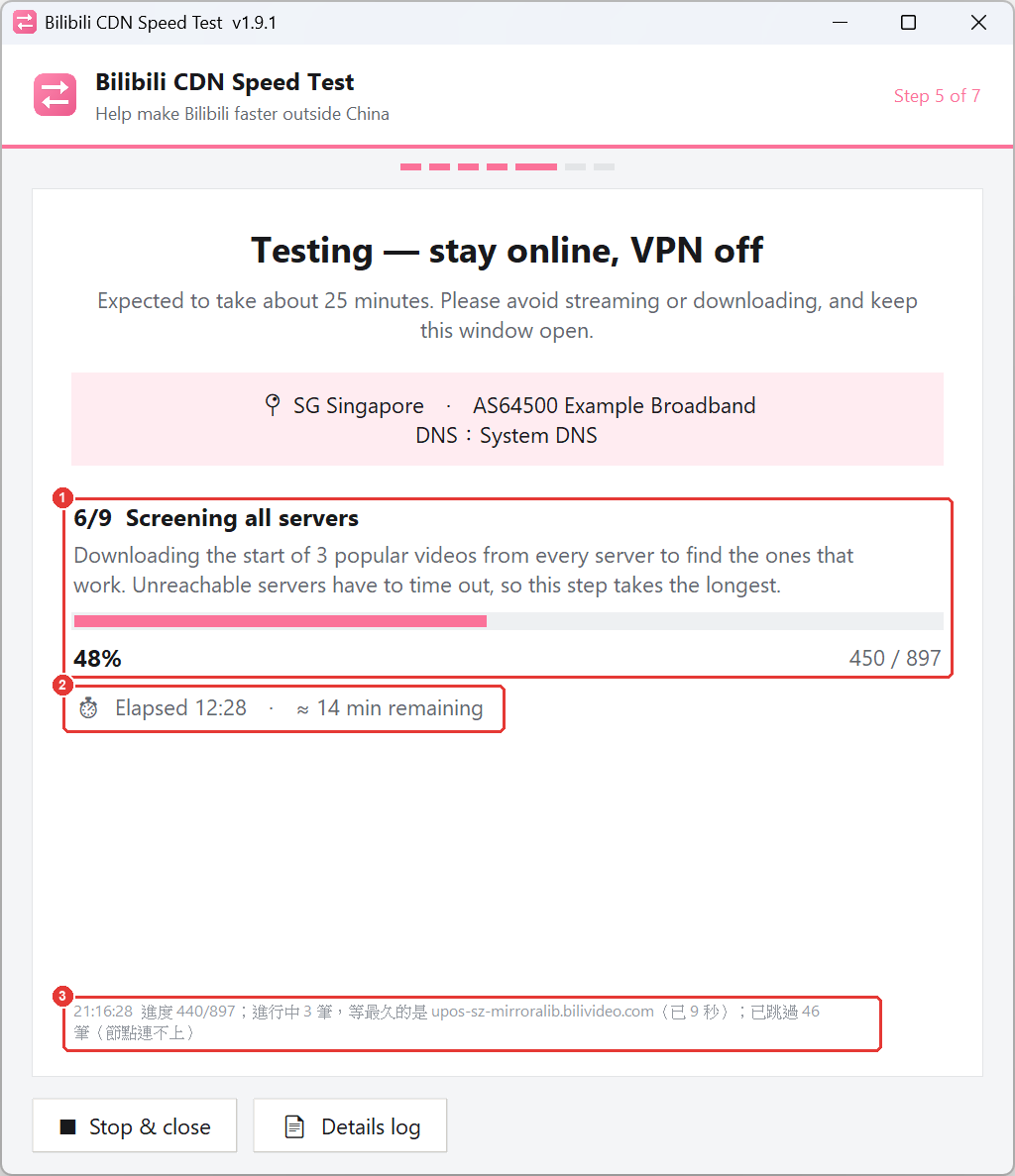
The 897 in box 1 is 299 nodes × 3 videos, counted one download at a time. The remaining time in box 2 keeps correcting itself: after every step, and every 30 seconds during the screen, it's recalculated from real measurements. Box 3 is the latest log line, more on that below. (The log is always in Chinese, in every language version of the app.)
④ Quick screen: 299 nodes × 3 popular videos × 2MB each. Only nodes that pass all three move on.
Unreachable nodes waste the most time: each attempt waits 10 seconds to time out while holding a parallel slot. So before the screen, the app opens 64 connections at once and "shakes hands" with every node (connect only, no download). Nodes that don't answer are skipped. Nodes that answer and then stall mid-download still have to time out.
⑤ Obscure-video probe: every node that passed × 1 obscure video × 1MB. A 403 (the server flat-out refuses) means it's out.
I learned this one the hard way. The old version kept the top 80 by speed after the screen, and more than half of those 80 were "popular-only" nodes: blazing on popular videos, a flat 403 on obscure ones. The nodes that actually worked got pushed out.
⑥ Detailed test: the remaining nodes × 10 layered videos × 4MB, capped at 8 seconds each. Past that, speed is calculated from whatever arrived. If a node can't do 5 Mbps (not even smooth 1080P), 8 seconds is plenty to know it's slow.
Speed is timed from the first byte received, not including the wait for a response. 2MB or 4MB takes a fast node a fraction of a second, so it can't really tell nodes apart above 60 Mbps. But when I measured Bilibili's 8K streams, they ran 12 to 59 Mbps depending on the video, so playback never needs more. Good enough.
Test order is shuffled to even out time-of-day swings and the bias from nodes in the same family sharing a cache (one node "warming up" a video for the next). Each result is written to disk as soon as it's done, so an interrupted run picks up where it left off.
TIP
The test page has a "Details log" button that shows each step's start, finish and duration live. When it's stuck waiting on a timeout, it says which node it's waiting on and for how long. You can tell "frozen" from "waiting", and when the report comes back I can see where the time went.
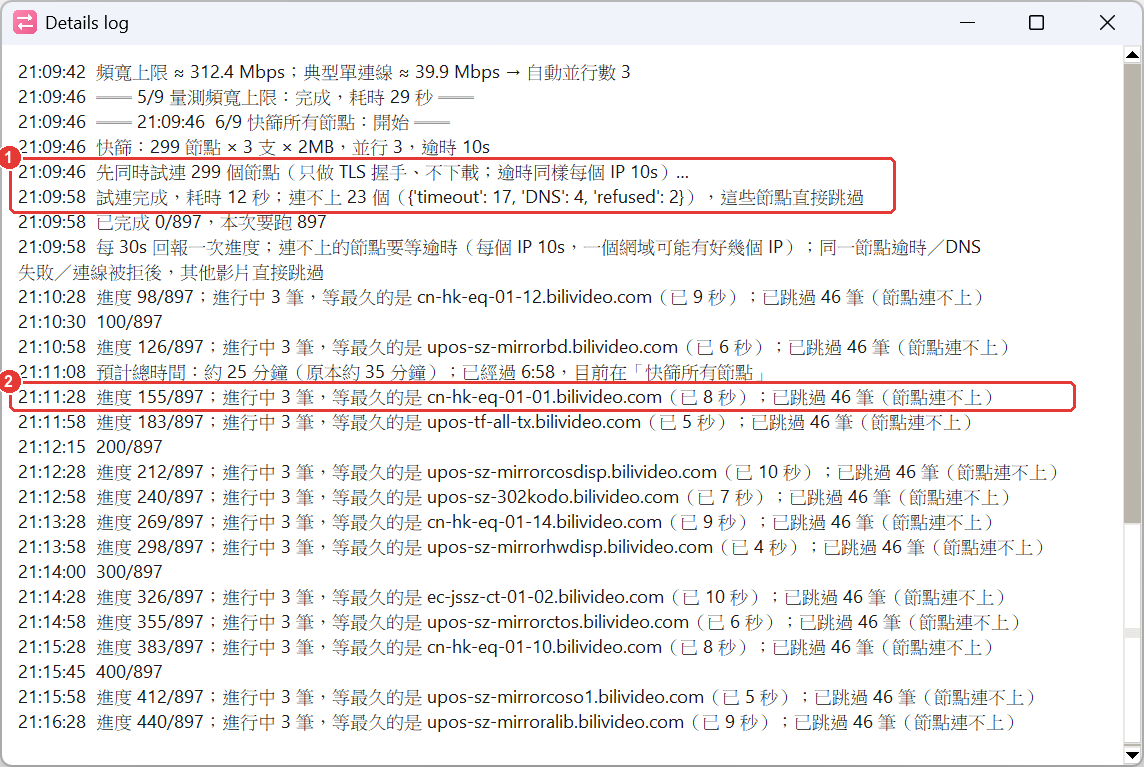
Box 1 is the handshake from above: downloads for nodes that didn't answer get skipped. Box 2 is the progress line printed every 30 seconds, naming the node it's waiting on.
How it picks "the 10 most stable" out of 299
"Stable" means two things here:
- Is each node stable on its own: none of the 10 videos can fail, and speed can't swing wildly.
- Is the list stable as a whole: if the default has a bad day and you switch to the next one, the next one shouldn't go down with it.
Each node: fastest on average isn't the same as best
After the detailed test, each node has speeds for 10 videos. The obvious move: average, sort, take the top 10. Nope:
Each row is a node, each dot one video's speed. The rules, top to bottom:
- Any of the 10 videos fails: not ranked (node A). A black screen halfway through is worse than slow.
- Wild swings: "unstable" (node B). Specifically, the standard deviation (how spread out the speeds are) is over half the mean. Blazing on popular videos, crawling on obscure ones. The average means nothing.
- The fastest "stable" node is the baseline (node C). How far another node is from it gets compared against the 10 videos' own ups and downs: if the gap is small enough to be luck (about 2 standard errors, i.e. the margin of error on an average), it's also "Tier 1" (node D). If the test can't tell them apart, I don't pretend it can.
- At least half the baseline's speed is "Usable" (node E). The rest are "Poor" (node F).
One more: a node whose average already uses 90% of "total bandwidth ÷ parallel count" goes straight to Tier 1. It's capped by your connection, not slow.
WARNING
To be honest, these rules have a few flaws. The 10 videos are deliberately layered, so popular and obscure ones are naturally far apart: a node doing "200 popular, 50 obscure" always has a big standard deviation, gets marked unstable, and ranks behind a node doing a steady 40 Mbps, even though its slowest video beats the other node's best. Also, both nodes are tested on the same videos, so strictly speaking you should compare them video by video. The current math overestimates the margin, so Tier 1 is probably too generous. For now I'd rather be conservative: unstable nodes never become the default, but they still go to the bottom of the list as backups.
Slot 1 is the default node: among Tier 1 nodes with low variation (standard deviation at most 30% of the mean) and decent response time, the one with the highest average. If nothing qualifies, the conditions relax step by step.
The list as a whole: why not just take the top 10?
First, "pools". Bilibili's own data centers have addresses like cn-hbwh-fx-01-01. Nodes whose first four parts match (cn, location, carrier, cluster) are one family, meaning one data center. Other nodes are grouped by CNAME (a domain's "real name"; lots of different node addresses actually point at the same cloud service). Huawei Cloud's general pool and its cold-storage pool count as two. Nodes that resolve to exactly the same IPs get merged.
Nodes in one pool share the same machines. If the top 10 all live in one pool and that pool has a bad day, all 10 go down together. That's really just 1 node.
So the app walks down the ranking with at most 2 per pool. When a pool is full, it skips ahead and lets another pool fill in:
The ranking goes: default node first, then Tier 1 → Usable → Unstable → Poor, by average speed within each tier. The app would rather fill the bottom with unstable or even poor nodes from other pools than leave a slot empty or stack one pool. So "the 10 most stable", strictly speaking, means "the top few are the most stable, and the whole list is unlikely to go down together".
There's data on this. Across the 33 reports I had at the time, nodes in the same family "failed together" 99% of the time, nodes in different families 64%. Same CNAME: 82%, different CNAME: 37%. That measures failures during the test, which often just means "this connection can't reach those machines". Whether a data center outage takes a whole pool down at once isn't something test data can show. So splitting by pool only lowers the odds of everything failing at once. It doesn't eliminate them. But picking everything from one pool really does leave you with one node.
Getting the 10 into your extension (the short way back)
When the test finishes, the app lists everything it's about to send: box 1 is the 10 suggested nodes, box 2 is which browser's extension to write them into. Hit box 3, and the report comes to me while the 10 nodes go into your extension:
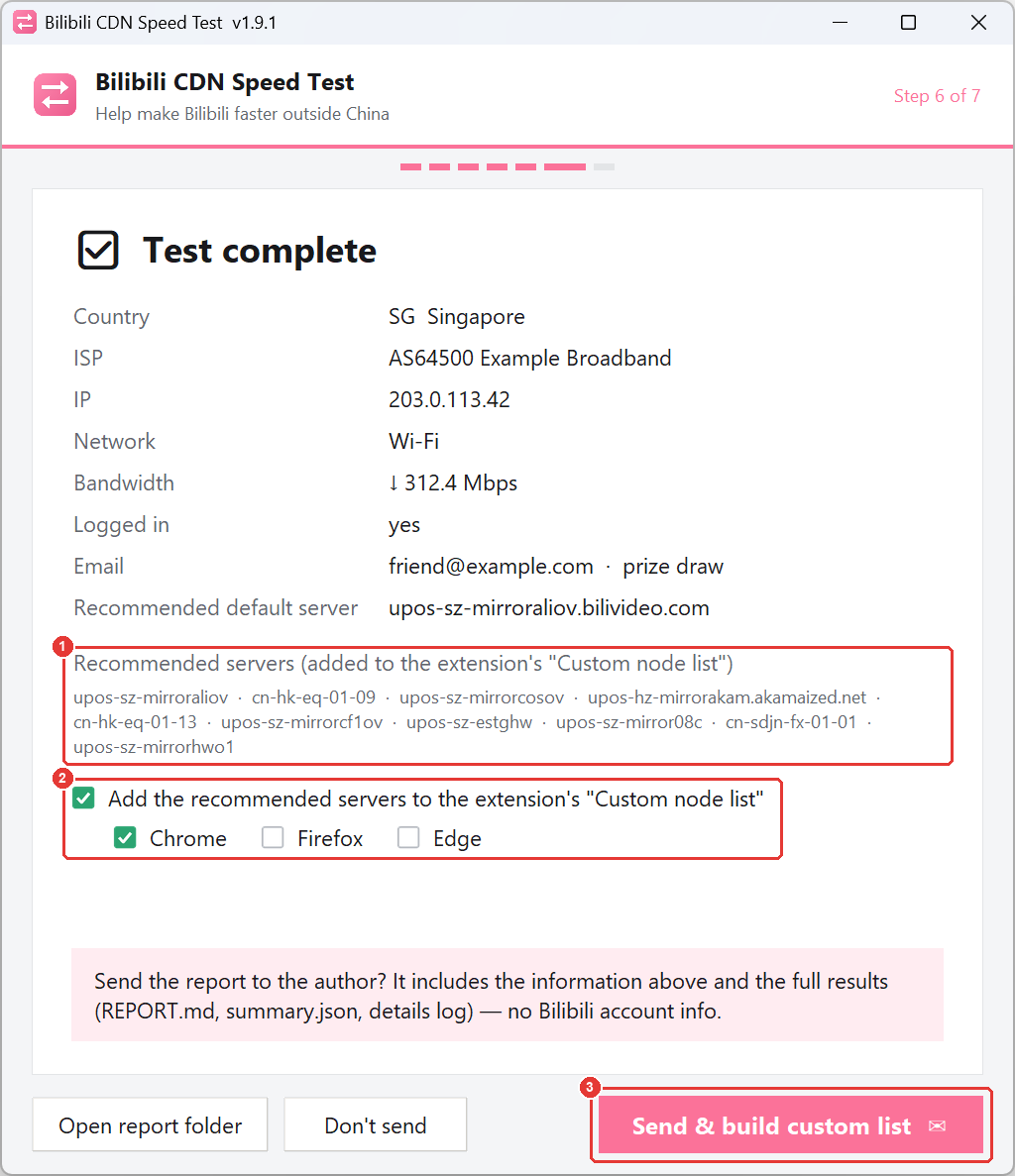
The import is tied to sending on purpose: if you want your own node list, you give your report back. Your report improves the defaults for everyone else on your ISP, and the next person's report improves yours. That's what keeps the loop turning. Hit "Don't send" and the report stays on your computer, and no custom list gets built either. (The other way works: untick box 2 and you send the report without importing.)
The problem: browsers don't let outside programs write to an extension's storage.
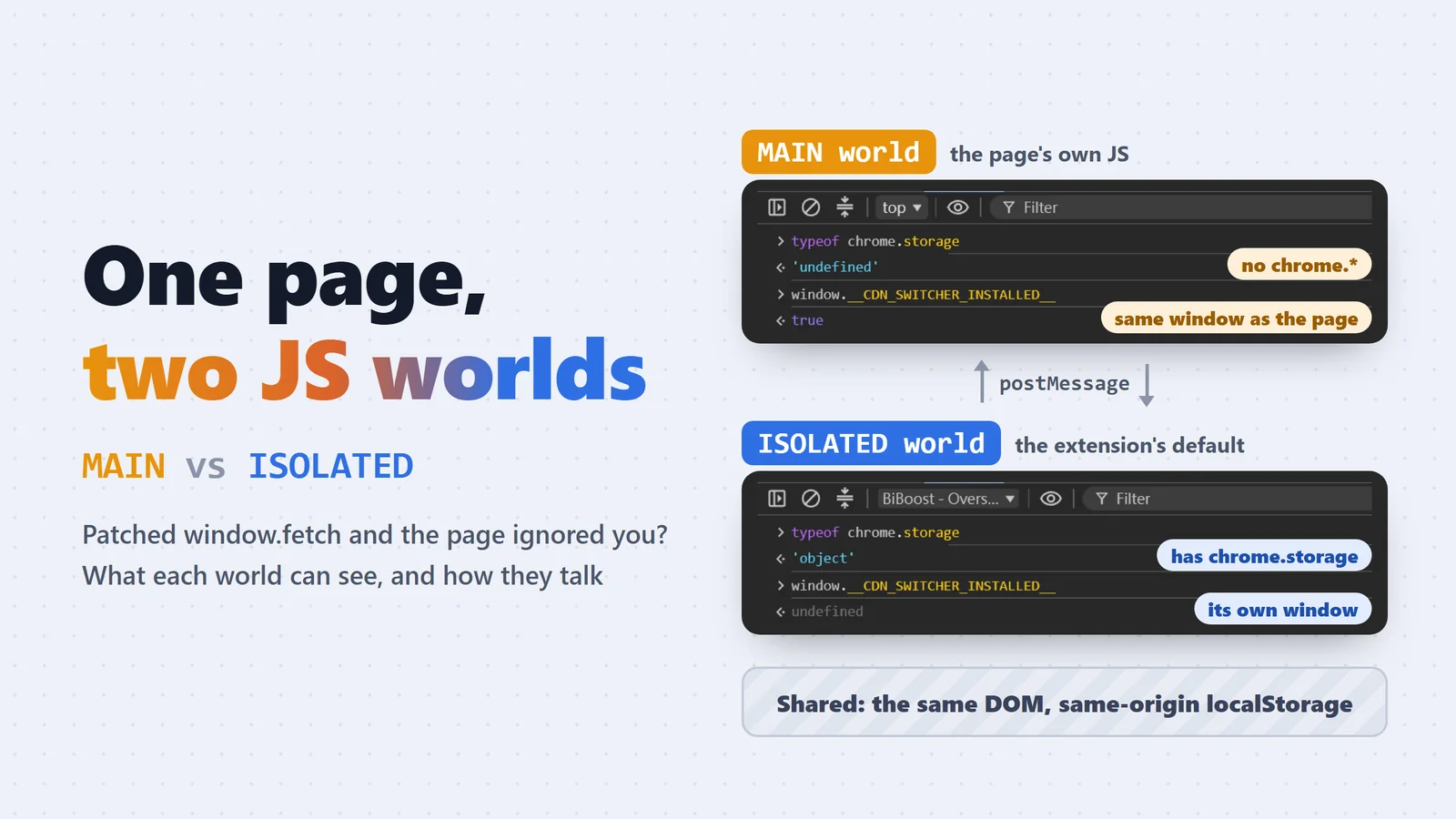
My workaround: the exe opens a Bilibili URL in your browser with the nodes after the # (the part after # never reaches Bilibili's servers; only scripts on the page can read it).
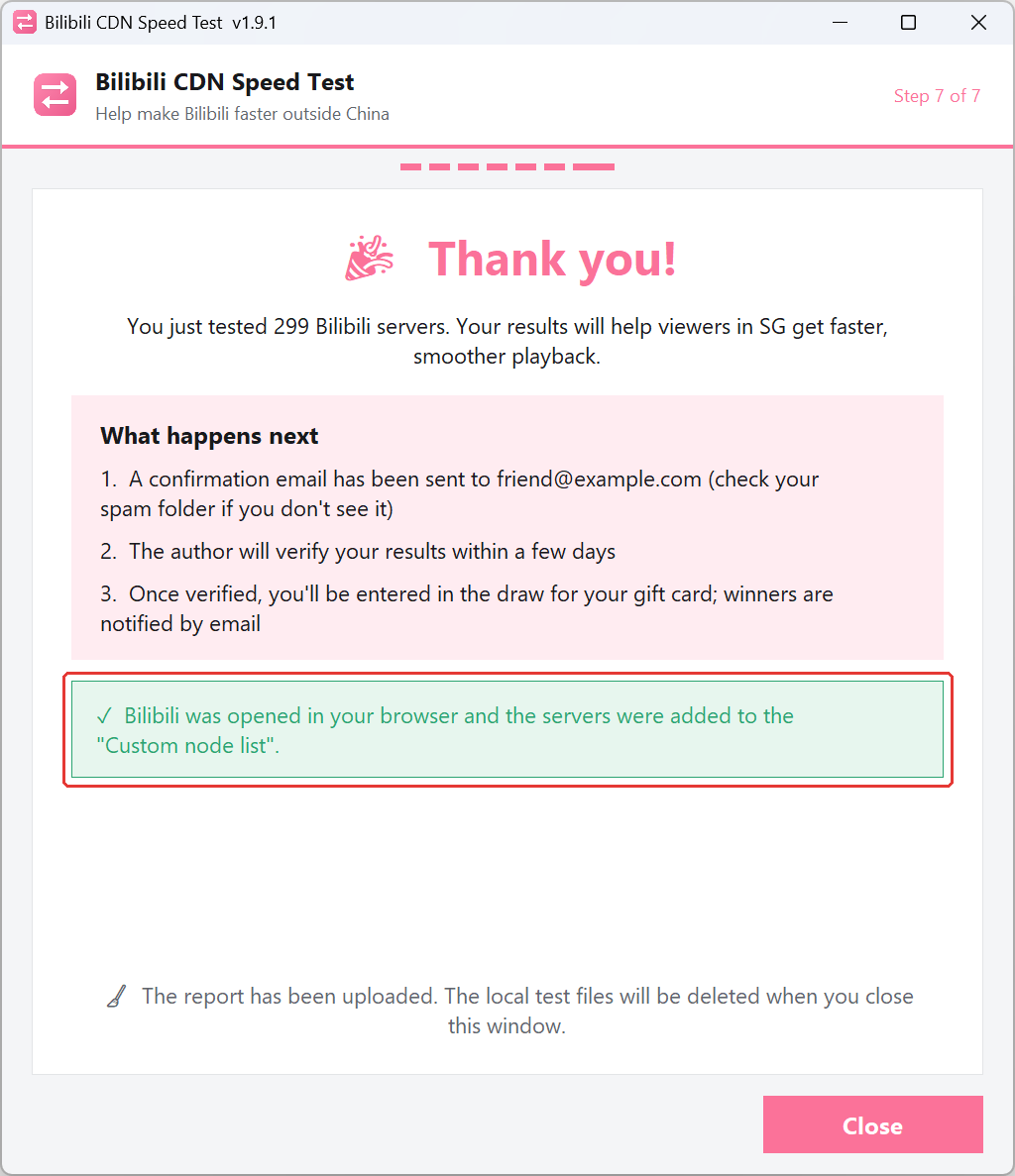
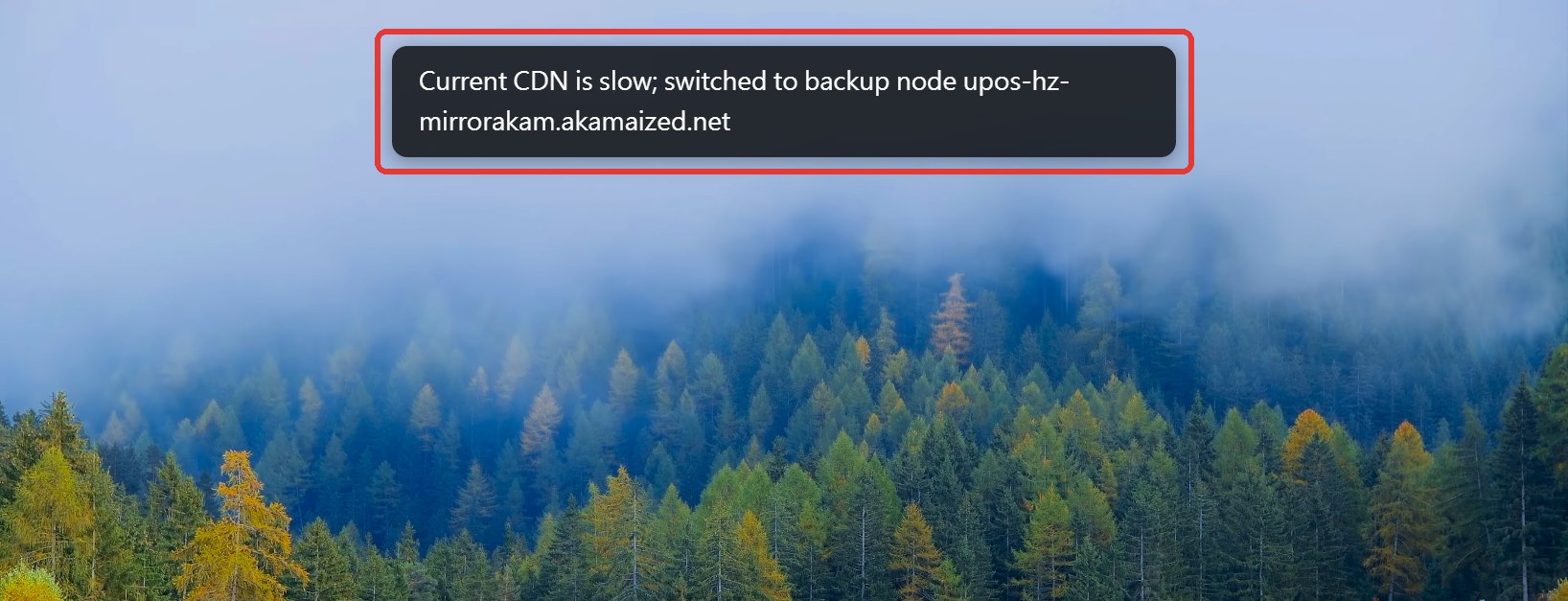
The extension already runs on Bilibili pages. It reads that # part, wipes it from the address bar first (so a refresh doesn't import again), and adds the nodes to the "Custom" list: it only accepts Bilibili nodes it already knows, skips ones already there, and puts new ones at the end. A banner at the top of the page shows the result, and that's the real confirmation. The exe only opens the URL; the message on its thank-you page appears once the URL is opened:
The import doesn't switch modes for you. Open the extension menu, set "CDN node" to "Custom", and there are the tested nodes (scroll the dropdown to see all of them):
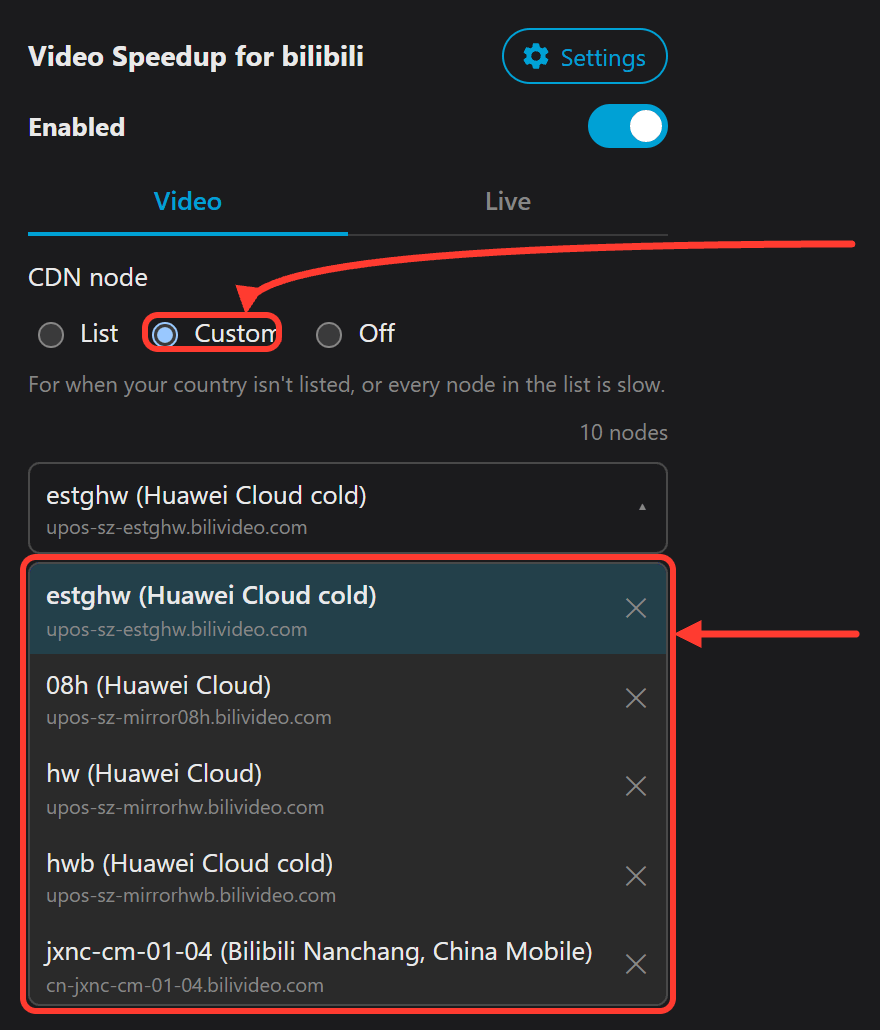
(This screenshot and the confirmation page above come from different runs, so the nodes differ.)
On the exe side, it first needs to know which browser has the extension: for Chrome and Edge it reads each profile's Preferences, for Firefox extensions.json, then opens the profile where the extension is installed. If you haven't installed it yet, the thank-you page shows store buttons. Install, hit "Build custom list", and it tries again.
How results come back to me and make the defaults better and broader
The short way only helps the person who ran the test. But they spent 20 minutes to nearly two hours on it, and what they found is just as useful to everyone else on the same ISP. That's the long way back:
The cdn-list.json in the diagram is the extension's built-in country node list.
How reports get back
I don't have a server, and I wasn't about to run one just to collect reports.
The receiving end is Google Apps Script (Google's free cloud scripting service), deployed as a web app, running under my own Google account. The exe bundles the report (REPORT.md), the structured results (summary.json) and the detailed log (run.log) into one JSON POST. Apps Script then:
- Checks that the report really comes from the speed test app and rejects anything else.
- Emails the three files to me as attachments, with the country, ISP and an 8-character report ID in the subject.
- Saves a copy to Google Drive and adds a row to a spreadsheet.
- Sends a confirmation email if the user left an address.
The spreadsheet step had a small gotcha: appendRow auto-converts values, so a report ID like 089934e2 turns into a number in scientific notation. The fix is to set text columns to plain text before writing. "Set the format, then write" is two steps, so it's wrapped in LockService to keep two reports arriving at once from interleaving.
NOTE
Privacy: what comes back is "how fast this ISP loads these Bilibili videos". It doesn't say who ran the test. The IP is only used to work out the country and ISP, and to merge repeat tests from the same line. An email is only needed if you enter the prize draw, for the confirmation and the gift card. Beyond that, I don't collect any personal data that has nothing to do with improving the node lists. Wi-Fi names aren't recorded, and not a single byte of your Bilibili account info is sent. Nothing is sent before you accept the privacy notice, and after a successful upload, local results are deleted when you close the app.
Collecting and analyzing are scripts. The final call is mine.
Once reports land in Gmail, the next two steps are scripts (I set them up as two commands in Claude Code, an AI coding tool, which is why the names start with /):
- Collect and file (
/collect-speedtest-mail): pulls the test emails out of Gmail, validates the attachments, drops duplicates and anything with a VPN detected, files the rest by country on my machine, and moves processed emails to the trash so next time only new ones show up. - Cross-report analysis (
/analyze-cdn): combines every report for one country into an analysis report.
A single report answers "what's the best node for this connection". The built-in list answers a different question: someone in this country just installed the extension and touched nothing. Which default is least likely to go wrong?
The analysis script does a few things:
- Merges repeat tests: reports from the same ISP and exit IP (the IP the internet sees you as) with consistent results count as one line tested several times, so one sample. Otherwise someone who runs it three times gets triple the weight.
- Decides "passing": a node passes in a report if its speed there is enough for 4K (roughly 22 Mbps). Unstable, failed and popular-only all count as not passing.
- Drops broken measurements: reports where fewer than 30 nodes passed the quick screen (usually a DNS or network problem) or where measured capacity is under 30 Mbps are excluded automatically and listed for me to decide whether to delete.
- Keeps mobile networks separate: phone hotspots and 5G home broadband are different networks from the same carrier's fixed line, and good and bad nodes often flip. So they're grouped on their own, left out of the default, and only used to fill gaps when the rest of the list is picked.
Then it picks the default node. Taiwan's data from 2026-10-25 (106 reports, 16 fixed-line ISPs plus 2 mobile networks) shows why that's hard:
Taiwan's ISPs roughly split into two camps. Chunghwa Telecom likes one set of nodes (the Nanchang one, a China Mobile data center, passed on all 41 of its lines). Almost everyone else likes another set (Jinan and Wuhan pass on nearly every line from kbro, TBC and the smaller ISPs), but those only pass on about half of Chunghwa's lines. CNS, the second biggest, doesn't do well with either; more on that later. No single node works for everyone.
So the default is chosen by coverage: each ISP's pass rate times its market share, added up. Market share comes from public figures like NCC statistics and carrier financial reports, never from how many reports came in (otherwise whoever sends the most reports wins). Chunghwa has the biggest share, but everyone else combined isn't small either, so the highest coverage goes to Wuhan (65%), not Chunghwa's favorite Nanchang (63%).
The other 9 slots go round-robin: each round, every ISP, in order of market share, picks one node from its own Tier 1 that isn't on the list yet. Here Tier 1 is ranked from all of that ISP's lines combined, with the same idea as the single-report tiers, so it's relative: the baseline is that ISP's own best node. Chunghwa's top-scoring Tier 1 node is Huawei Cloud: Nanchang passes everywhere, but Huawei Cloud is faster. Chunghwa first, CNS second, and so on, then a second round. If the list already has a Tier 1 node for some ISP, that ISP sits the round out and the slot goes to someone not yet covered.
People the default doesn't suit switch within this list: pick another node in the extension menu, or hit "Test node speeds" to test the list and choose.
IMPORTANT
The one step in "keeps improving" that isn't automatic is the last one: whether to actually change a list. I read the analysis and decide. The script's suggested list is built from scratch, and lots of nodes score close together, so a small reshuffle swaps who makes the cut. "The suggested list differs from the current one by 6 nodes" doesn't mean "it's much better".
Taiwan's analysis this time is a good example. The script suggested switching the default from Jinan to Wuhan, coverage 63% → 65%. But that's 2 points. Resampling the lines (re-running the numbers many times on random subsets to see how stable the answer is) spreads the "would be number one" share across several nodes. Statistically a tie, so the default stays. I also went through the fixed-line ISPs one by one: every ISP's best node on the current list was already Tier 1. No change there either.
In the end, one thing changed: the last node on the list, cn-sccd-fx-01-01, was "Poor" for every ISP, so it was swapped for cn-hk-eq-01-13. That bumped Taiwan Mobile's mobile network from "Usable" to "Tier 1" without making anyone else worse. 106 reports, one line changed.
That's my bar for "accuracy": every change has to name which ISP it helps and show nobody else gets worse. The first time I switched to market-share weighting, in October 2026, six countries' lists were updated at once. This time it was one line.
Covering more people: find testers for the gaps
Who the list can serve depends on whose reports come in. The last section of every analysis report is "samples needed". For Taiwan this time:
- TFN (Taiwan Mobile's home broadband) has only 3 lines. Needs 3 more.
- CNS has 12% market share and 11 lines, and not a single node makes its Tier 1. The best ones pass on only about half of its lines. No list change can fix that. It needs reports from the new app version and evening tests, to tell whether it's specific times or areas or the whole ISP.
- Very few Chunghwa samples from southern and eastern Taiwan.
That list turns straight into a recruiting target. The extension has a notice board that shows announcements by country, and the speed test app only shows prize draws for your own country. For ISPs short on samples, I hand out "guaranteed prize" invite codes, or post on forums asking for specific people (for example, in mid-October I asked on Mobile01 for users of TFN, DaDa Broadband, APTG and kbro).
Countries get added the same way. The extension currently has built-in lists for 10 countries (Taiwan, Singapore, Hong Kong, Japan, Australia, the US, Macau, the UK, Spain and Russia). People anywhere else can still run the test and use the short way back to build a list for themselves. Once enough reports come in, that country gets its own default list.
What's not done yet
- The CNS problem, as above. More samples first.
- The time estimate's constants (seconds per download, fixed seconds per stage) come from tests in Singapore and haven't been calibrated against real durations from other countries. The first number on the network check page is a rough guess. It corrects itself once the test starts.
- Windows only. Mac users get the command-line version, which doesn't send reports back automatically.
Plenty of countries and ISPs still need samples. If you're outside mainland China and have a Windows PC at home, run a test. Source code is on GitHub.

Comments(0)
No comments yet. Be the first to share your thoughts!